Start by defining the job
Before opening a design tool, write down what the finished piece needs to do. Identify its audience, where it will be viewed or used, and the one action or idea it should support. A presentation slide might need to explain a process at a glance; a weekly planner might need enough writing space to be useful. These are more helpful starting points than “make it look polished.”
Collect the content you already have, then separate essentials from optional details. Note practical requirements such as page size, screen dimensions, file format and whether someone else will edit the design later. If a requirement is unknown, mark it as a question rather than guessing. This short brief gives you something to check against when choices about fonts, colors or decoration become distracting.
Make a rough draft before styling
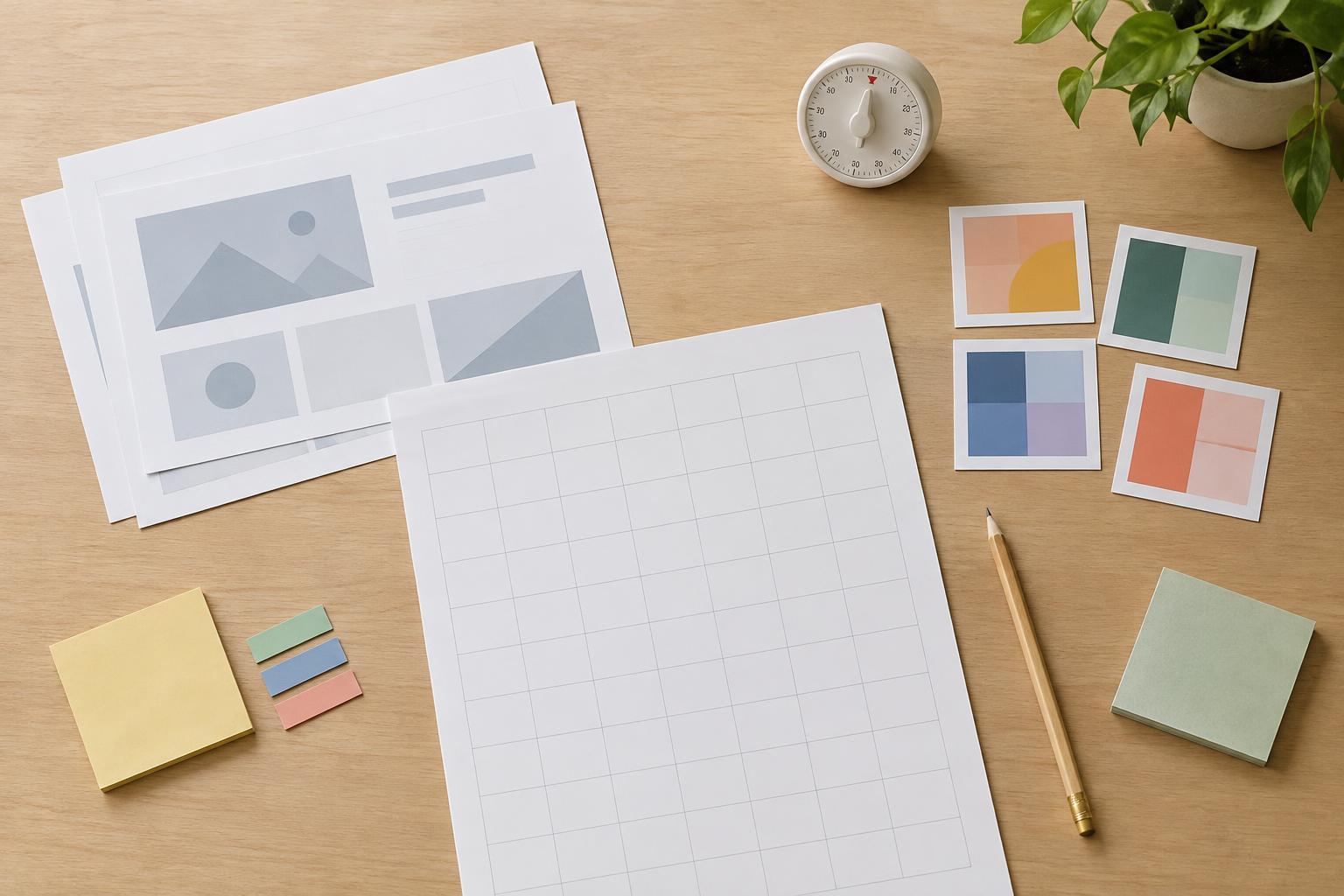
Begin with boxes and labels, either on paper or in your design tool. Place the most important content first, then group related items and leave space between groups. For a slide, that could mean a title, one central diagram and a short takeaway. For a printable planner, it could mean the date, daily priorities and a larger area for notes. The goal is to test the structure, not to produce a beautiful first attempt.
Look at the draft at the size someone will actually use it. A planner that looks balanced while zoomed in may have cramped writing areas when printed. A social graphic may have readable text on a desktop canvas but tiny text on a phone. Adjust the size and order of elements now, while changes are easy. If the design feels crowded, try removing or shortening content before shrinking every font.
Build a small, consistent visual system
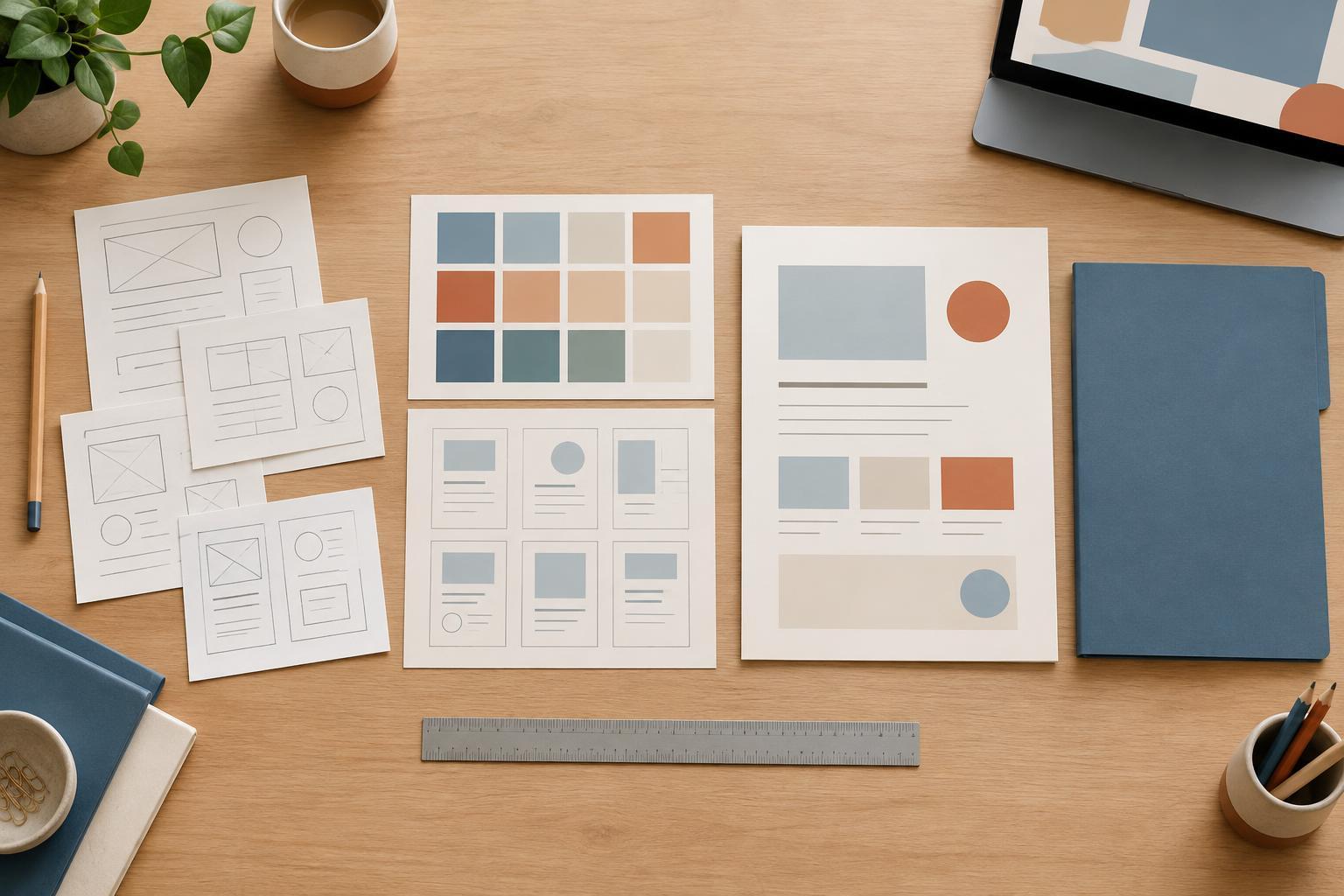
Once the structure works, choose a limited set of styles. Use a clear type hierarchy, such as one style for headings, one for body text and one for small labels. Pick colors with distinct jobs rather than applying them at random: a primary text color, a background color and an accent for emphasis may be enough. Check that text remains easy to distinguish from its background, including on colored shapes.
Make alignment and spacing repeatable. For example, keep headings the same distance from the content beneath them and align text boxes to shared edges. If you are customizing a template, update its recurring styles and sample content instead of changing each item independently. Consistent rules help a set of slides or planner pages feel connected, and they make later edits less laborious.
Review in separate passes
Reviewing everything at once can make small problems hard to spot. First check the message: is anything missing, out of order or unnecessarily repeated? Next check usability: can a reader scan the headings, follow the intended path and use any blank spaces as expected? Then check visual details such as uneven spacing, awkward line breaks and inconsistent colors. Reading the text separately is a useful way to catch typos that the layout can hide.
Finally, test the piece in its intended form. View slides in presentation mode, inspect a social graphic at a smaller size, or print a sample planner page if printing is part of the job. Ask a reviewer a specific question, such as “What do you notice first?” or “Is there enough room to write a task?” Focused feedback is easier to act on than a general request for opinions. Make the changes that improve clarity before polishing minor decoration.
Prepare and deliver the right files
Keep an editable working copy, then export a separate final version in the format the recipient needs. Before delivery, open the exported file rather than assuming it matches the canvas. Check for clipped text, missing images, shifted elements and pages or slides in the wrong order. If the design will be printed, confirm that the exported page size matches the intended paper size; if it will be shared on screen, check that it remains readable at a realistic viewing size.
Use filenames that identify the project, item and version clearly. Put final exports in their own folder so they are not confused with drafts, and include the editable file only if it is needed. A brief handoff note can say what is included and which file is ready to use. This final step turns a finished-looking design into a deliverable that someone can find, open and use with confidence.