What a grid does for your layout
A layout grid is a set of guides that helps you decide where elements belong on a page. It can be as simple as equal margins and one column of text, or it can divide a page into several columns. The guides do not appear in the finished design; they help you make placement decisions while you work.
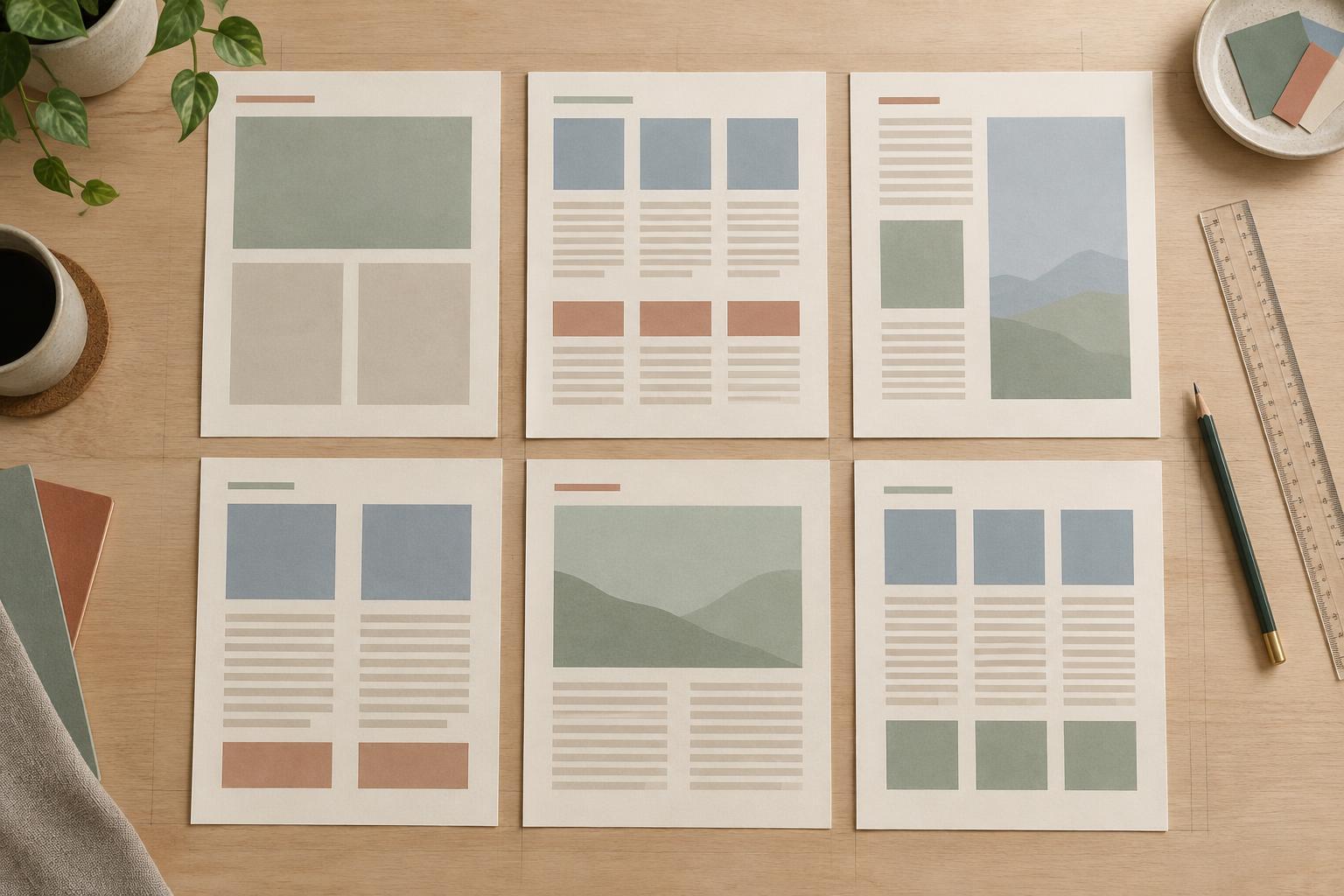
Without a grid, small choices can drift. A heading may start slightly farther left than the paragraph below it, or similar images may have different widths. A grid gives those elements common edges to align with. It also makes it easier to repeat a layout across a slide deck, a printable planner or a series of social graphics.
A grid is not a rule that every element must follow exactly. Think of it as a reliable starting point. Once the structure is clear, you can depart from it deliberately to draw attention to something important.
Start with margins and usable space
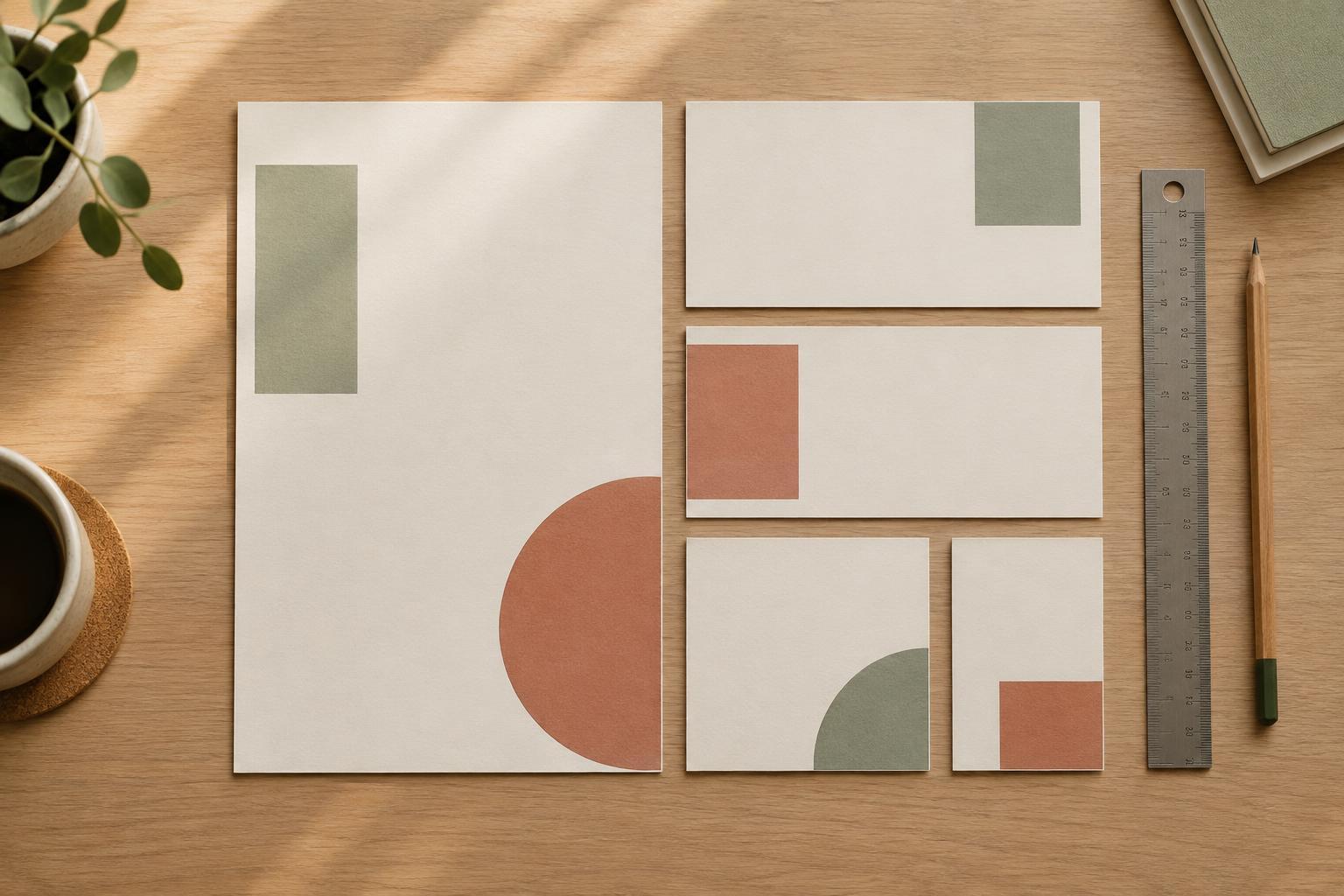
Before adding columns, define the space your content can occupy. Set a margin on each side of the page, then look at the area left in the middle. Margins keep text and images from feeling crowded against the edges. On a printable page, they also leave room for practical concerns such as trimming or binding. On a presentation slide, they help content remain comfortably contained.
The margins do not always need to be identical. A planner page that will be bound on one side, for example, may benefit from extra space along its inner edge. What matters is that the choice is intentional and used consistently on related pages.
Next, place a heading and a short block of body text inside the margins. Check whether the line length feels comfortable and whether there is enough room for the content the page needs to hold. It is easier to adjust margins now than after filling the page with details.
Choose columns that suit the content
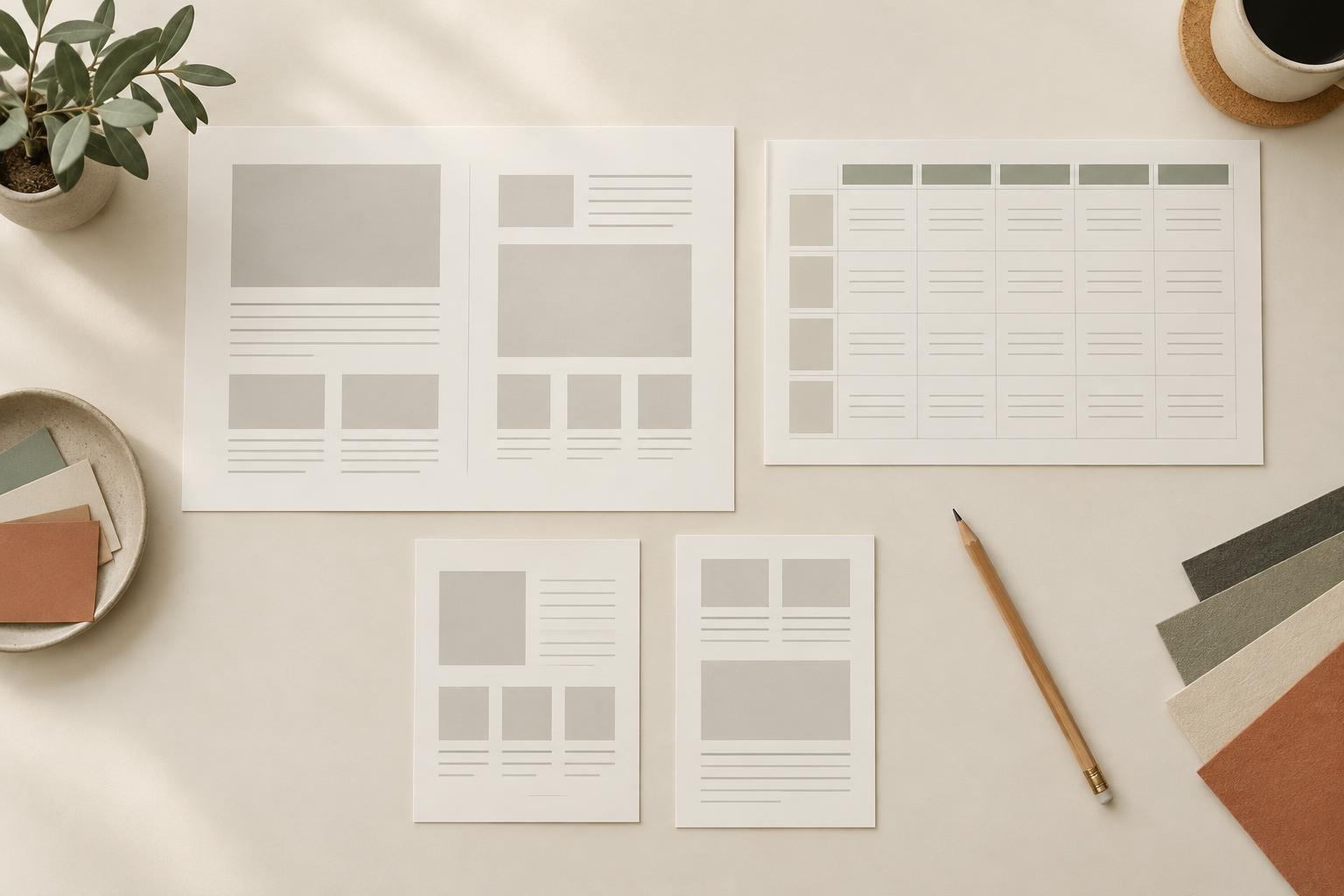
Columns divide the usable space into predictable areas. A single column works well for instructions or longer reading. Two columns can separate a planner’s schedule from its notes, or pair an image with an explanation. More columns can help arrange smaller items, but they also create more alignment choices. If you are new to grids, begin with the fewest columns that solve the layout problem.
The space between columns is called a gutter. Give the gutter enough width that neighboring content does not appear to run together. You can let an element span multiple columns: a page title might stretch across both columns while the details beneath it occupy one column each.
For a simple presentation slide, try a two-column grid. Put a short explanation in the left column and a diagram in the right. Align their top edges, then compare how the slide feels when both sit within the same margins. The goal is not perfect symmetry; it is a clear relationship between the pieces.
Use spacing to create a steady rhythm
A grid also helps with vertical placement. Choose a small set of spacing amounts for gaps between headings, paragraphs, images and sections. For instance, the gap between a heading and its body text can be smaller than the gap between two separate sections. Repeating that pattern makes pages easier to scan.
You do not need to calculate every position. Many design tools offer guides, rulers, alignment controls or a snap-to-grid feature. You can also duplicate a well-spaced page and replace its content. As you work, check that related items share edges and that repeated gaps look alike.
Spacing should support the content rather than force it into a rigid pattern. If a planner box needs more writing room, give it more space. Then adjust nearby elements so the page still looks balanced.
Check the grid, then allow useful exceptions
When a page is assembled, zoom out and look for patterns before inspecting individual details. Do headings begin at the same edge? Are similar text blocks the same width? Do image captions sit close enough to the images they describe? These questions can reveal inconsistencies that are easy to miss while editing one element at a time.
Then test the layout with different content. A longer heading, a shorter paragraph or a new image may show where the grid needs flexibility. Keep the shared margins and main alignments where possible, but avoid shrinking text or squeezing gaps simply to preserve a pattern.
A useful grid makes choices easier, not narrower. Build a simple structure, repeat it across related pages and change it when the content calls for a better arrangement. That balance gives your designs consistency while leaving room for variety.