Start with one home for each project
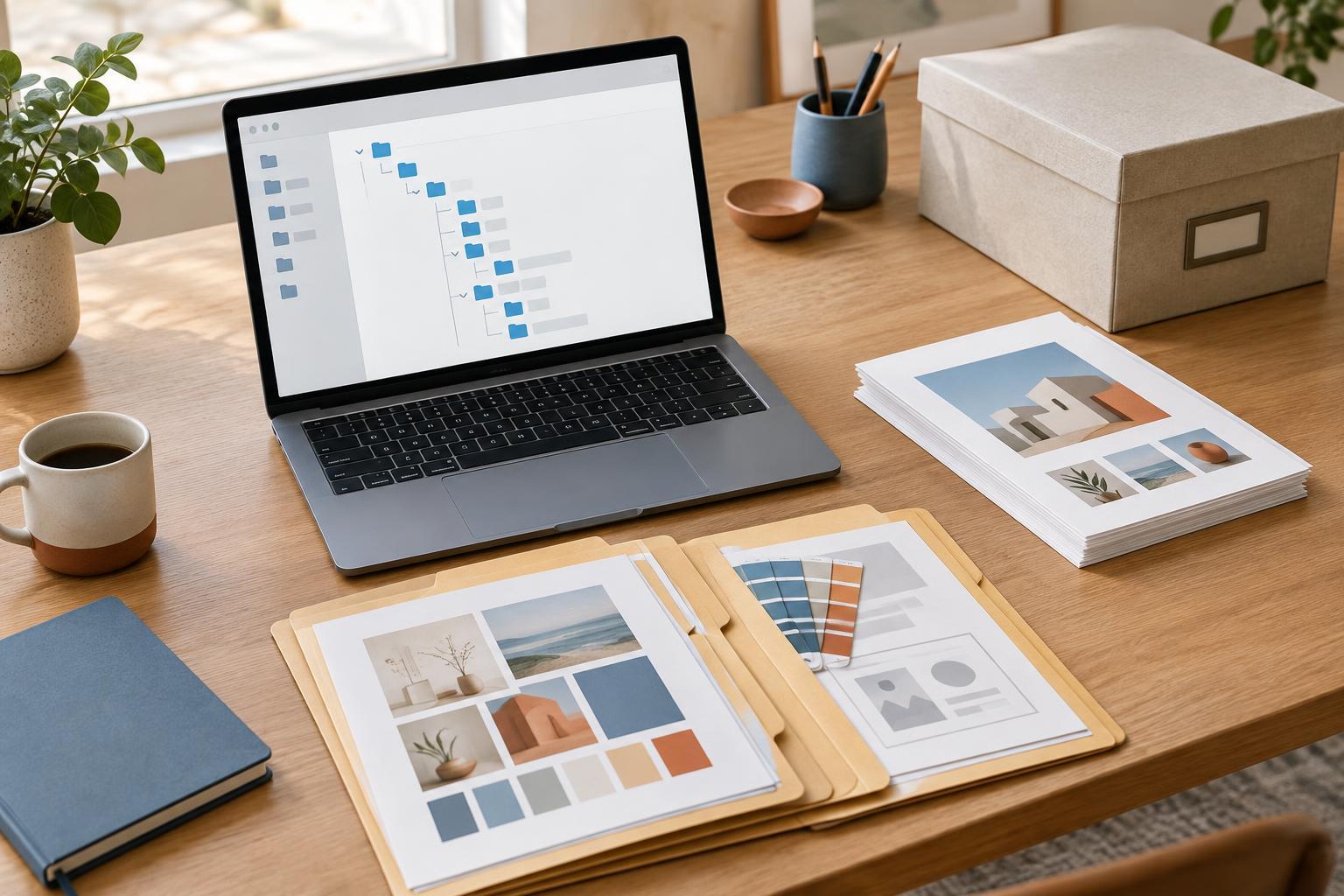
A useful folder structure answers a simple question: where would you look for this file first? Start with a main folder for your design work, then give each project its own folder. You might organize the top level by client, by content type or by year. Pick the approach that matches how you usually search. If you remember who a presentation was for, use client folders. If you remember that it was a planner, group projects by content type.
Give project folders descriptive names, such as Reading_Planner or Workshop_Slides, rather than Project_1. For recurring work, add a distinguishing detail: Workshop_Slides_Spring_Session is easier to recognize than a row of folders called Workshop_Slides. Keep the structure shallow enough to browse comfortably. A few predictable levels are more useful than a long path that you have to click through every time you need an image.
Use the same core folders inside every project
Within each project, create a small set of folders that follow the work from start to finish. For example: 01_Brief, 02_Assets, 03_Source, 04_Exports and 05_Archive. The numbers keep them in a consistent order when a file browser sorts names alphabetically. You can change the labels to suit your tools, but using the same pattern across projects reduces the need to remember a new system each time.
Put goals, dimensions, copy and reference notes in Brief. Assets holds items you use in the design, such as photographs, illustrations, logos and fonts you are permitted to store with the project. Source is for editable working files. Exports holds the files made for sharing, printing or publishing, such as a PDF planner or a presentation prepared for review. Archive is for material you want to retain but no longer need in the active workspace, including superseded directions or earlier finished versions.
Only add subfolders when they solve a real problem. A presentation with many images might need 02_Assets/Photos and 02_Assets/Icons. A small one-page graphic may not. Empty folders can make a system look tidy without making it easier to use.
Name files so their purpose is visible
A folder structure works best when filenames also carry useful information. Include the project name or a short identifier, the file’s purpose and, when needed, its version. Workshop_Slides_Source_v03 is more informative than New_Deck_Final2. Use one separator style, such as underscores or hyphens, so names stay consistent. If several people contribute files, agree on the pattern before the folder fills up.
Reserve “final” for files that are genuinely ready to hand off, and still identify what they are. Reading_Planner_Print_A4_v02 and Reading_Planner_Screen_PDF_v02 distinguish two exports that serve different purposes. If revisions are frequent, numbered versions help preserve milestones without relying on labels such as final_really_final. Save a new version when you make a substantial change; you do not need a separate file for every small adjustment.
Keep source material separate from deliverables
Editable files and finished exports often share similar names, but they serve different jobs. Keeping them apart lowers the chance of sending an unfinished layout or editing an old export by mistake. When you produce a new deliverable, check its page size, image placement and text before moving it into Exports. If the project has multiple destinations, add folders such as Print and Screen inside Exports only when the distinction helps you find the right file.
Treat supplied assets with care, too. Keep an original copy of an image before cropping or adjusting it, and name edited copies clearly. If an asset came with usage notes or a license document, keep that information near the asset so it does not get separated from the file. For a project that uses links to external assets, a short note in Brief can record where those assets belong without scattering reminders across the workspace.
Build a small cleanup habit into the workflow
The best structure is one you can maintain while you are busy. At the start of a project, duplicate an empty project-folder template and rename it. During the work, put downloads and new exports in their intended folders rather than leaving them on the desktop. Before sharing files, open the Exports folder and confirm that it contains only the versions the recipient needs.
When a project is complete, move abandoned drafts into Archive and remove obvious duplicates that have no value. Keep any files needed to edit or understand the finished work together. If you work across devices or with others, use a storage and backup approach appropriate to the project, and make sure everyone knows which folder holds the active source. A folder system does not have to be elaborate to be effective: its job is to make the next file easy to find and the next edit easy to start.