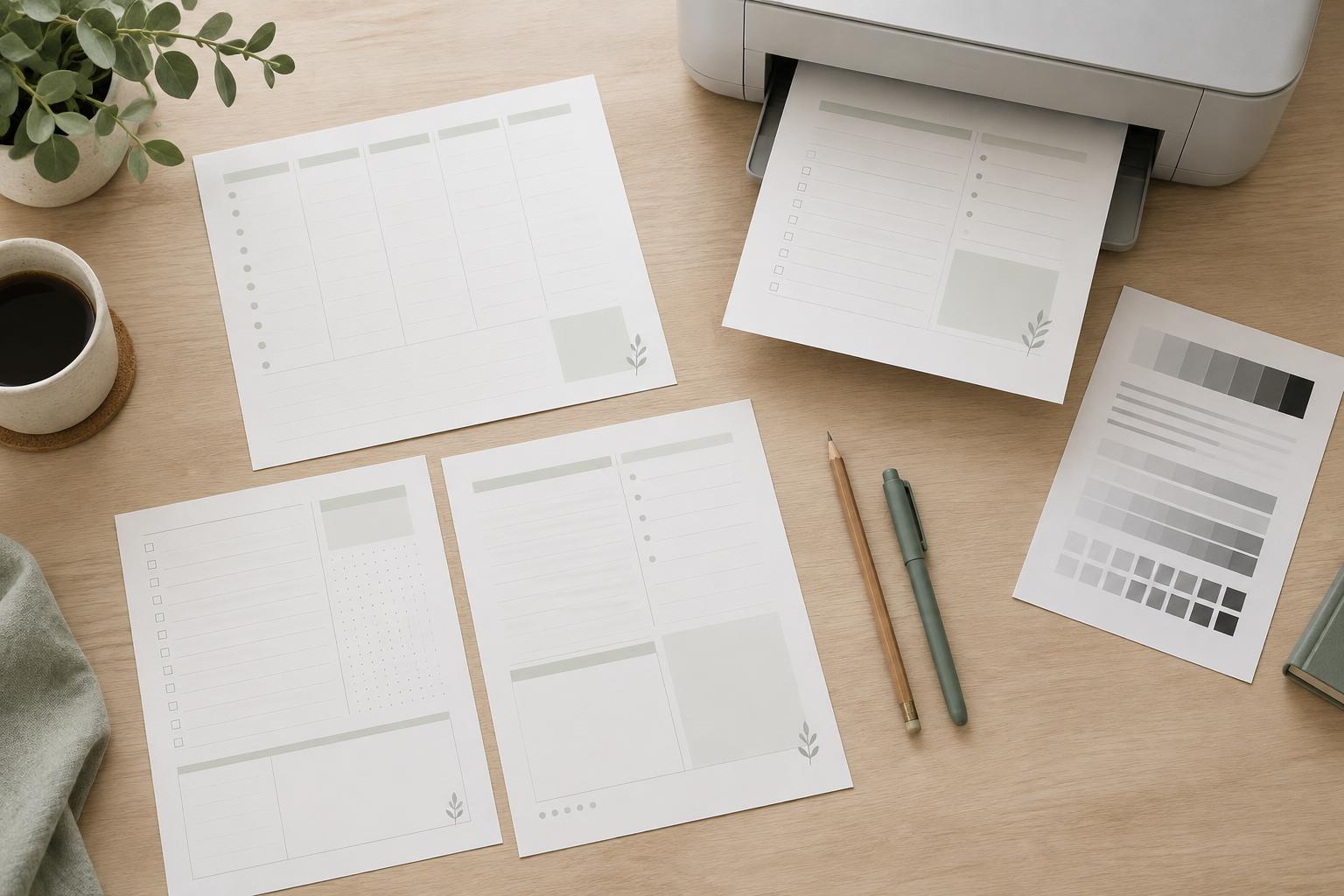
A page can change size without looking different on screen
A printable planner has a page size built into its file. Its calendar boxes, lines, labels and margins are arranged within that page. When you print, the print dialog may keep those dimensions or resize the entire page to fit the paper selected in the printer settings. The preview can look nearly identical either way because it often scales the image to your screen.
That difference matters most in a planner you intend to write on. Shrinking a page reduces not only its outer dimensions but also its line spacing, text size and writing areas. Enlarging one can push content toward the edges or beyond the area your printer can print. Before adjusting the design to fix a disappointing print, check whether the print settings changed its scale.
What Actual Size and Fit to Page usually mean
Actual Size, sometimes called 100% scale, generally prints the file at its specified dimensions. A box designed to be one inch wide should measure about one inch on paper. This is useful when writing space, punched-hole placement or the dimensions of a cut-out are important. It does not, however, guarantee that the whole page will print: if part of the design falls outside the printer’s printable area, that part may be clipped.
Fit to Page generally scales the file so its contents fit within the available print area. If the printer cannot print close to the paper’s edges, the software may shrink the planner slightly to preserve everything. This can be a sensible choice when keeping all labels and borders visible matters more than exact measurements. Similar-sounding options such as “Fill” may behave differently, enlarging the page and cropping its edges instead.
The labels and behavior vary between print dialogs. Check the preview and any displayed scale percentage rather than assuming that a familiar option will act the same way in every app.
Paper size and printer margins come first
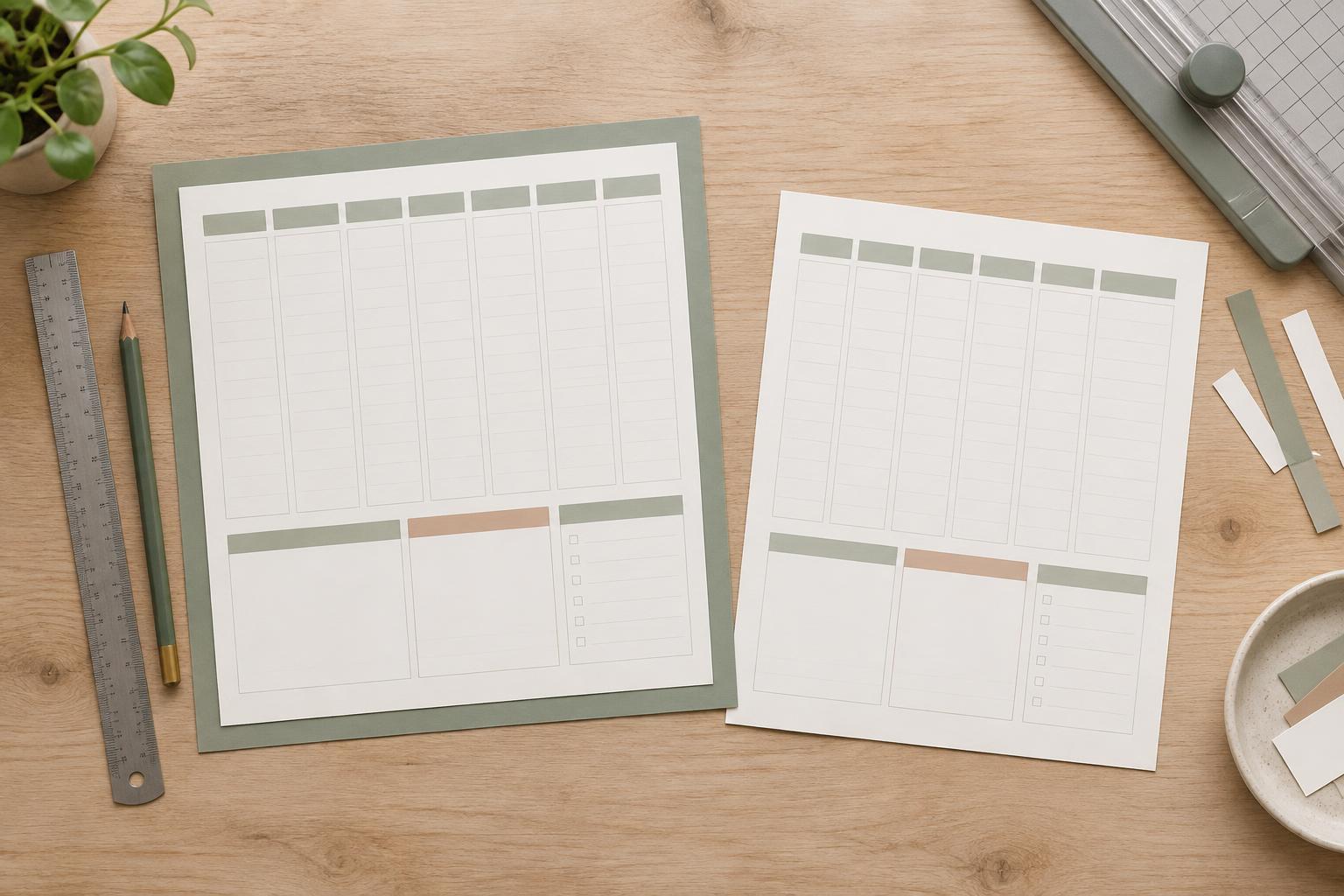
A file designed for one paper size will not automatically match another. For example, a page laid out for US Letter may be reduced when printed on A4, even if both sheets look broadly similar. Select the paper size loaded in the printer and check the document’s intended size before choosing a scaling option. If they differ, decide whether a smaller page with everything visible is acceptable or whether you need to redesign for the paper you have.
Most home printers also leave a nonprintable margin around the sheet. A planner border placed at the very edge may be cut off at Actual Size or moved inward by Fit to Page. If you are creating the planner, keep essential text, writing lines and trim marks comfortably inside the printable area. If you are printing an existing file, a slightly uneven or wider border may reflect the printer’s limits rather than a flaw in the layout.
Run a test print you can measure
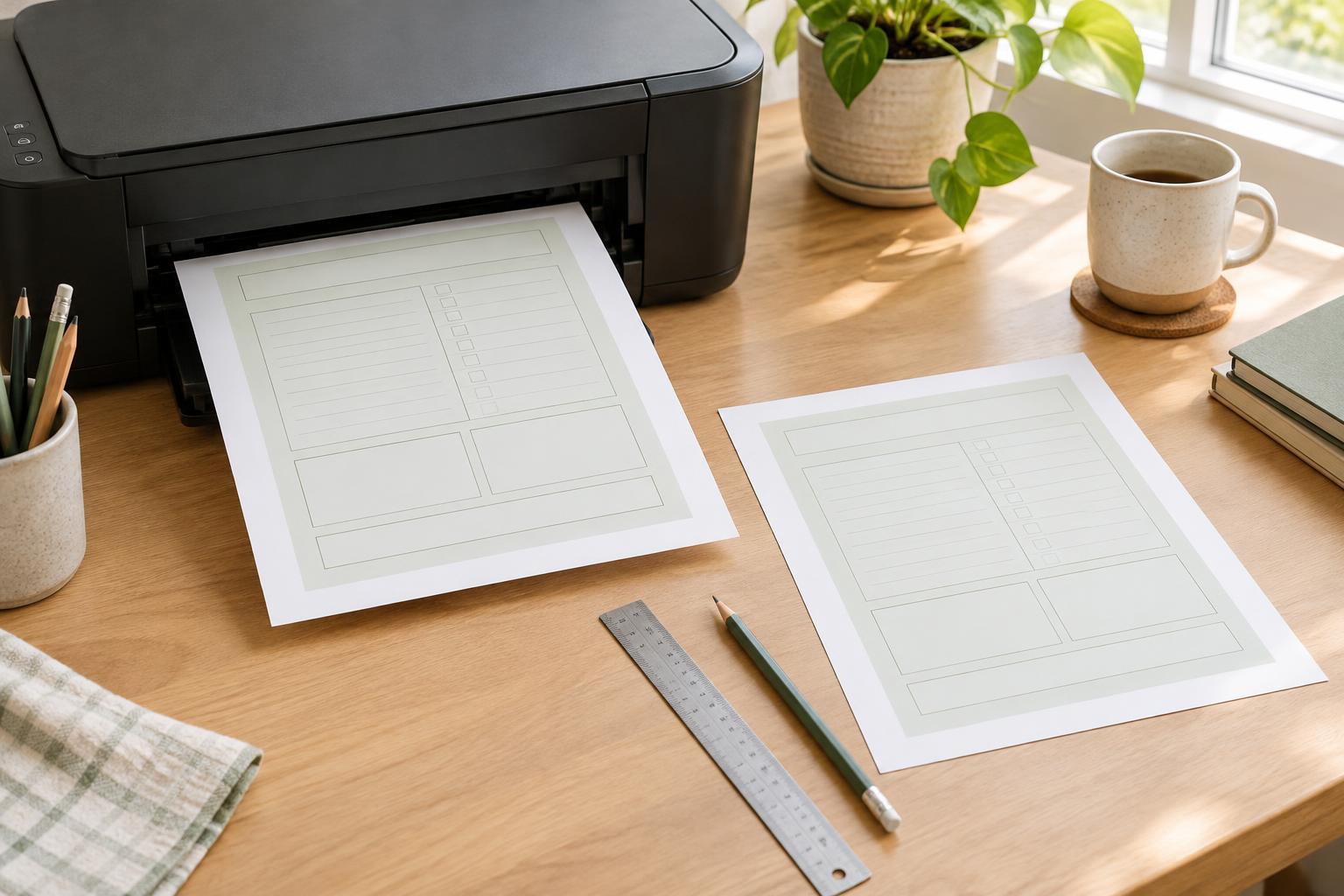
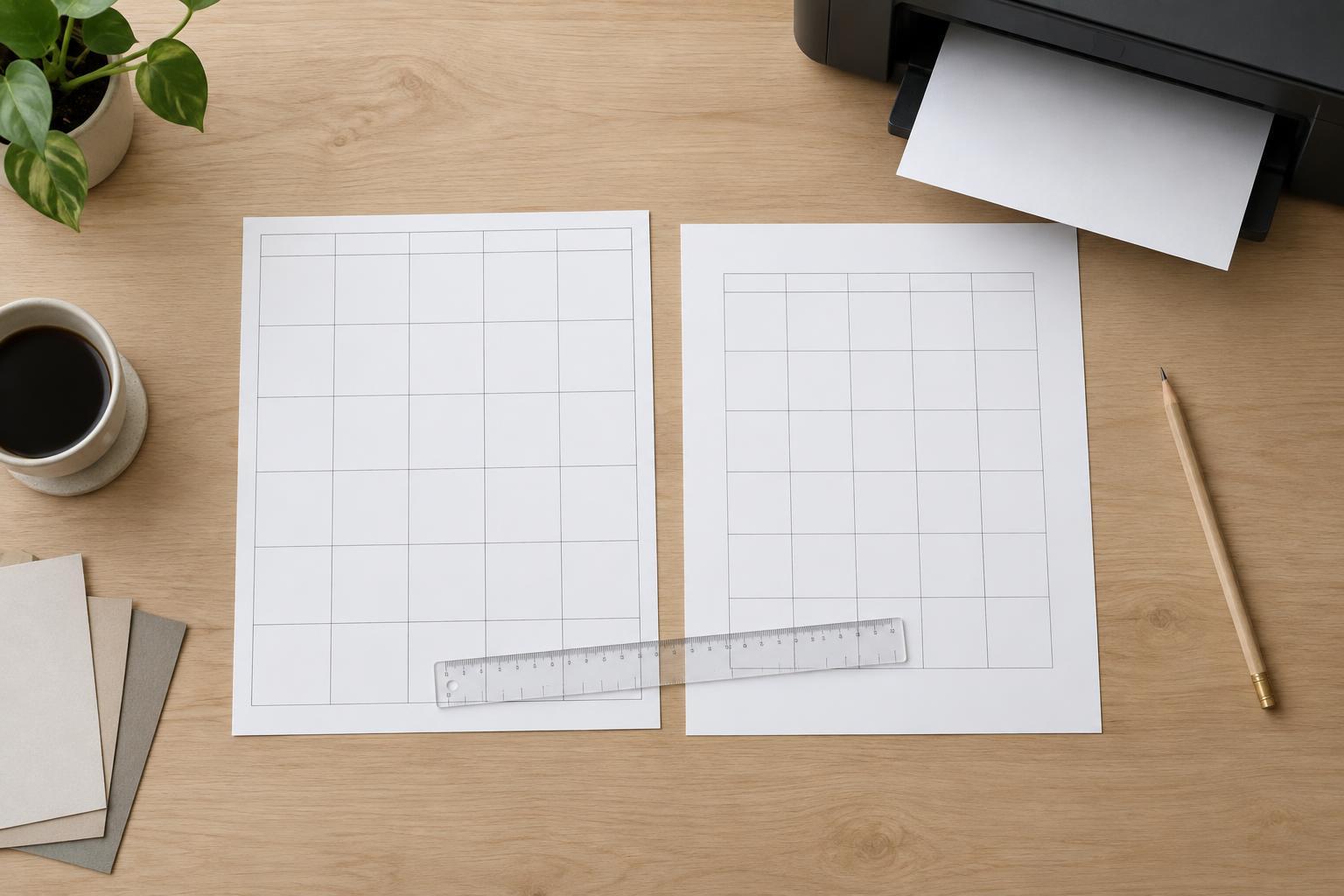
Print one representative page before producing a whole planner. Choose a page with the narrowest writing spaces, small labels or content near the edges. Confirm the paper size, orientation and scaling option in the print dialog, then inspect the preview for missing content. After printing, use a ruler to compare a known measurement in the file with the result on paper. If the file has no stated measurements, compare the printed page with the writing space you expected to use.
Check practical details as well as dimensions. Can you write comfortably between the lines? Are checkboxes still easy to mark? Is there enough clear space on the side you plan to punch or bind? If everything is visible but too small, try Actual Size on the intended paper, provided the edges will not be clipped. If dimensions are right but a border disappears, move important content inward in the design or accept a modest reduction with Fit to Page.
For double-sided planners, test a front and back together. Scaling, orientation and duplex settings can affect whether layouts align as expected. Mark the top of a test sheet before printing its second side if you need to learn how your printer feeds paper.
Choose the setting that serves the page’s purpose
Use Actual Size when the planner depends on precise dimensions, such as measured writing boxes or a page intended for a particular binder. Use Fit to Page when preserving every part of the design on the available paper is the higher priority and a small reduction is acceptable. Neither option can compensate for a page that was designed at the wrong size or with essential content too close to the edge.
Once you find a combination that works, note the file size, paper size, orientation, scaling choice and duplex setting. Those few details make the next print run more predictable—and help you tell the difference between a layout problem and a print-setting problem.