Start with the finished page
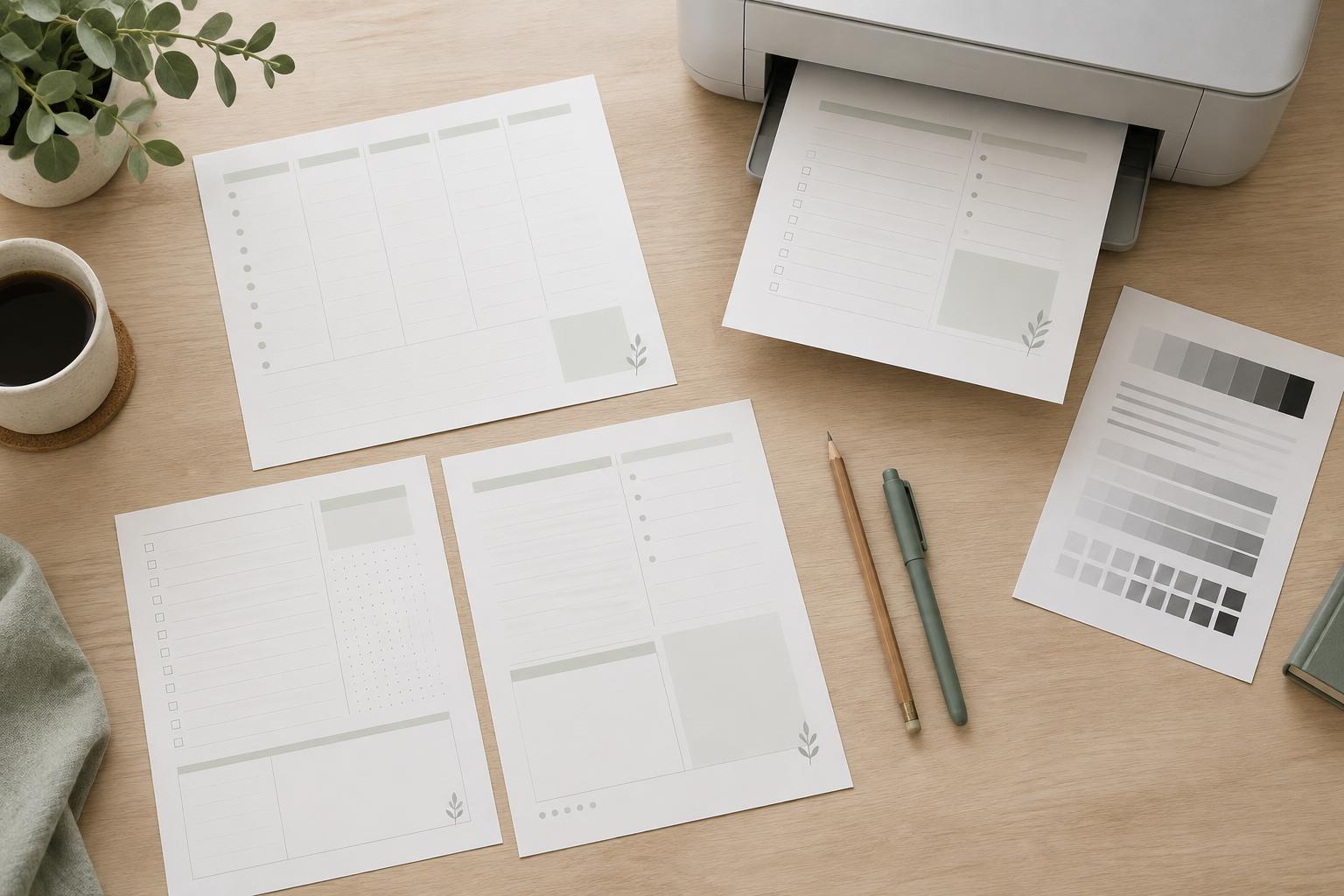
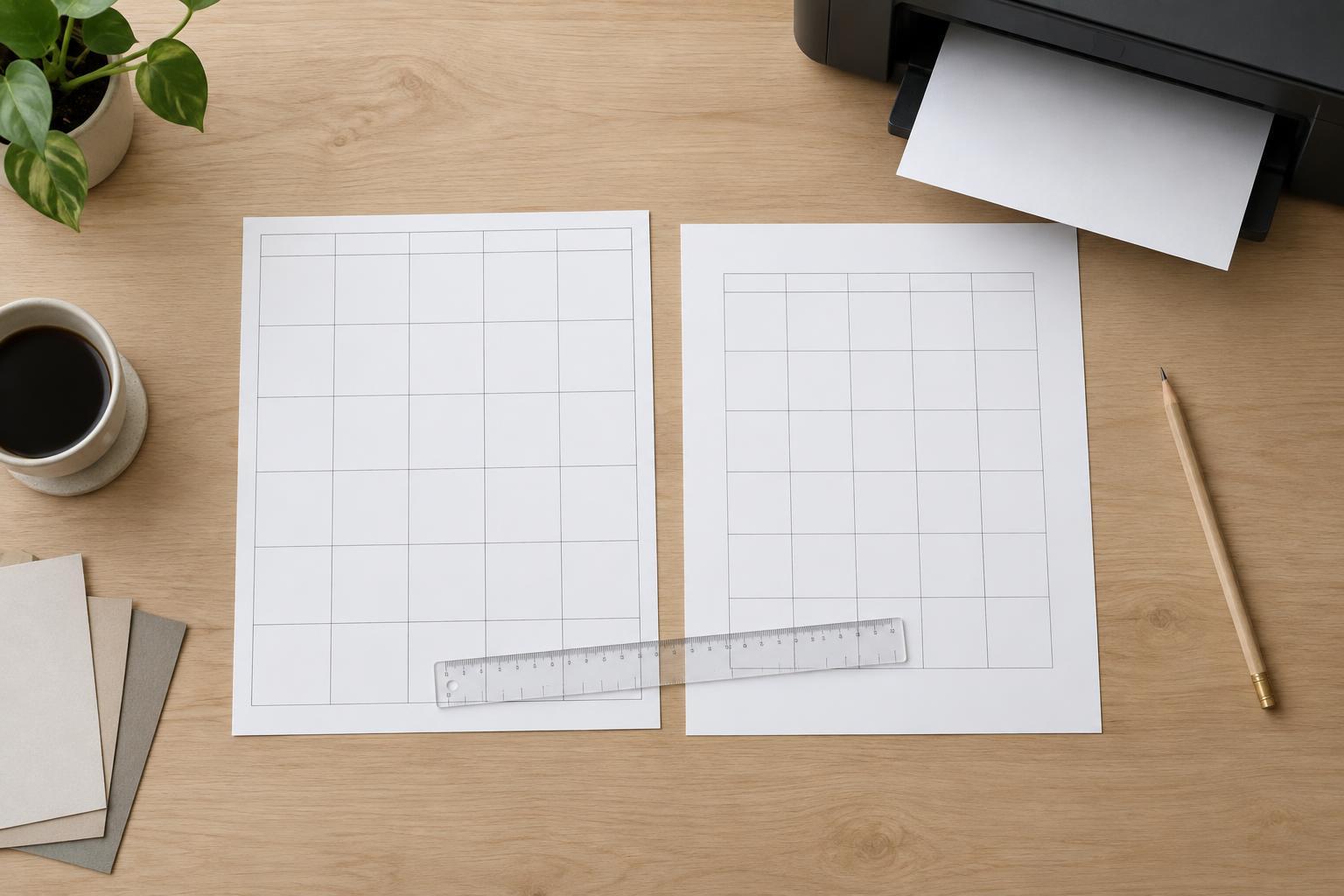
When designing a printable planner page, it helps to think about the page after it has been cut, not just the rectangle on your screen. The trim line marks the intended edge of the finished page. Anything close to that line may be affected by small differences in printing, paper alignment or cutting. A tidy layout therefore needs two kinds of space: bleed outside the trim line and a safe area inside it.
Bleed lets artwork that should reach the edge continue past the trim line. The safe area keeps important content comfortably inside that line. Neither is the same as the ordinary spacing between items in your layout. You can use both on one page: a full-page color may extend into the bleed, while the planner title, dates and writing prompts stay within the safe area.
Use bleed for anything meant to meet the edge
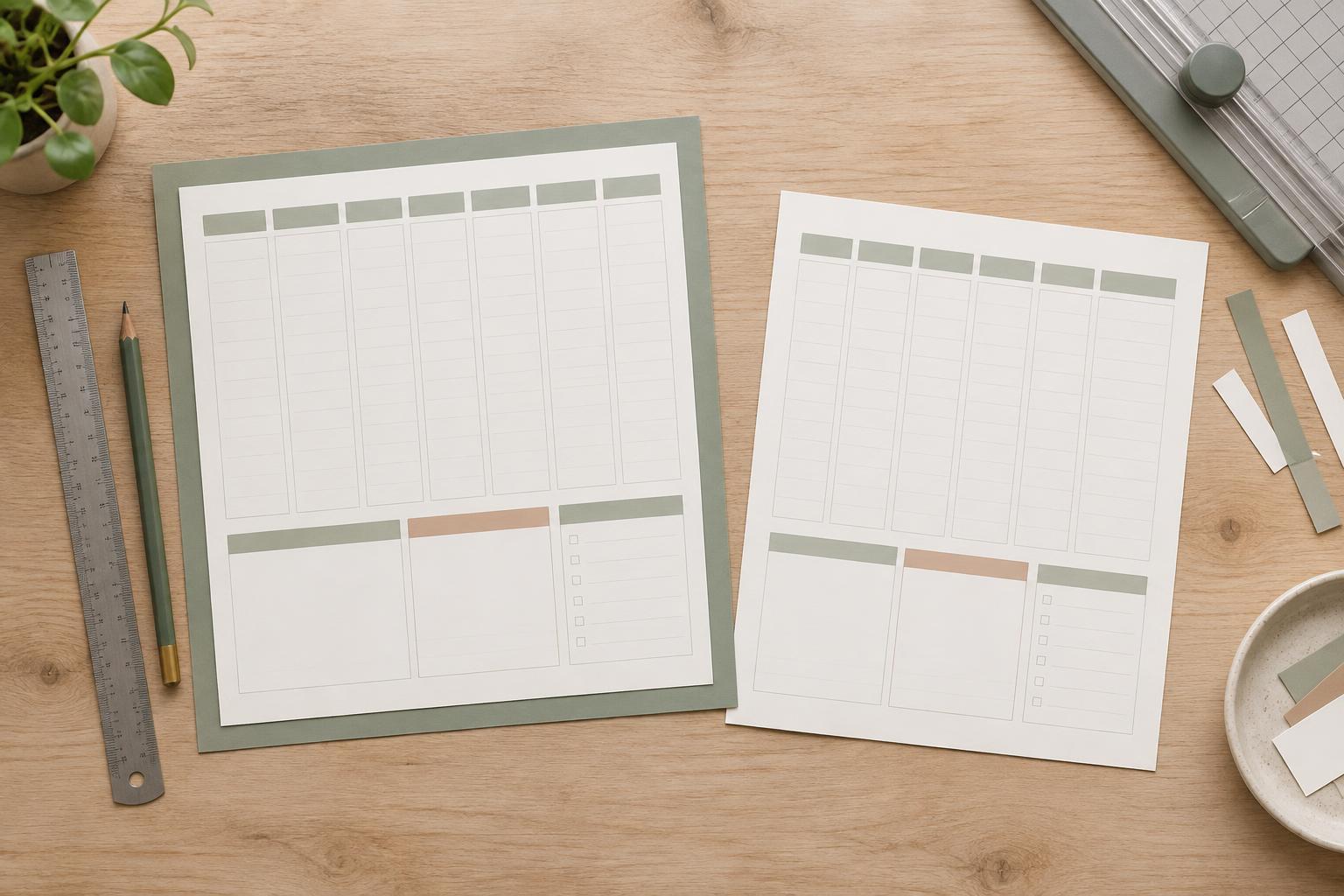
A background color, photograph or decorative shape that stops exactly at the trim line can leave a thin white strip if the cut shifts slightly. To avoid that, extend the element beyond the finished-page boundary. For example, if a print provider asks for 3 mm of bleed, an edge-to-edge background should extend at least 3 mm past each relevant side of the trim line. Treat that measurement as an example, not a universal setting; follow the specifications for the printer and paper you plan to use.
Bleed is extra artwork, not extra finished-page space. Don’t put page numbers, labels or other content there, because it is intended to be cut off. If a pattern runs to the edge, extend the pattern rather than stretching the whole page at export. This preserves the size of your writing boxes, checklists and other elements within the finished page.
Give essential content a safe area
The safe area is a guide inside the trim line. Keep anything a reader needs to see or use within it: headings, dates, checkbox outlines, ruled lines, instructions and small icons. This matters especially on planner pages, where a line clipped by the trim can make a writing space feel unfinished. Set your safe-area guide using your print provider’s requirements, then leave more room where the design benefits from it.
Borders need particular care. A thin border near the edge can look uneven if one side is cut a little closer than another. Moving it farther inward usually makes the result more forgiving. Alternatively, remove the border and let an edge-to-edge background define the page. If the printable will be punched or bound, allow additional usable space on the binding side so holes or a coil do not interfere with text and writing areas.
Match the setup to how the page will be printed
A file prepared for professional trimming may need bleed included in its exported page size, along with crop marks if the provider requests them. Crop marks indicate where to cut; they are not a substitute for extending the artwork. Check the requested finished size, bleed and export settings before building a reusable template. Label guides clearly so you can tell the trim line, bleed boundary and safe-area boundary apart.
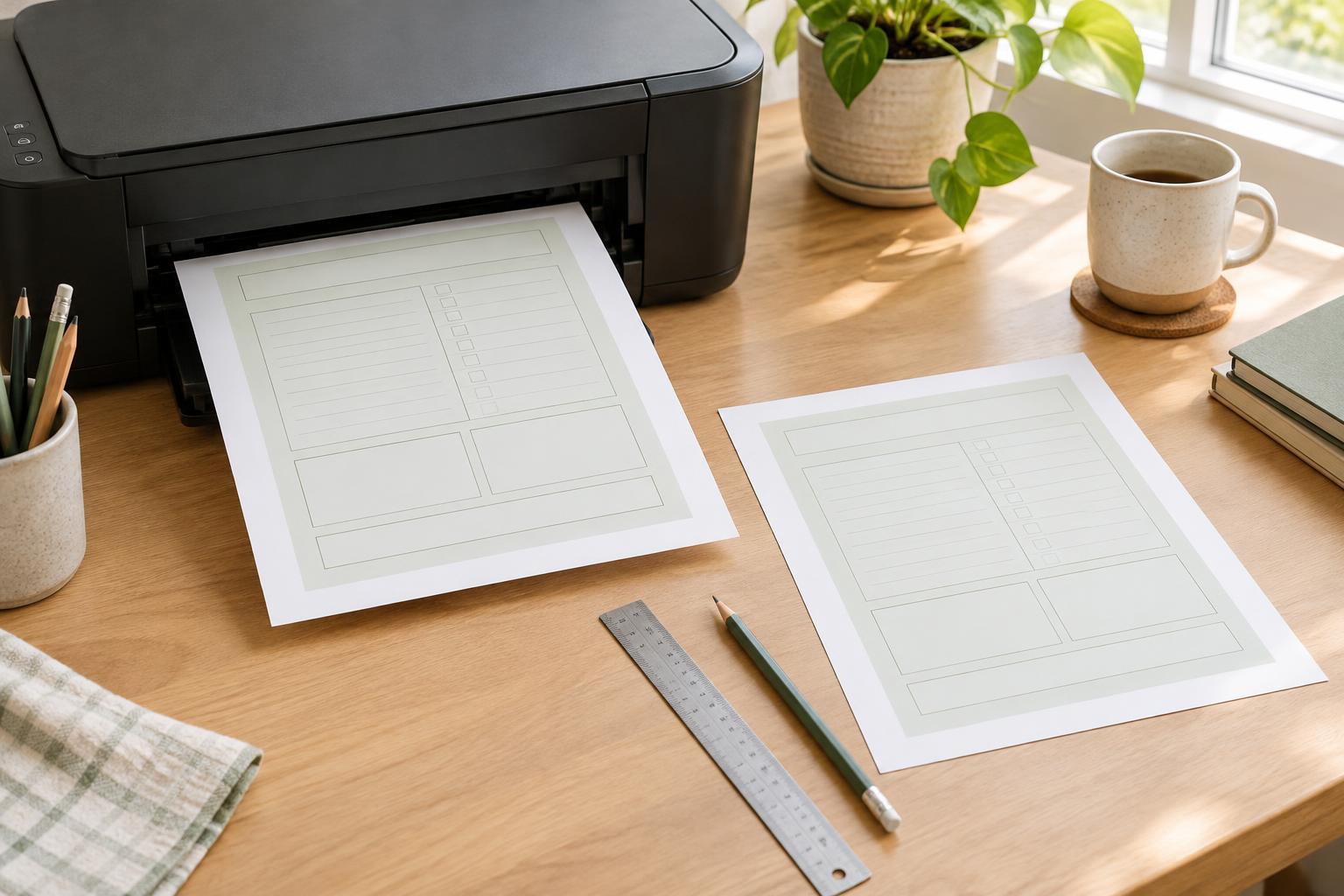
Home printing has a different constraint: many desktop printers cannot print to every edge of the sheet. Bleed in a file will not remove a printer’s unprinted margins. For a page meant to be printed at home without trimming, an inset design is often simpler. If users will print on larger paper and trim the page down, leave enough surrounding paper for that process and provide clear, appropriately placed trim guidance. In either case, check that print settings do not unexpectedly scale the design.
Check a test page before sharing the design
Before exporting a whole planner, inspect one representative page at the intended size. Confirm that every edge-to-edge element crosses the trim line and that no essential detail enters the bleed. Then check the safe area, paying attention to small labels, corner decorations and lines that run near the edge. A quick test print and trim can reveal spacing problems that are easy to miss on screen.
Keep the working file’s guides visible while designing but out of the final artwork unless they are needed for trimming. If you adapt a template to another page size, reset the guides and review each element rather than simply enlarging or shrinking everything. The goal is not to leave every edge empty: it is to let decorative elements reach the edge deliberately while keeping the parts people read and write on easy to use.