Why alignment matters
A layout can contain good colors, readable type and useful information yet still feel scattered. Often, the issue is not any single element. It is that headings, text blocks and images seem to begin and end in unrelated places. Alignment creates visible relationships between those elements. When several items share an edge or center line, the eye can group them without much effort.
Think of a presentation slide with a title, three short points and an image. If each text block starts at a slightly different position, the slide may feel busy even when it has plenty of empty space. Give the title and points one shared left edge, and their relationship becomes clearer. Alignment does not need to be noticeable as a technique; it helps the content feel intentional.
Choose a few anchors
An anchor is a line that elements can align to, such as the left edge of a text column or the top of a row of images. Most layouts need only a few. Start with the outer margins, then decide where the main content begins. On a planner page, the page title, section headings and writing areas might all start at the same left margin. On a social graphic, a headline and caption might share an edge while a photograph fills the opposite side.
Not everything has to use the same anchor. A two-column layout can have one alignment line for each column, and a callout can sit on its own line if the separation serves a purpose. What matters is that each choice looks deliberate. If an element is offset, ask what that offset communicates. Does it mark a new section or draw attention to an important detail? If it does neither, try aligning it with something nearby.
Use a grid without making every design rigid
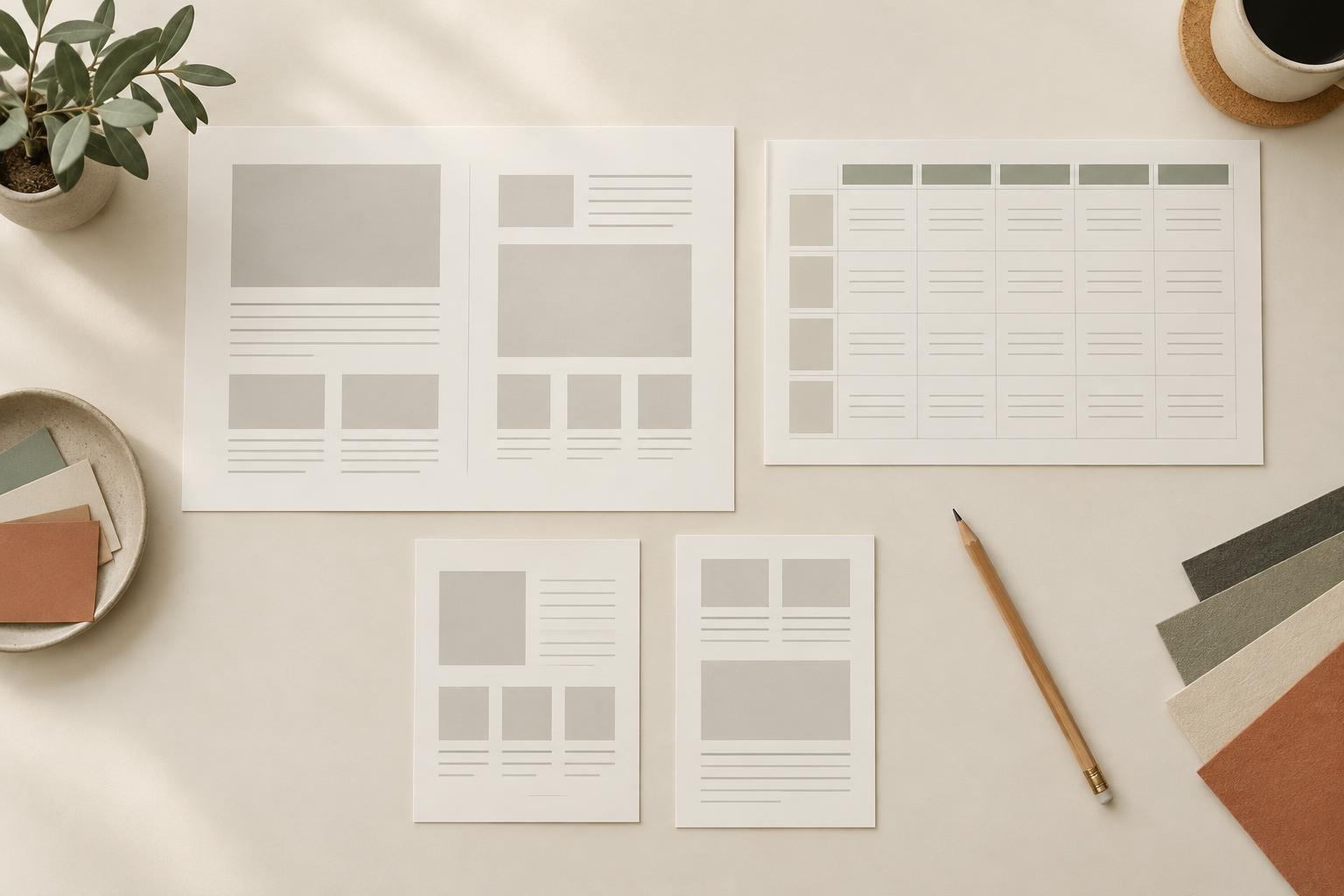
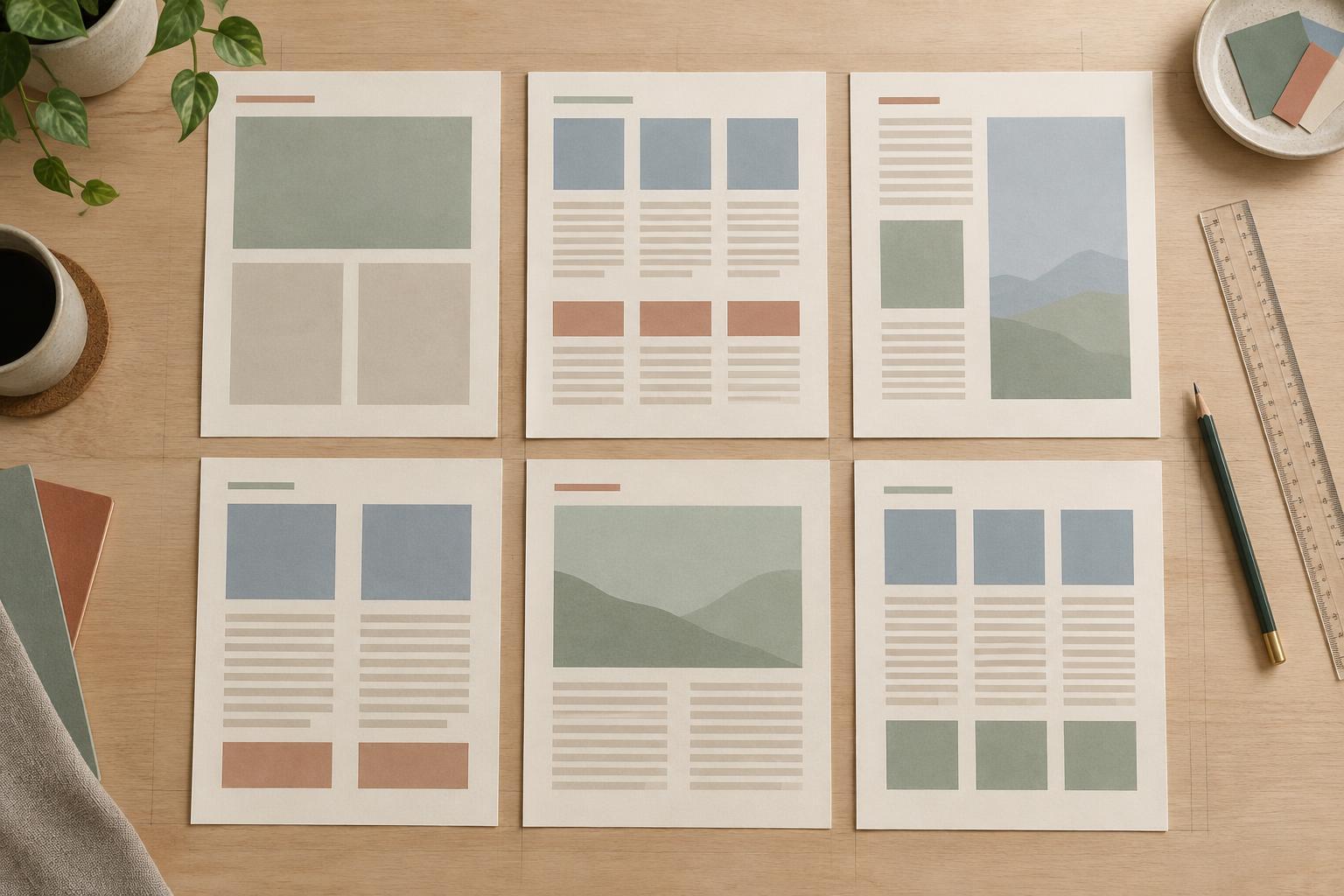
A grid is a set of guides for placing content. It can be as simple as equal margins and two columns. Before arranging small details, establish the usable area of the page or slide. Then divide that area according to the content: a wide column for explanations and a narrower one for examples, or equal columns for items of similar importance. This gives you dependable positions to reuse as the design grows.
Guides are especially helpful when customizing a template. Instead of moving each item by eye, look for the template’s existing edges and spacing pattern. If you replace a short heading with a longer one, adjust the text box while preserving its alignment with the content below. A grid should help you make decisions, not force every element into an awkward shape. If a photograph needs more room or a heading wraps poorly, change the column proportions while keeping the underlying relationships clear.
Check spacing alongside alignment
Shared edges are only part of an organized layout. Spacing tells readers which items belong together. A heading should usually sit closer to its own paragraph than to the previous section. In a printable planner, labels should be close enough to their writing spaces that it is obvious what each area is for. If the gaps are inconsistent, aligned elements can still look disconnected.
Choose a small set of spacing increments and repeat them. For example, use a compact gap within a group and a larger gap between groups. The exact measurements depend on the page size and amount of content; consistency matters more than a particular number. When reviewing a design, look at the empty space as carefully as the objects. Uneven gaps may reveal that a text box has an oversized boundary or that an image has been positioned independently of the surrounding content.
Make a final alignment pass
Once the content is in place, scan the design from top to bottom. Look for edges that almost line up: a caption slightly indented from an image, a divider that stops just short of a text column, or a heading that begins a few pixels away from the headings below it. These small mismatches can make a page feel less settled. Use your design tool’s guides or alignment controls to correct them rather than relying only on visual estimates.
Finally, check the design at the size people will use it. A planner page may look balanced on a large screen but feel crowded when printed. A slide may need stronger alignment cues when viewed from a distance. Keep the choices that help someone find the next piece of information, and remove adjustments made only to fill an empty corner. An organized layout is not one where everything is perfectly symmetrical; it is one where the relationships between elements are easy to understand.