Why matching edges is not always enough
Alignment tools work with measurable boundaries. Your eye responds to the visible shapes inside them. A text box may extend above the tops of its letters or below their lowest marks, while an icon’s frame may contain transparent space. When you align those two boxes, the content you actually see can still appear uneven.
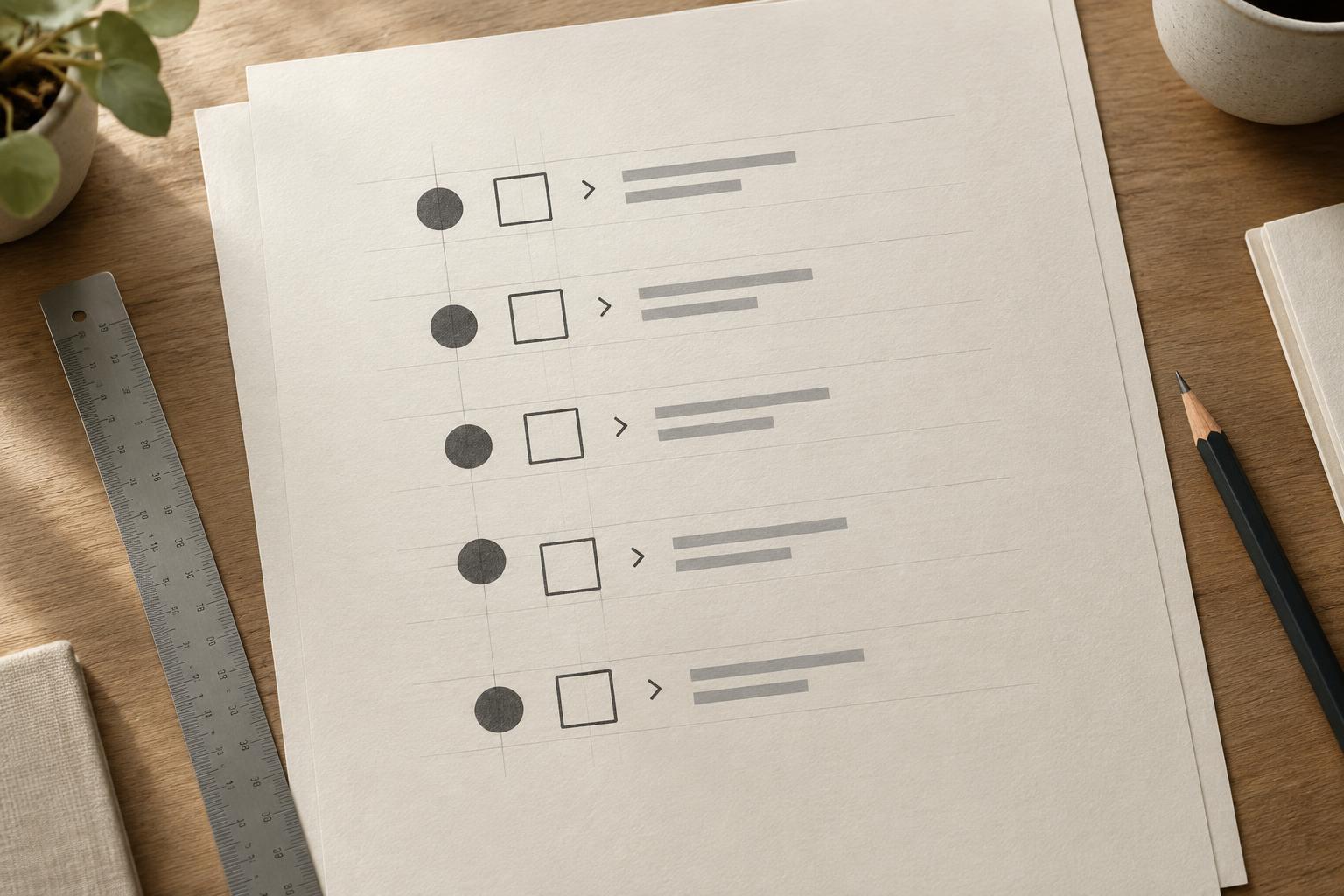
For example, a circular icon next to a short label may seem lower than the letters, even when both objects are vertically centered. The top of the circle narrows immediately, so it contributes less visible shape near its upper edge than a flat-topped letter does. A thin outline icon can also look smaller than a bold label at the same nominal height. These effects are normal; they do not mean your layout guide is broken.
The goal is not to replace measured alignment with guesswork. Use guides to establish a consistent starting point, then make small optical adjustments where the shapes call for them. This is especially useful for button labels, slide headings with symbols, planner tabs and social graphic callouts.
Choose the right reference line
Before moving anything, decide what relationship the icon has to the text. For an icon embedded in a short phrase, the text baseline is often a useful reference: it is the line on which most letters sit. For a standalone icon beside a one-line label, centering the visible icon against the visible letter height may look better. For a stack of navigation items, consistent alignment across the whole set matters as much as any individual pair.
Do not assume that the text box’s center marks the center of the letters. Fonts reserve space for ascenders, descenders and line spacing, even if a particular label does not use all of it. A label such as “Home” may therefore look different beside an icon than one with a descending letter, such as “Pages.” Compare the pair at its intended size rather than zooming in until every small difference feels urgent.
If the icon is supplied as an image or vector, inspect its internal space too. A visible shape that sits to one side of its frame will remain off-center after the frame is aligned. Cropping or editing that extra space, when possible, often gives you a cleaner starting point than repeatedly nudging the entire object.
Make optical adjustments in a controlled order
First, set the text size, line spacing and icon size. Then use your design tool’s alignment controls to place the elements on a common guide. Check the result at the size readers will actually see. If the icon appears too high or low, nudge it slightly and compare the before and after versions. A small move should solve a specific visible problem, not simply make the coordinates different.
Next, check horizontal spacing. Measure from the visible edge of the icon to the first visible part of the label, not only between their object frames. A circular or diagonal icon may need a little less measured gap than a square one to create the same apparent separation. Keep the gap large enough that the icon and label read as two distinct parts of one unit.
Finally, compare visual weight. A heavy icon beside light type can seem closer or larger than it is. You may get a better result by changing the icon’s stroke weight, size or color before changing its position again. If you find yourself making a large offset, pause and inspect the source shapes, font choice and line spacing. The underlying mismatch may need fixing.
Keep repeated pairs consistent
A single label can be adjusted by eye, but a row of buttons or a list of planner categories needs a system. Start with one shared icon size, text style and nominal gap. Align every pair the same way, then review the set together. Make exceptions only where a particular icon’s visible shape clearly requires one.
Group each finished icon-and-text pair before distributing several pairs across a slide or page. That helps preserve the internal spacing while you align the groups to a column or grid. If an icon needs an optical nudge, record that adjustment in your working file or reusable component so a later edit does not silently remove it.
As a final check, look at the design at normal viewing size and, for printables, consider a test print. The best alignment is usually the one that feels steady in context, not the one that produces identical coordinates for every visible edge. Use measurement for structure and your eyes for the last small correction.