Start with a seven-column grid
A monthly calendar has seven columns, one for each weekday. Before drawing the grid, decide whether your weeks begin on Sunday or Monday. Keep that order throughout the planner: changing it from page to page makes dates harder to find and increases the chance of placing them incorrectly.
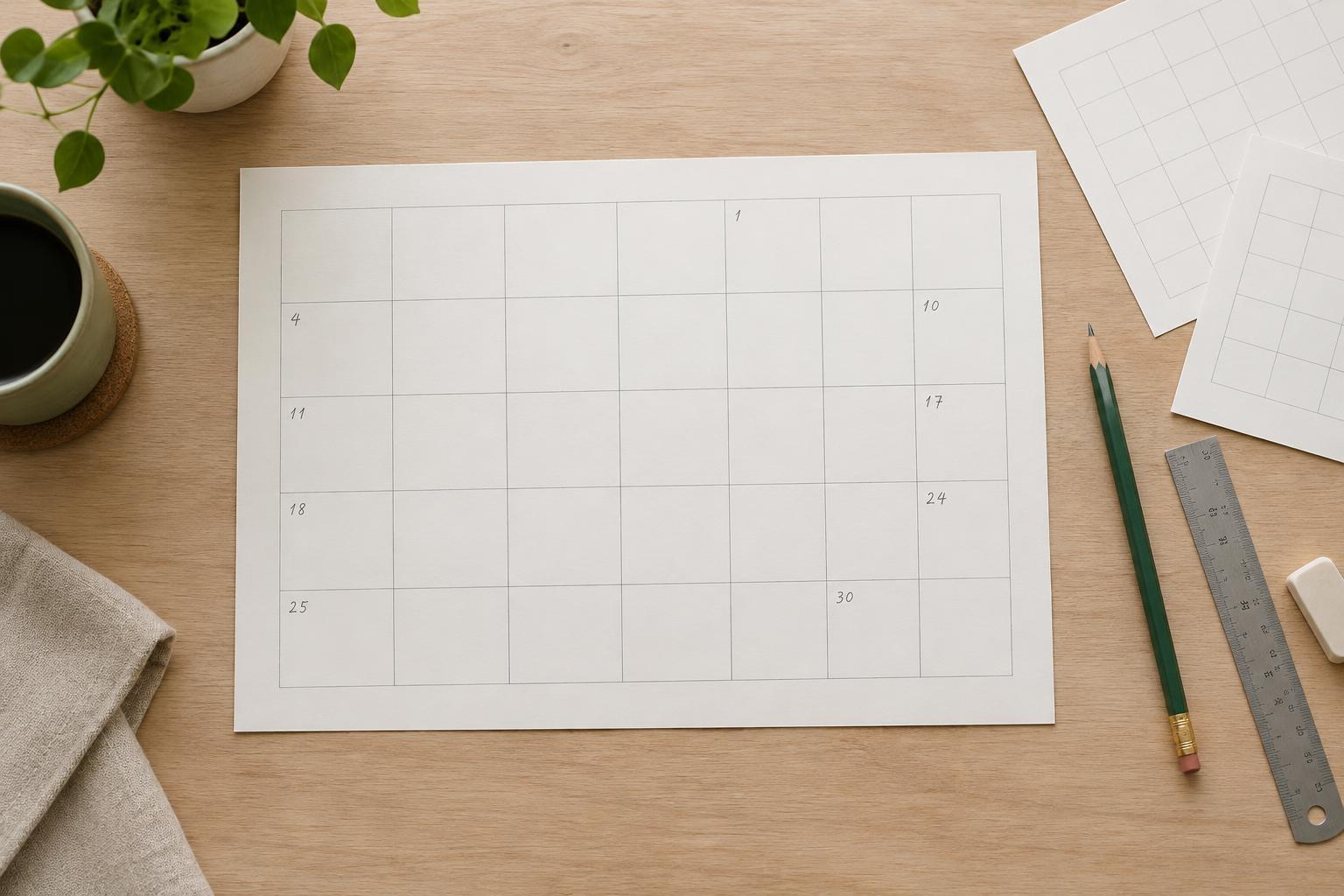
Choose the page size and margins first, then reserve space for the month title, weekday labels and any notes area. The rectangle left for dates is your working grid. Divide its width into seven equal columns. For a printable planner, leave enough room inside each date box for its intended use. A calendar meant for appointments needs more writing space than one meant only to show deadlines.
Place dates using the starting weekday
The first date does not always go in the first column. Find the weekday on which the month begins, then leave the preceding boxes in the first row empty. If your week starts on Sunday and the first day of the month is Wednesday, dates 1, 2 and 3 go in the Wednesday, Thursday and Friday columns. Continue placing dates from left to right, starting a new row after Saturday.
You can check the space a month needs by counting the empty boxes before day 1 and adding the number of days in the month. Divide that total by seven and round up to get the number of week rows. For example, a 31-day month that starts on Saturday needs six rows: six empty boxes precede day 1, and the dates fill 31 more. A 28-day month that starts on the first weekday of your grid fits into four rows. Remember to account for February having 29 days in a leap year.
Choose a row system you can repeat
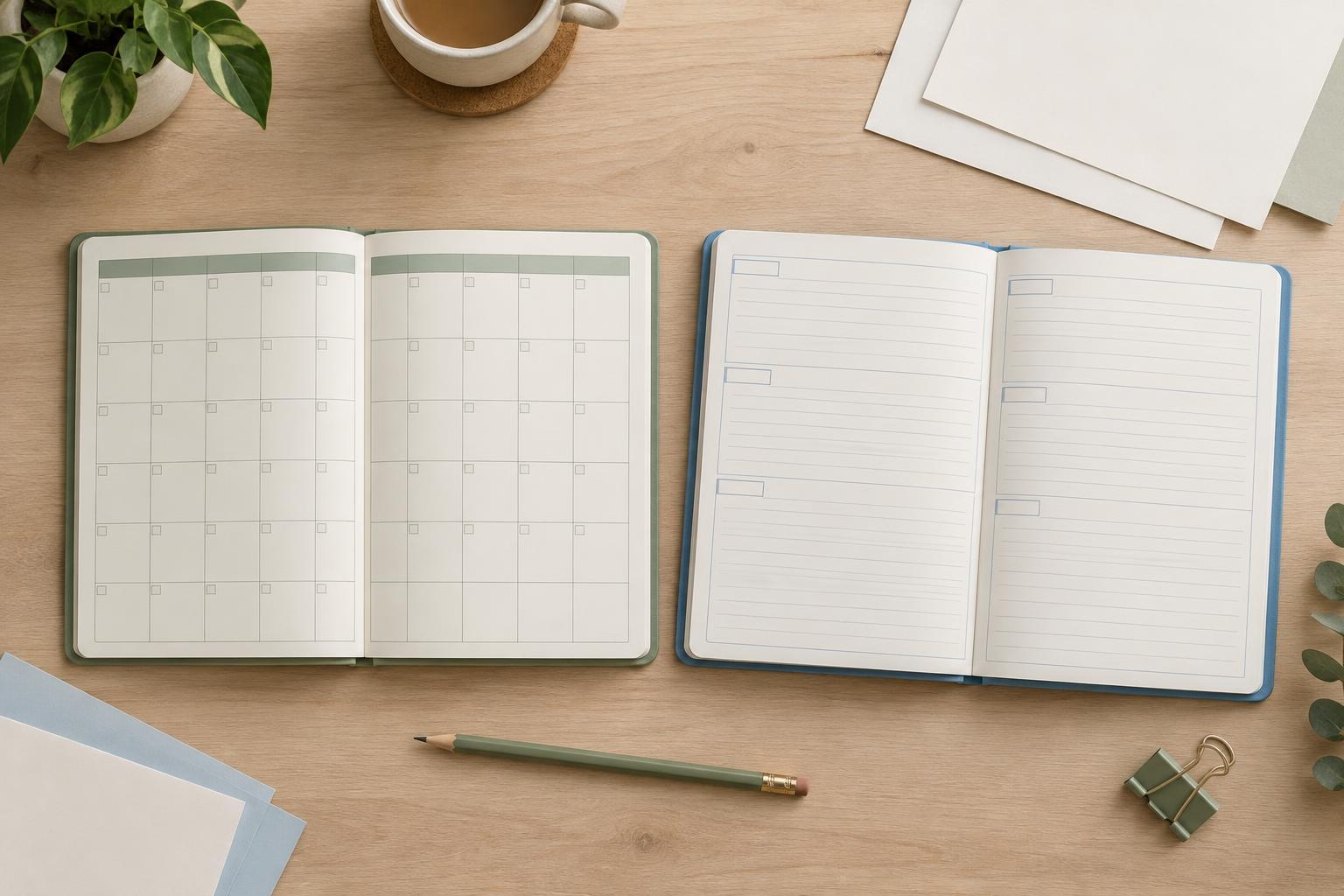
There are two useful approaches. A fixed six-row grid keeps every monthly page aligned and gives each date box the same height across the planner. Some months will have a largely empty final row, but users can put that space toward notes or leave it clear. This is often the simplest choice when designing a set of printable pages.
An adaptive grid uses only the four, five or six rows the dates require. It can give shorter months taller boxes, but the writing space and appearance change from page to page. If consistency matters more than maximizing each box, use six rows. If you choose adaptive rows, keep the title, weekday labels and outer margins in the same positions so the pages still feel like a set.
You may leave boxes outside the month blank or show adjacent-month dates in a lighter style. Blank boxes create a quieter page and more unassigned writing space. Adjacent-month dates make the surrounding weeks easier to read, but they need a clear visual distinction from the main month. Pick one convention and use it consistently.
Make the grid easy to read and write in
Put each date number in the same corner of its box, with a little space between the number and the grid lines. Use weekday labels that remain legible at the size the page will actually be printed. Light lines can separate boxes without competing with handwriting; if the lines are too faint, however, they may disappear on an ordinary printer. A test print is more reliable than judging the page only on a screen.
Keep decoration outside the writing area where possible. A compact title, restrained color and consistent type styles help readers scan the calendar quickly. If you add a notes area, label it clearly rather than treating leftover space as an extra calendar box. Check that your margins allow for trimming or binding if the planner will be assembled.
Test the template before duplicating it
Build one master page with seven columns, six rows and separate text for the month title and weekday labels. Make the date numbers easy to edit without moving the grid itself. Then test a month that begins late in the week and has 31 days; this reveals whether the sixth row works. Also test a short February to see whether unused rows look intentional.
For each new page, confirm the month length and starting weekday before entering dates. After filling the grid, scan the first row, the last date and each transition from one week to the next. Finally, print a page at its intended size and try writing in a box. A calendar grid is successful not merely when every date fits, but when the finished page is comfortable to use.