Start with the text people will read most
A type scale is a set of sizes assigned to recurring text roles. Instead of resizing each heading by eye, you decide what a page title, section heading, subheading, and body paragraph should look like, then use those choices consistently. The goal is not a mathematically perfect sequence. It is to help readers recognize what to read first, what belongs together, and where to go next.
Choose the body text first because it usually carries the most information. Put a realistic paragraph into your layout and view it at the size someone will actually use. A presentation slide seen from across a room needs different sizing from a planner printed on paper or an article read on a phone. If body copy feels cramped, increasing the heading sizes will not solve the underlying problem. Adjust the body size, line spacing, or available width before building the rest of the scale.
Give each level a clear job
List only the roles your design needs. A simple project might use four: a page title, a section heading, a subheading, and body text. A planner may also need small labels for dates or fields. Those labels have a different job from paragraphs, so they can have their own style without becoming another heading level.
Begin with your chosen body size as a baseline. For example, if it is 16 units in a digital design, you might try 20 for subheadings, 25 for section headings, and 32 for a page title. Treat these as trial values, not a rule to copy into every medium. The important test is whether adjacent levels are distinct enough to identify quickly while still looking like one family.
Size is only one tool for establishing hierarchy. Weight, spacing, and placement can do some of the work. A subheading in a medium weight with space above it may be clearer than a much larger subheading crowded against the paragraph below. If your design uses several bold weights and colors, simplify those choices before adding more sizes.
Check spacing and line length alongside size
Text styles work as a system, so set line spacing for each role rather than applying one value everywhere. Body paragraphs generally need enough space between lines to follow comfortably; short, large headings may need tighter spacing to feel cohesive. Also check the space before and after each heading. A heading should appear closer to the content it introduces than to the preceding section.
Test the scale with long and short text. A single-word heading can make an oversized style look successful, while a longer heading may wrap awkwardly or consume too much of a slide. Likewise, a narrow text box may make body copy difficult to scan even when the font size seems adequate. When something feels wrong, consider changing the text box width, wording, or spacing before inventing a new type size.
Test the hierarchy in a real layout
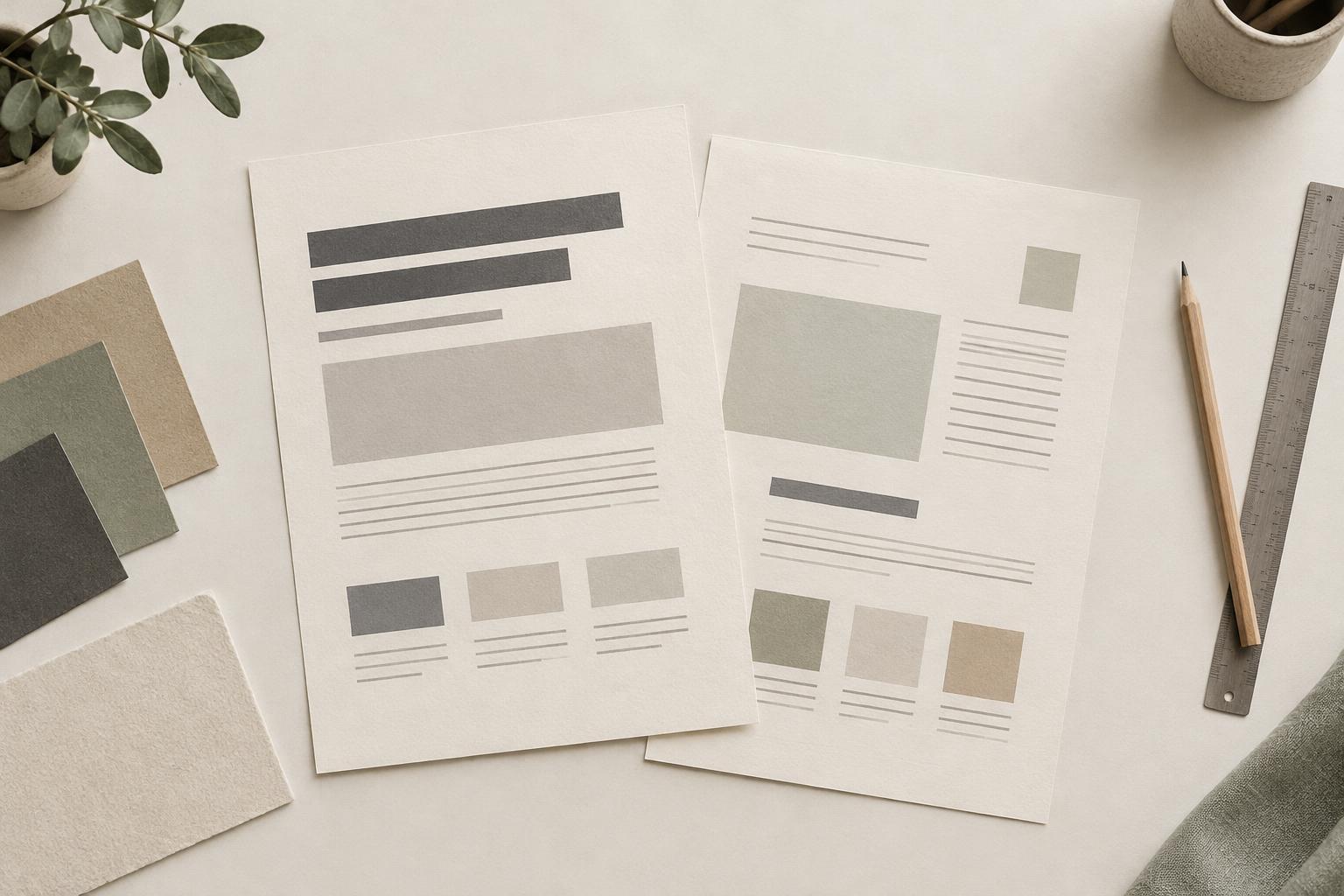
Create one representative page or slide containing every text role. Use an actual title, two sections, a subheading, and enough body copy to show how paragraphs behave. Look at the layout at its intended viewing size, then glance away and look back. Can you find the title immediately? Can you distinguish section headings from subheadings without reading their words? Does the body text remain comfortable to read?
For a printable, make a test print if you can; on-screen previews can hide problems with fine type or crowded labels. For a presentation, inspect a full slide rather than only zooming into its text boxes. For digital content, check a narrow layout as well as a wide one. You may need different type-scale values for different formats, but the roles should stay recognizable.
Save the scale, then revise sparingly
Name your text styles by role, such as “Page title,” “Section heading,” and “Body,” rather than by size alone. That way, if you later change the body style, you know where the adjustment belongs. Use those styles throughout a template instead of formatting individual text boxes separately. Consistent styles make future changes quicker and help prevent small differences from accumulating across pages.
A useful scale is one you can apply without constant exceptions. If every second heading needs manual resizing, your levels may be too far apart, or you may be using one role for two different purposes. Revisit the sample layout, adjust the smallest number of styles necessary, and test again. A compact, reliable set of text styles will usually serve your design better than a long list of finely graded sizes.