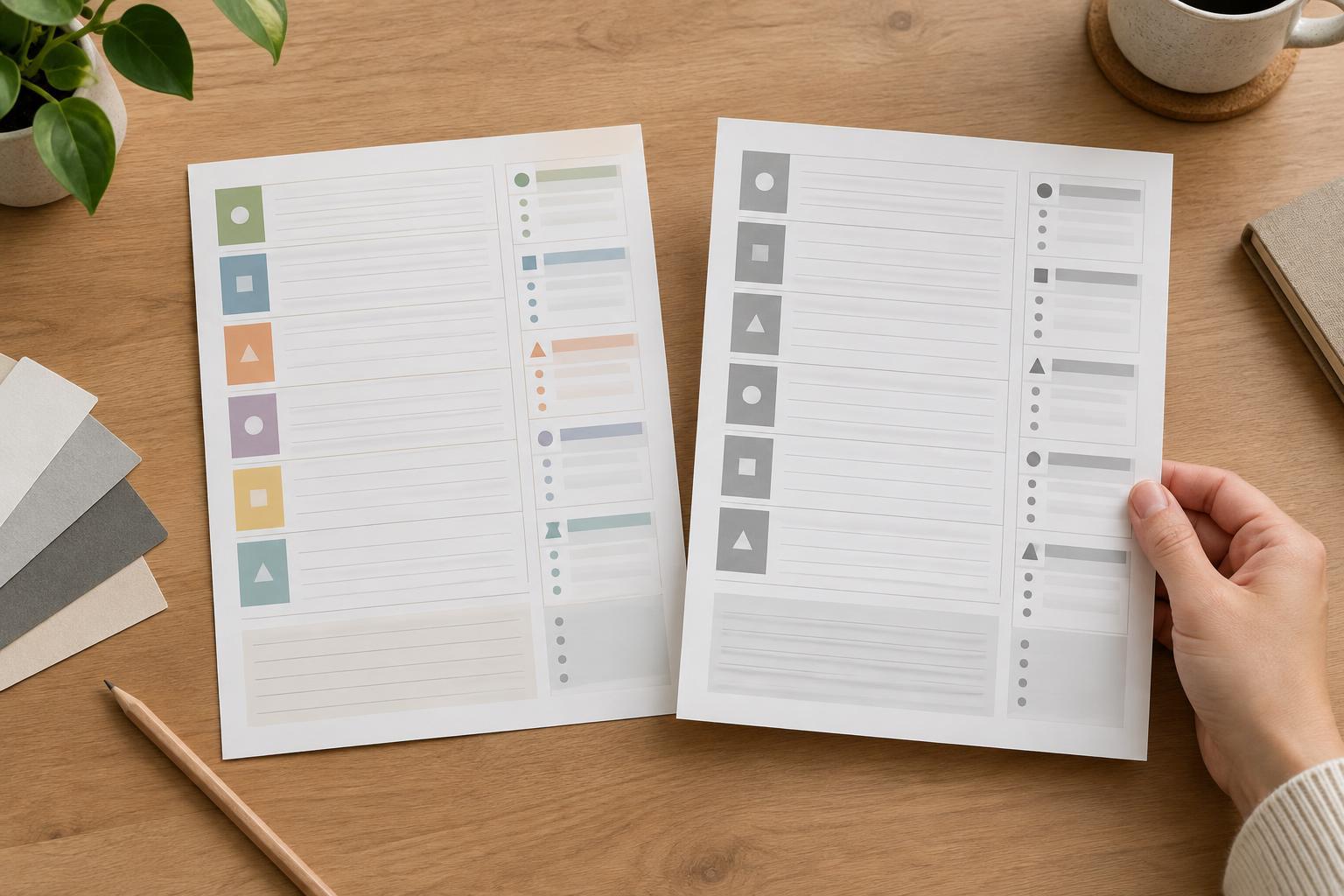
Identify what each color is doing
A color-coded planner may look clear on screen because each category has its own hue. In grayscale, two different colors can become nearly identical shades. Before testing the layout, write down what the colors mean. Perhaps blue marks appointments, orange marks deadlines, and green marks personal plans. Then ask what someone would understand if those colors disappeared.
Check every place where color carries information: calendar blocks, task labels, priority markers, progress bars, and keys. Decorative color can safely fade into the background. A deadline that is distinguishable only because its box is orange needs another cue. This distinction helps you focus your changes where they matter rather than removing color from the whole design.
Make a grayscale copy and inspect it at actual size
Keep your color version intact and make a copy for testing. Use your design app’s grayscale preview if it has one, or export a page and view a grayscale version. If the planner will be printed, also check the print settings and preview for the intended printer. A grayscale preview is a useful first pass, but a printed page may look different from a screen.
Inspect the page at the size people will use. A full-page view is good for spotting overall balance, while an actual-size view reveals whether a small label or pale divider is hard to read. Look especially at adjacent categories, lightly tinted boxes, colored text, and text placed over colored fills. When two shades merge, note the location and the information that becomes unclear.
If the planner is meant for home printing, print one representative page in black and white. Include a busy week, not just an empty template: crowded areas expose problems that a sparse sample can hide. Some printers offer both grayscale and a more stark black-and-white mode, so test the mode readers are likely to use if you can.
Give each category a cue beyond color
The most dependable fix is to name the category where it appears. Short labels such as “Appointment,” “Due,” or “Personal” are easier to interpret than a key that readers must repeatedly consult. If space is tight, use brief, consistent abbreviations and explain them in a small legend. A legend supports the page, but it should not be the only place a critical distinction is visible.
You can also vary shapes or placement. For example, deadlines might use a narrow left-hand bar and a “DUE” label, while appointments use a bordered block with a time. In a habit tracker, distinct symbols can separate completed, skipped, and not-yet-recorded entries. Choose a small set of cues that are easy to tell apart at print size; too many patterns or icons can make a planner harder to scan.
Adjust contrast without making the page heavy
Two hues that look different in color may have similar lightness and blend together in grayscale. Try darkening one category’s border or text, lightening its fill, or replacing a filled box with an outline. Keep text dark enough to read against its background, especially in notes areas where someone may write by hand. Pale background tints can be useful for grouping, but they should not be expected to carry a category on their own.
Preserve the planner’s visual hierarchy as you adjust it. Dates, section names, and important entries should stand out more than decorative lines. If every block receives a thick border, nothing feels important. Compare the color and grayscale versions side by side: the page does not need to look identical in both, but its reading order and category meanings should remain clear.
Run a quick use test before calling it finished
On the grayscale copy, try finding the next deadline, identifying an appointment, and locating an open space for a new task. Do this without looking at the color version. If you hesitate or need to consult the legend often, add a label or strengthen a visual distinction and test again.
Finally, check a filled-in sample as well as the blank planner. Real entries compete with headings, borders, and category marks for space. Leave enough room for handwriting or typed text, and make sure your added cues do not cover it. A successful grayscale check means the planner remains usable without color; the color version can then provide an extra layer of organization rather than the only one.