Start with how you will use the planner
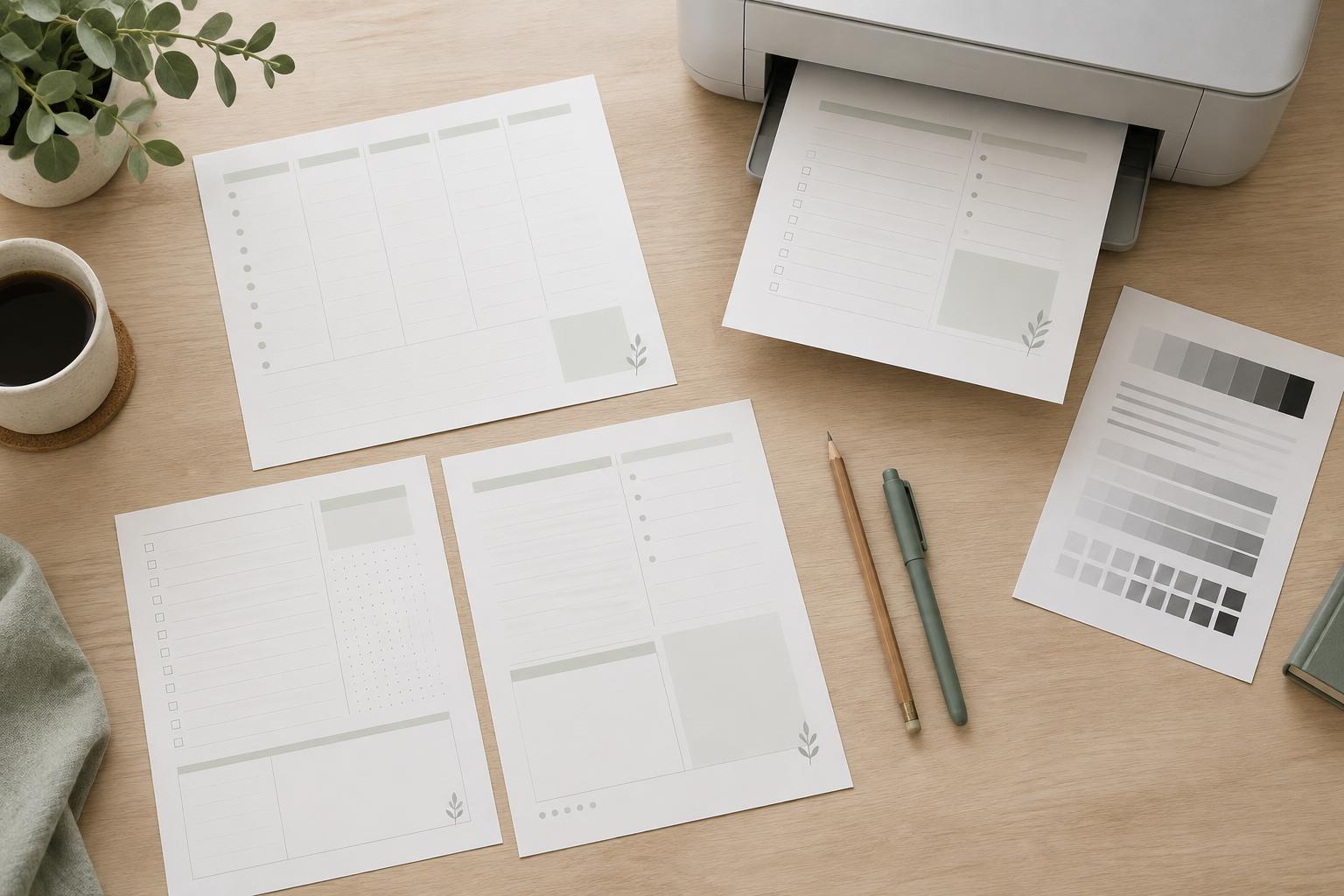
A planner that lives on a desk can make good use of a full-size page. One that travels in a bag may be more comfortable at A5. Before choosing a template size, think about where you will write, how much space you need for each day, and whether you want to file pages in a binder or bind them into a booklet.
Page size affects more than portability. It determines how many appointments, tasks, or notes can fit without crowding; how large you can make the type; and how easily you can print replacement pages. Choose for the way you will use the finished planner, not just for how the blank layout looks on screen.
Know the three sizes
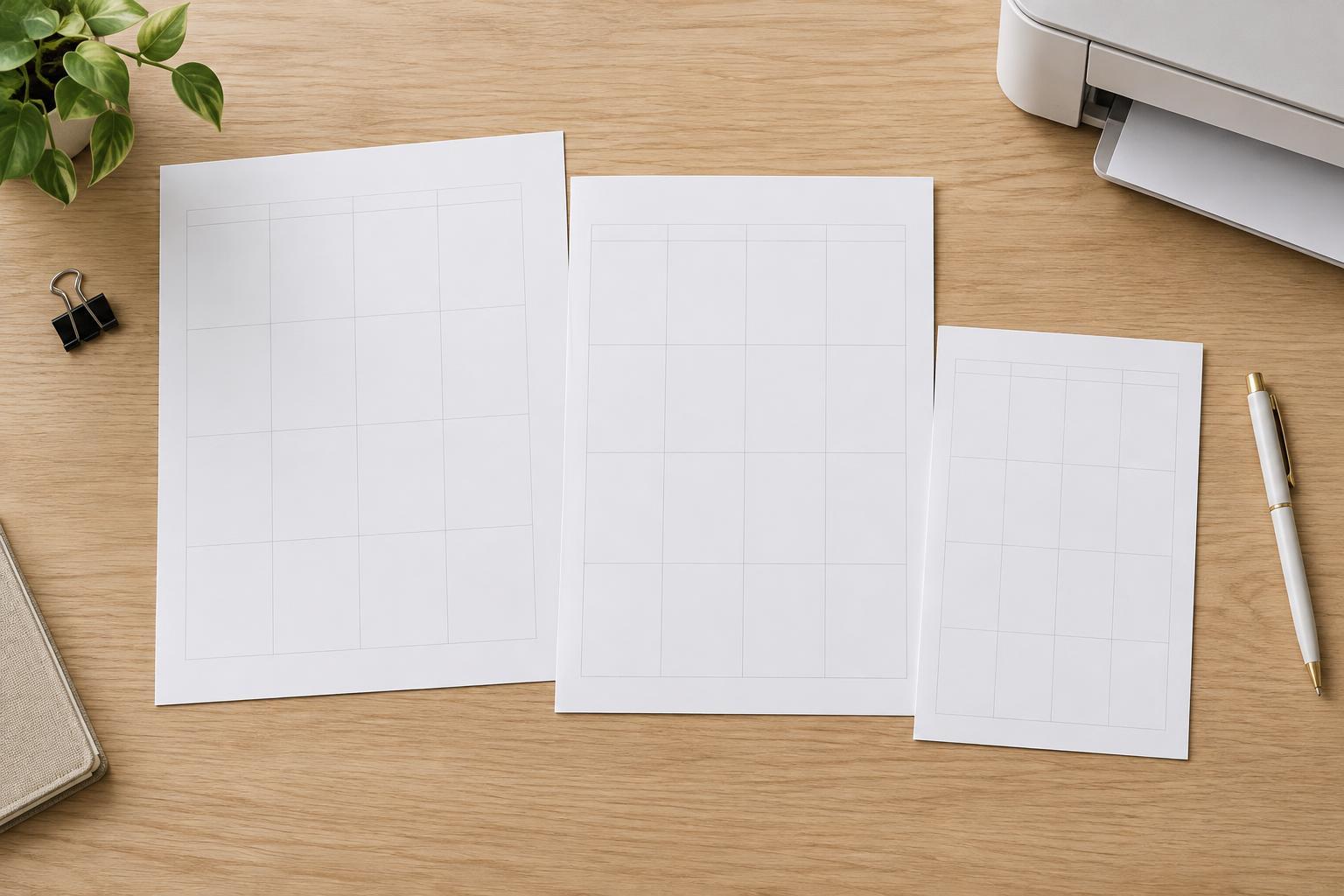
US Letter measures 8.5 × 11 inches (about 216 × 279 mm). It is a practical starting point if Letter paper is what you normally keep in your printer. Its generous writing area suits detailed weekly plans, project trackers, and pages with multiple sections.
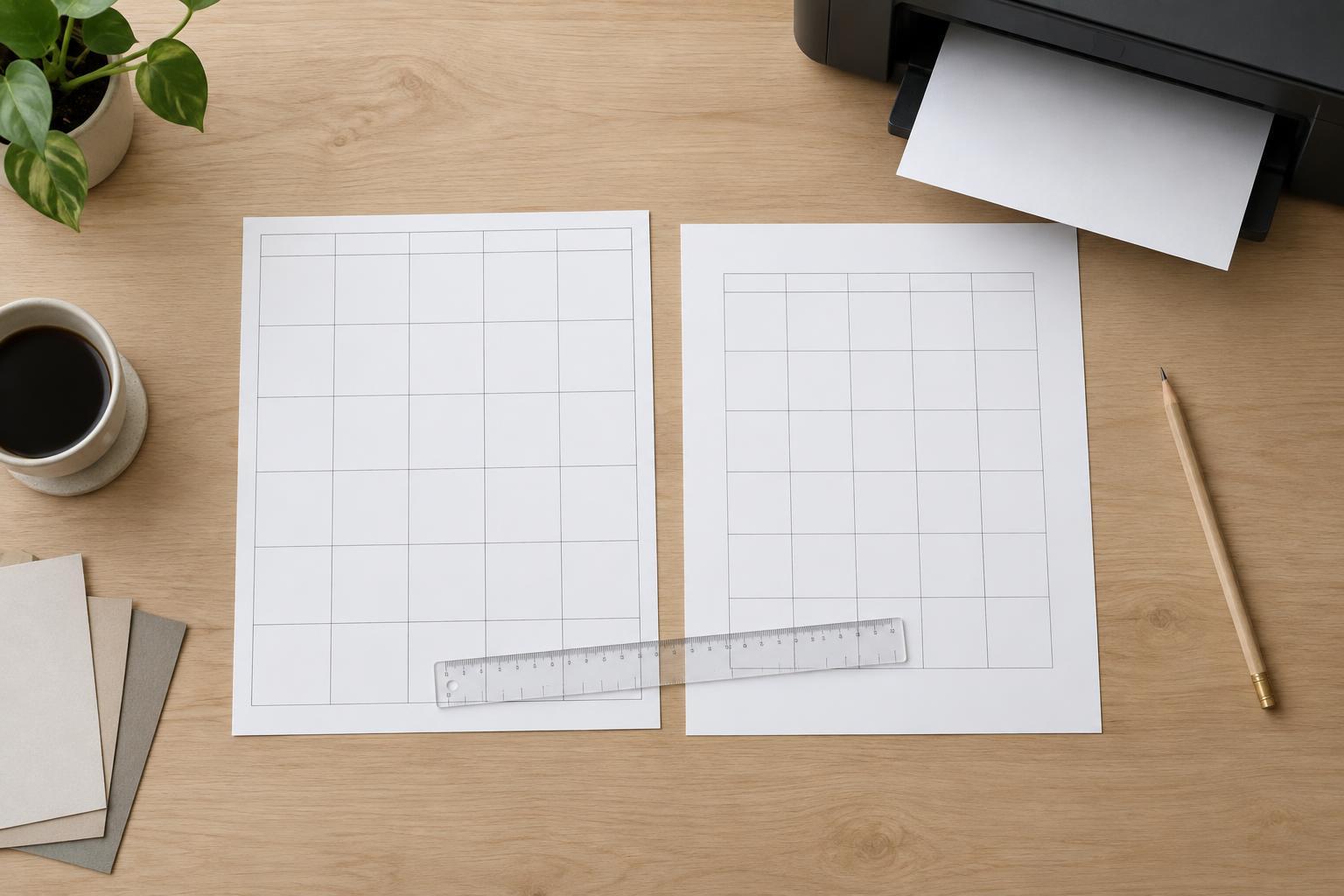
A4 measures 210 × 297 mm (about 8.27 × 11.69 inches). It is slightly narrower and taller than US Letter, so the two are not interchangeable without some adjustment. A5 measures 148 × 210 mm (about 5.83 × 8.27 inches), making it a more compact choice. A5 is half of an A4 sheet cut across its length; half of a US Letter sheet is a different size, 5.5 × 8.5 inches. If you are making a small planner, check which paper size and binding system you actually intend to use.
Match the layout to the writing space
For a full-size Letter or A4 page, you can usually give each day a roomy box, include a notes area, and still leave space around the edges. An A5 page calls for more editing. Prioritize the fields you use most, such as a short task list and an appointment area, rather than shrinking every element of a larger design.
Keep the finished page legible at its printed size. A heading that looks prominent on a monitor may be hard to scan after a full-size layout is reduced to A5. Print a draft and try writing in its smallest boxes with your usual pen. If your handwriting feels cramped, remove a field, simplify the schedule, or choose a larger page instead of relying on smaller text and tighter lines.
Leave room for printing and binding
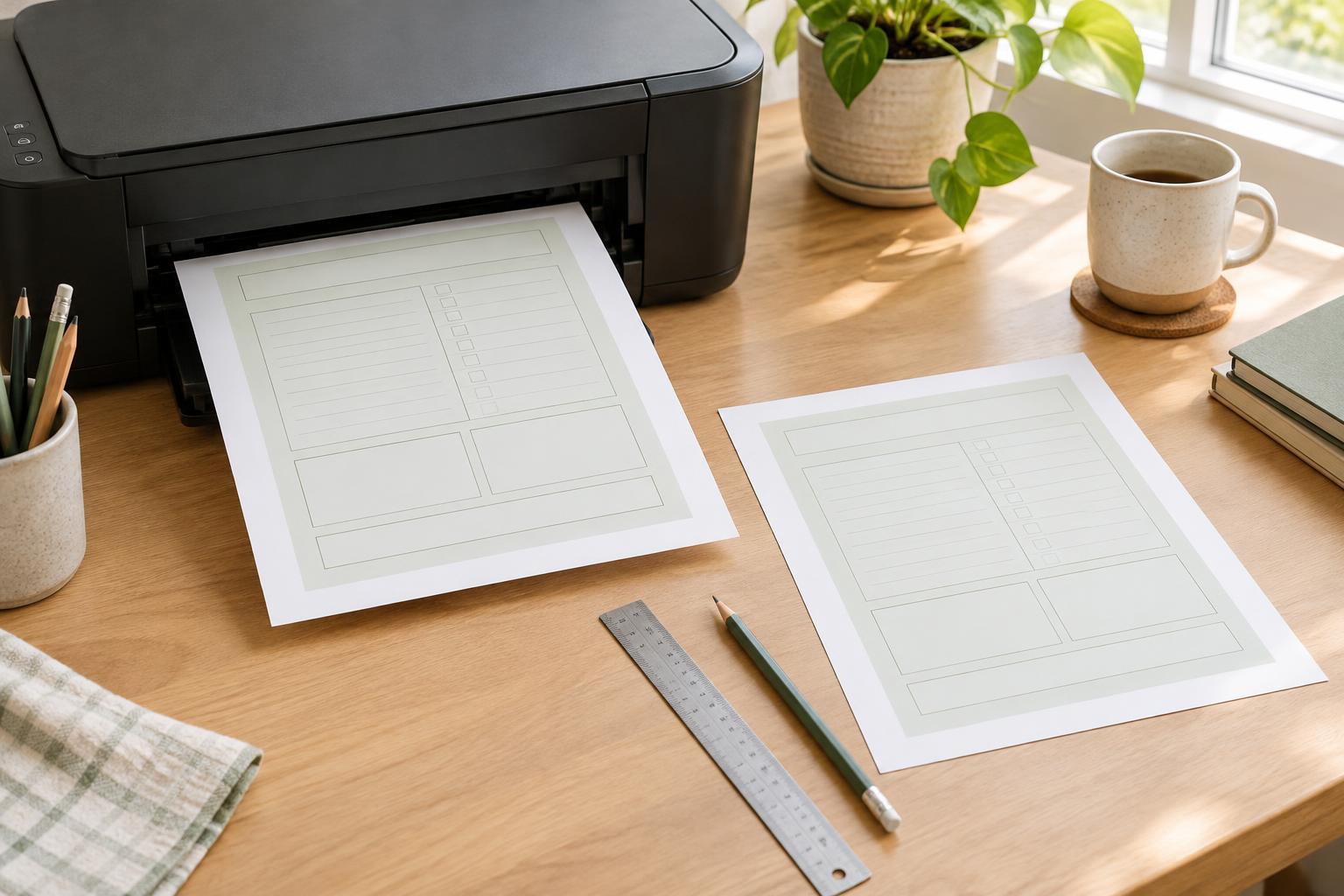
Most home printers cannot print to the very edge of a sheet unless they support borderless printing for that paper size. Keep essential text, lines, and page numbers away from the edges, and allow extra space along the side that will be punched or bound. A test page will show whether your printer and binding method need more clearance than your screen preview suggests.
If you print on both sides, consider a mirrored inner margin so the binding space switches sides on facing pages. Also check orientation: a landscape weekly spread may offer wide day columns, but it needs a different binder or folding plan from a portrait page. Decide how the pages will be assembled before finalizing the margins.
Print one page before making a set
Set the document to the intended page size, then check the printer dialog before printing. “Actual size” or 100% preserves the dimensions you designed; “fit to page” may shrink the layout, changing writing spaces and the position of punch holes. If the document size and loaded paper differ, verify the preview rather than assuming the printer will handle the mismatch as you expect.
Test a page with the real paper, pen, and binder you plan to use. Check whether the writing areas are comfortable, the text is readable, and the edges survive printing and punching. Once that page works, use it as the basis for the rest of the planner. A consistent size and margin system will make future pages easier to design and easier to combine.