Start with the space your graphic needs to fill
An aspect ratio describes a canvas’s shape: its width compared with its height. A 1:1 canvas is square, a 4:5 canvas is taller than it is wide, and a 9:16 canvas is much taller. The ratio is separate from resolution. For example, two files can both be square even if one contains more pixels than the other.
Before choosing a ratio, decide where the graphic will appear and what a viewer needs to notice first. A single photograph, a short announcement, and a text-heavy tip card may all benefit from different layouts. Check the destination’s current publishing guidance before exporting, since supported sizes, previews, and cropping behavior can vary. Treat the ratios below as useful starting shapes rather than universal requirements.
Choose a feed shape that fits the message
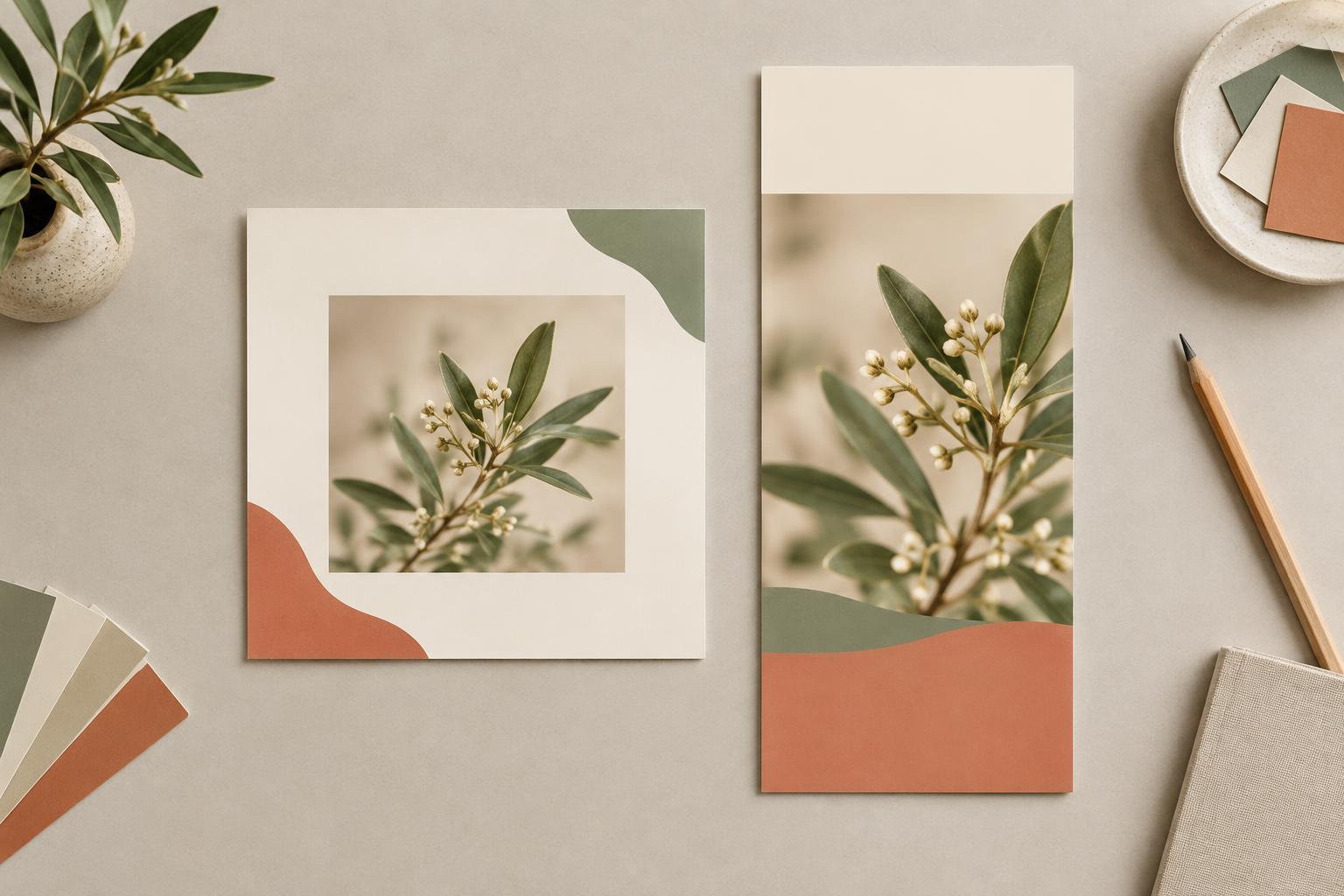
A square 1:1 layout is a flexible starting point for feed posts. It gives images and text similar room in both directions, which can make it easier to build a balanced composition. It is especially handy for a simple quote, product image, or short visual tip. Its main limitation is space: long headlines and multiple content blocks can quickly make a square feel crowded.
A portrait 4:5 layout offers more vertical room for a headline, supporting detail, and image without becoming as tall as a story. It can work well for an instructional graphic or a photo with a brief caption inside the design. If you are building a sequence of feed cards, keep the ratio consistent across the set so the cards feel related. Do not assume the full canvas will appear in every preview; keep essential words and faces away from the edges.
Design stories as vertical compositions
Stories commonly use a tall 9:16 canvas. That shape suits full-height photography, a short headline, and a clear next step. It does not suit a feed design that has merely been stretched to fill the space. Instead, rearrange the elements: move the main image to a natural focal position, enlarge text enough to read comfortably on a phone, and give each element breathing room.
Story interfaces may place controls, captions, or account information over parts of the graphic. Leave generous space near the top and bottom, and preview the design in the destination interface when possible. If a message needs several paragraphs to make sense, consider splitting it into a short sequence rather than squeezing everything onto one screen. Each screen should still communicate a useful point on its own.
Treat headers as wide backgrounds with a safe center
Social headers are usually much wider than feed posts or stories, but their exact shapes differ by destination. They may also crop differently on desktop and mobile screens. Rather than designing around one perfect edge-to-edge view, put the most important information in a central area with ample space around it. Let a photograph, pattern, or color field extend toward the outer edges, where cropping is less damaging.
Keep header text brief. A name, concise description, or recognizable visual identity is generally easier to accommodate than a detailed announcement. Watch for profile images or interface elements that might overlap your artwork. If your header contains words, check them at a small display size as well as at full size; type that looks elegant on a large editing canvas may become difficult to read in use.
Build a small family of layouts, not one resized file
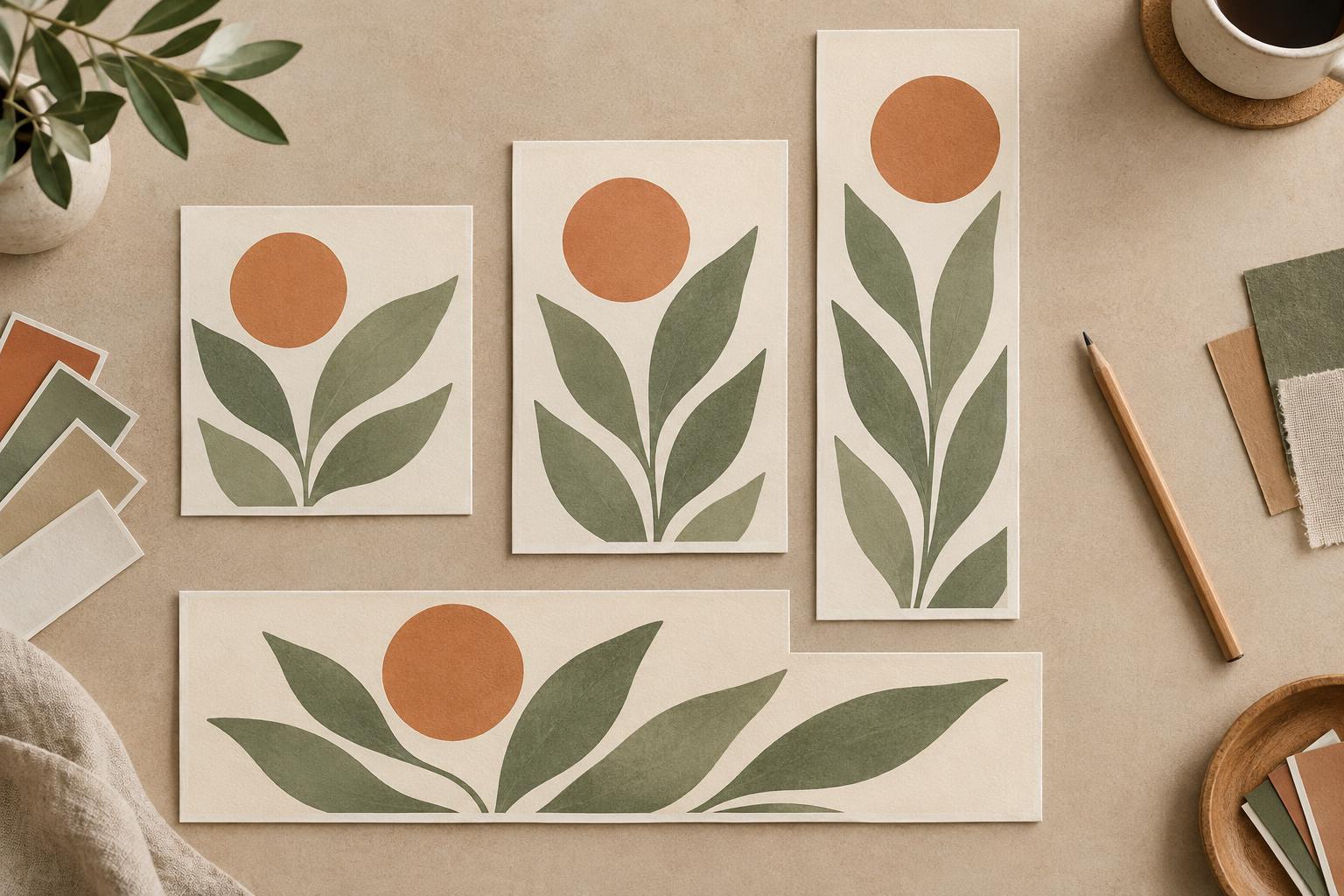
When a message needs to appear in several places, start with its essentials: the key image, the main line of text, any necessary supporting detail, and the visual style. Make separate compositions for square or portrait feeds, vertical stories, and wide headers. Keep colors, type choices, and imagery consistent, but allow alignment, scale, and placement to change. This preserves recognition without forcing one layout into incompatible shapes.
Use guides or margins to mark a comfortable area for important content, then test each version at the size a viewer is likely to see. Look for clipped subjects, tiny type, crowded corners, and backgrounds that reduce contrast. Save an editable master for each shape so future updates do not require rebuilding the design. A ratio is only the starting frame; the final check is whether the message remains clear after the platform displays it.