Start with the questions the page needs to answer
A simple budget worksheet helps someone record what they expected to receive or spend, what actually happened, and where the two amounts differ. Before choosing fonts or colors, decide what belongs on one page. A monthly worksheet might need a month and year at the top, followed by income, expenses, and a short summary. Keeping the scope to one period makes the page easier to complete and compare later.
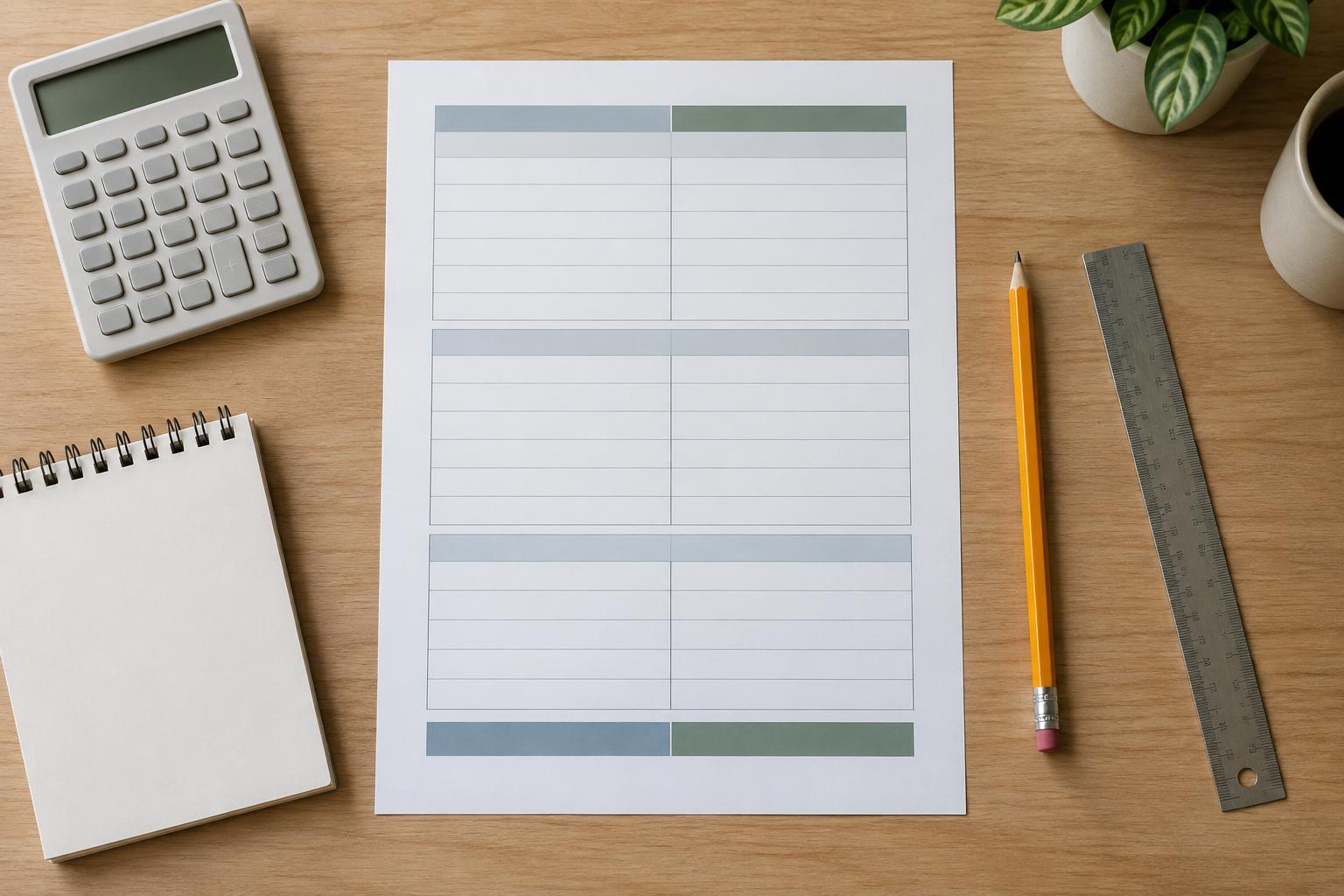
Sketch the structure with three main columns: Item, Planned, and Actual. Add a fourth column for Difference only if it serves a clear purpose and leaves enough writing space. The Item column should be the widest, since labels such as Household supplies take more room than numbers. Planned and Actual should be the same width so neither looks less important.
Group rows into sections people can scan
Begin with an Income section, then divide expenses into a few recognizable groups, such as Home, Everyday, and Other. Within each group, use specific row labels where they help: rent or housing, utilities, groceries, transport, and subscriptions are easier to use than a long series of blank lines. Leave some rows unlabeled so the worksheet can suit different households without requiring a new design.
Place a subtotal row at the end of each group and a larger Total expenses row after all expense groups. A small summary can show Total income, Total expenses, and Amount remaining. This hierarchy lets someone find an individual entry or a high-level result without searching through the whole page. Avoid packing in every possible category; extra rows can make a printable worksheet feel cramped before anyone writes on it.
If you include a Difference column, explain its rule in a short note near the column heading. For example, you might define it as Actual minus Planned. That makes a positive expense difference mean spending exceeded the plan, while a negative one means spending was lower. Clear labels matter more than assuming every reader will interpret a plus or minus sign the same way.
Make handwritten entries easy
Design for a pen, not just a screen. Give each entry row enough height for a legible number, and leave a little space between the amount and the column edge. Align number-writing areas consistently, preferably toward the right, so amounts are easier to compare down a column. If the worksheet will be printed, test it at its intended paper size rather than judging only from a zoomed-in preview.
Use light row lines or alternating very pale fills to guide the eye without competing with the entries. Make section headings and totals more prominent through weight, spacing, or a subtle border. A second font or bright color is usually unnecessary. If you use color to distinguish Planned from Actual, keep the words in the headings too; the worksheet should remain understandable in grayscale.
Leave space near the bottom for brief notes, such as an unexpected expense or an item to revisit next month. Two or three ruled lines may be more useful than a large empty box. Check that page margins, headings, and the notes area still fit comfortably on one sheet.
Check the worksheet with a sample month
Before treating the layout as finished, fill a copy with made-up amounts. Enter a planned and actual figure in several rows, then complete the subtotals and summary. This quick test often exposes problems that an empty page hides: a column may be too narrow for a four-digit amount, a subtotal may look like an ordinary entry, or the writing lines may be too close together.
Trace the path a reader will take. Can they enter income first, move through expenses, and reach the summary without guessing which total goes where? If a row could mean two things, rename it. If the summary requires a calculation, label that calculation plainly. The goal is not to tell anyone how to manage their money; it is to make the worksheet’s recording steps unambiguous.
Keep the design flexible for repeated use
A reusable worksheet needs room for habits to change. Rather than hard-coding a long list of narrow categories, combine a few common labels with blank rows that can be named as needed. Keep the month field empty and avoid decorative details tied to a particular season. If you create both a printable and a digital version, preserve the same section names and column order so switching formats does not change how the page works.
The final review is simple: print a test page, write on it, and check it in grayscale. Planned and Actual should be easy to distinguish, totals should stand out, and no essential text should sit near the trimmed edge. A worksheet succeeds when someone can pick it up, understand where each amount goes, and finish it without needing instructions on a separate page.