Start with two different kinds of commitments
A scheduled event has a time you need to respect: an appointment, a class, or a meeting. A flexible task has a result you want to achieve but may fit in several places: revise a slide deck, buy groceries, or sort paperwork. If a planner treats both as appointments, the week can look full before you decide when to work on anything. If it treats both as a checklist, important times can disappear among the tasks.
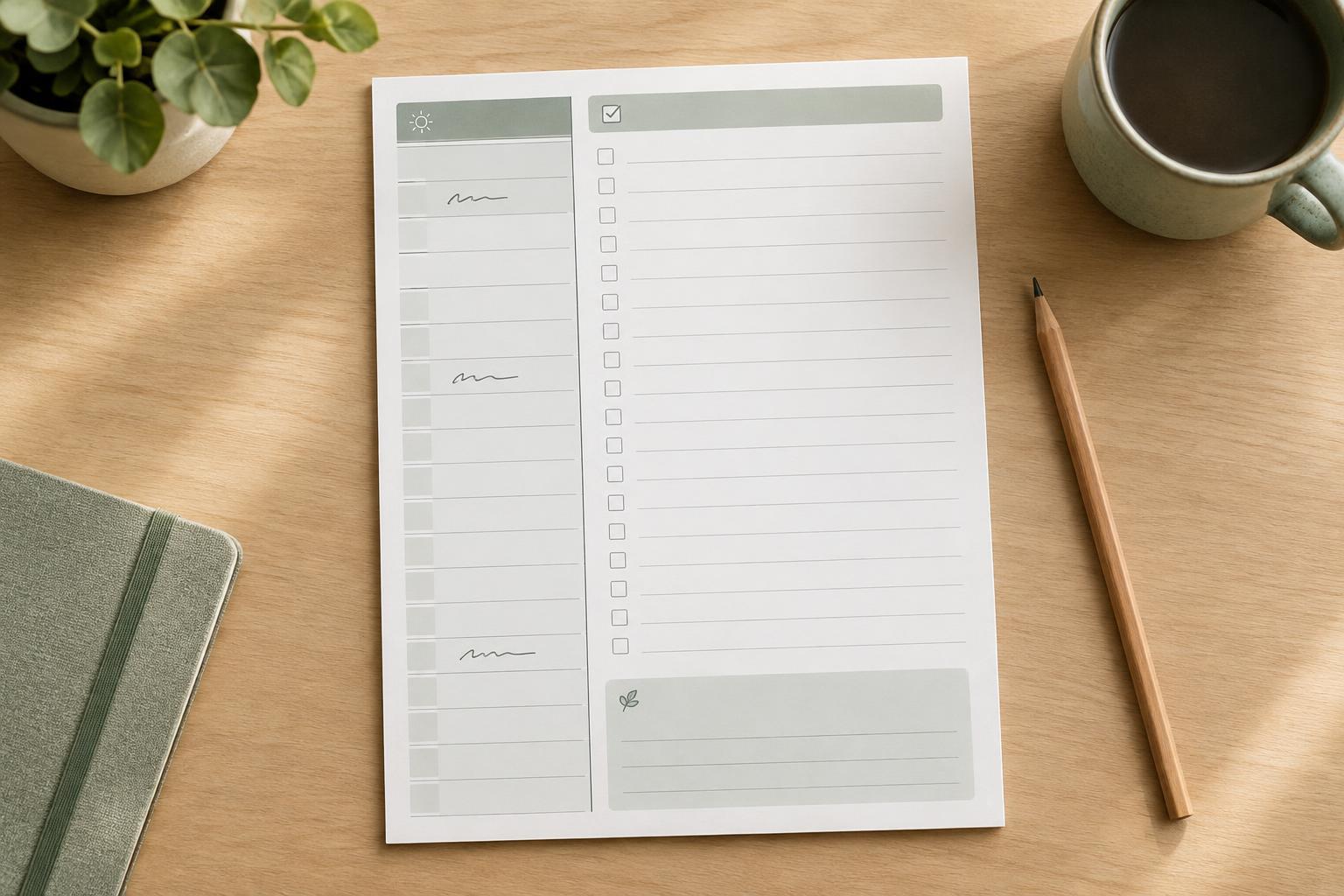
Before drawing boxes, decide what a reader needs to see at a glance. The page should answer two questions: “Where do I need to be, and when?” and “What could I work on next?” Giving those questions separate areas makes the planner easier to scan and easier to update when plans change.
Give fixed events a dependable home
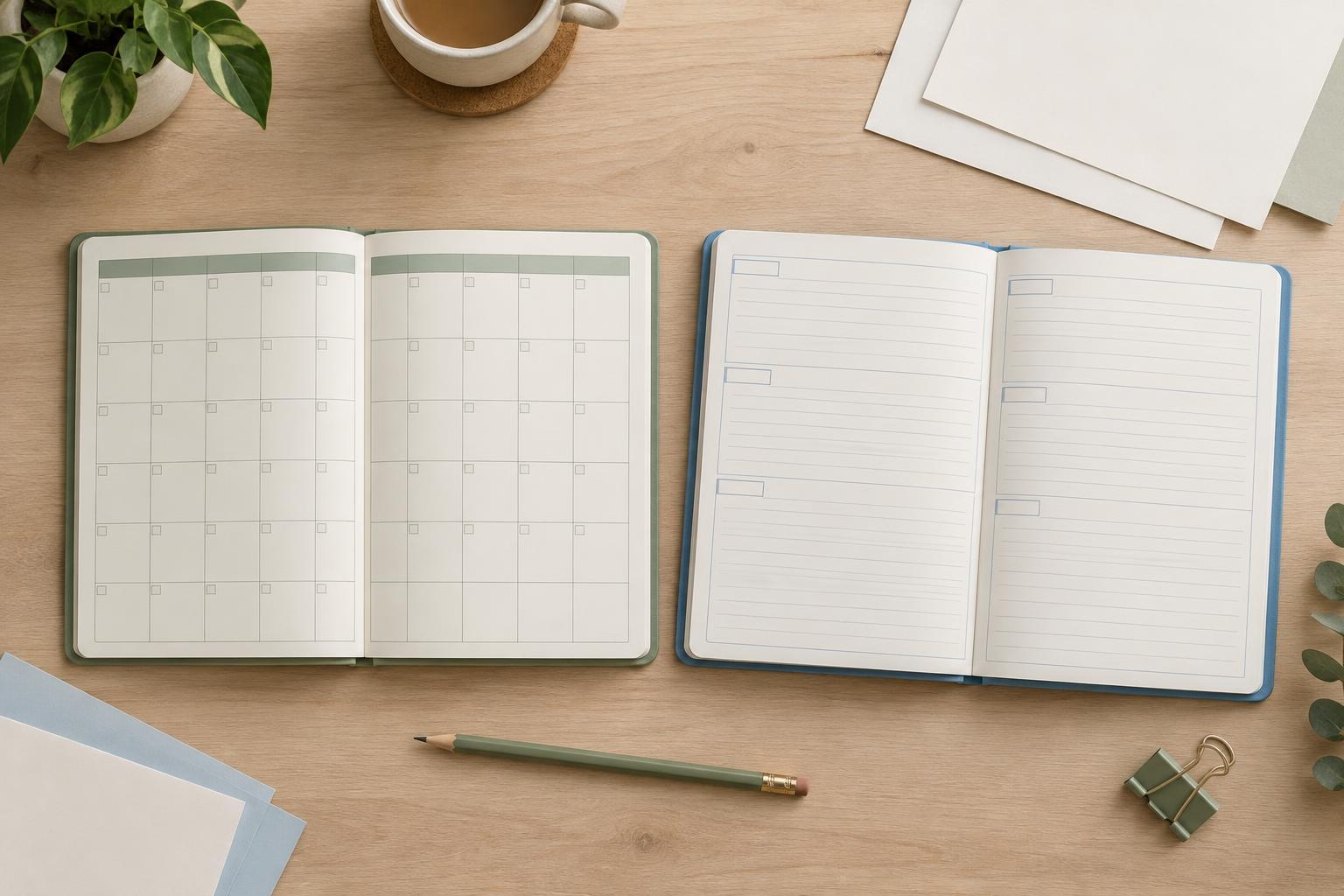
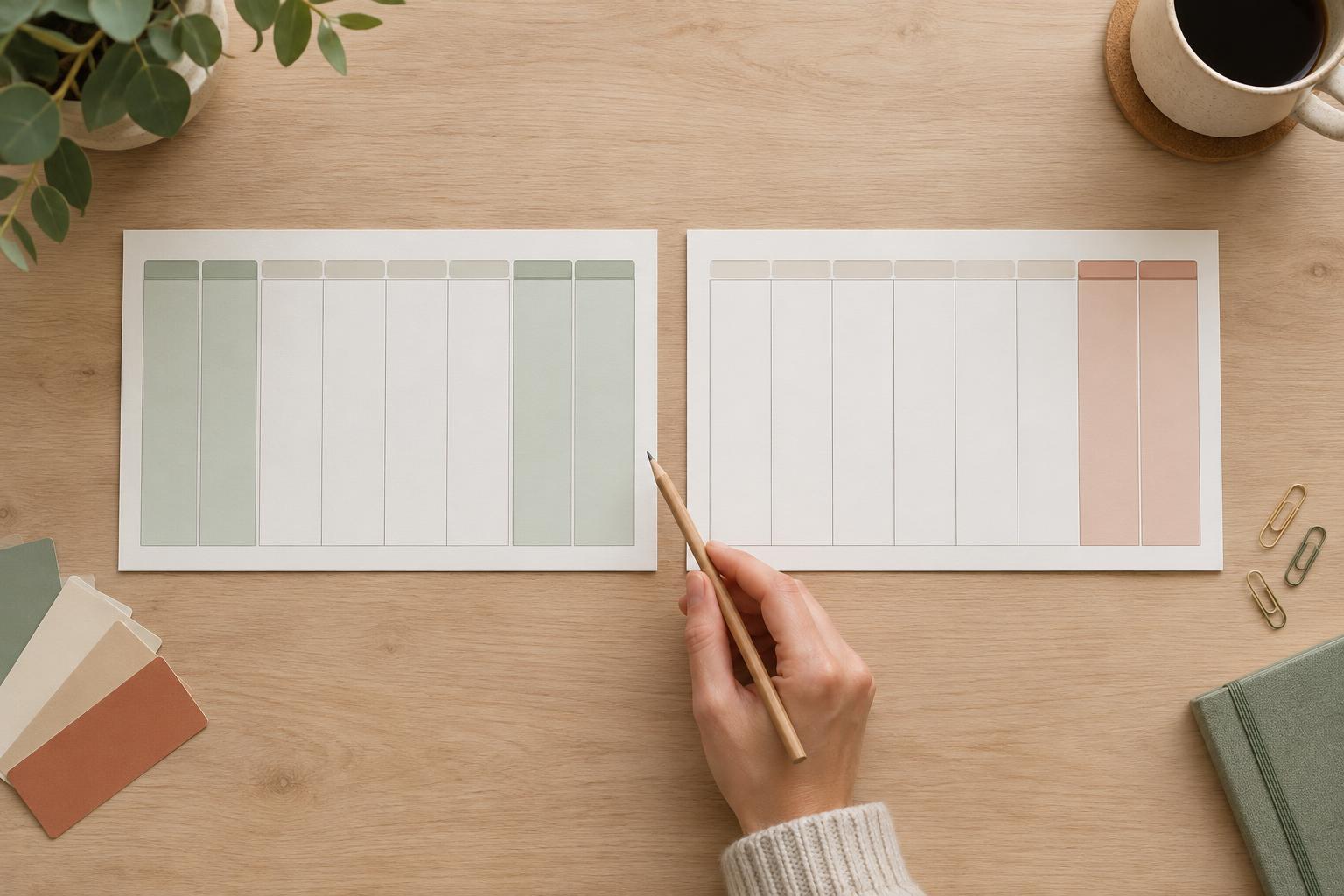
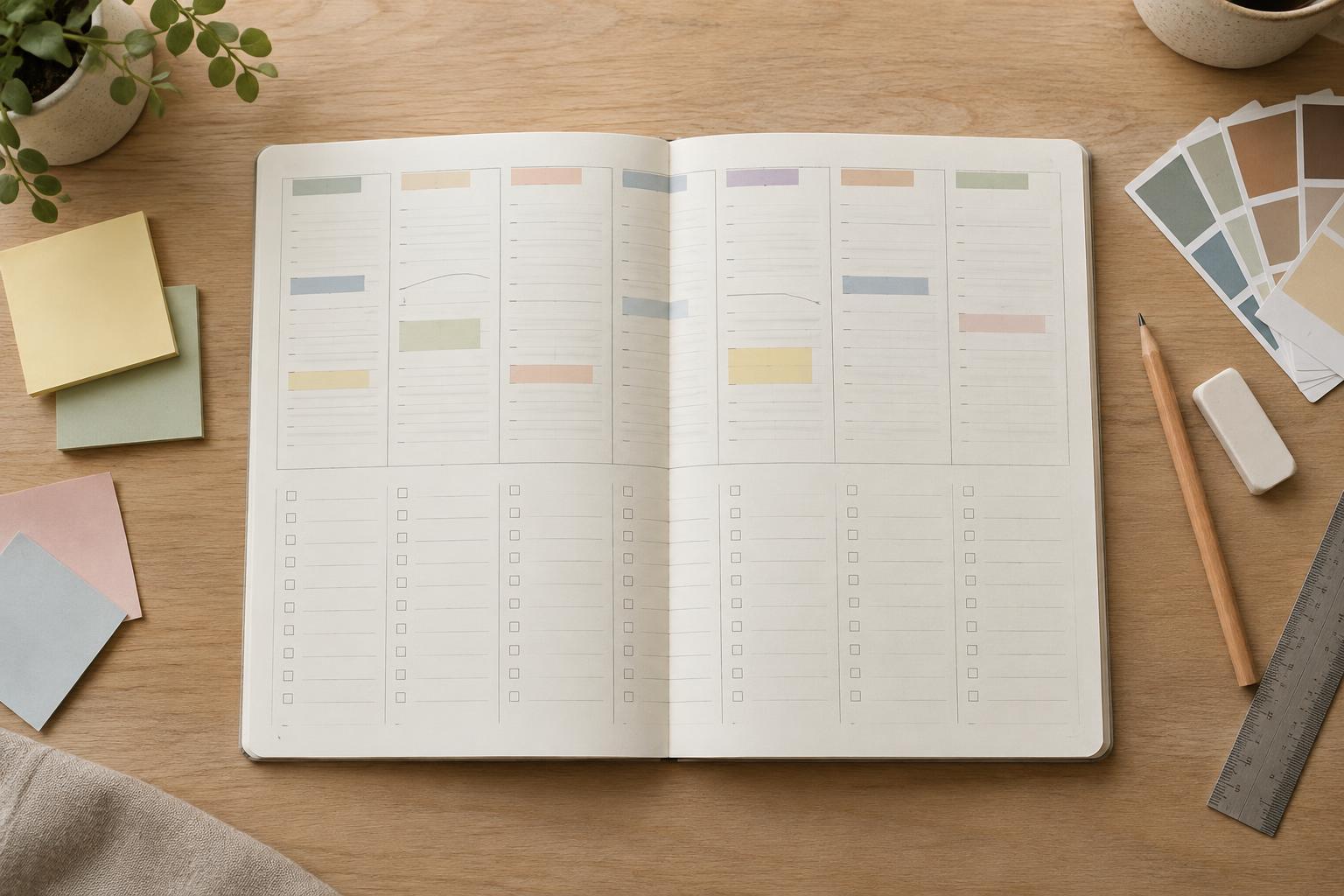
Choose a consistent place for each day’s scheduled events. A seven-column layout works when there is enough width to write legibly; a vertical list of days may be better for a narrow page. You can add time markers if the planner is meant for a busy appointment schedule, but you do not need an hour-by-hour grid for a week with only a few fixed commitments.
Leave room for the details that make an event usable: its name, start time, and perhaps a location or preparation note. Keep day labels and event times visually prominent. For example, bold day names and regular-weight event text create a hierarchy without relying on color. An empty day should still look like available space, not like a box that must be filled.
Make flexible tasks easy to assign and move
Place a weekly task list beside or below the schedule. This becomes a holding area for work that matters but does not yet have a day. Then give each day a smaller task area for items you are ready to tackle. The two levels let you plan the week without pretending you know exactly when every task will happen.
A simple example shows how the areas can work together. “Dentist, Tuesday at 10” belongs in the schedule. “Prepare questions for dentist” can sit on Tuesday’s task list. “Organize receipts” can remain on the weekly list until you find a suitable day. When plans shift, you move a task without having to rewrite the timed events around it.
Avoid adding too many status symbols. An open checkbox can mean “to do,” and a check can mean “done.” If you need a way to show that a task moved, use one small, defined mark. Leave enough line space to cross something out or rewrite it; a planner is a working page, not a finished display.
Use layout and type to protect writing space
Start with the space a person needs to write, then fit the labels around it. Give the busiest days more room if your routine is predictable, or keep all days equal for a reusable template. A narrow notes area can hold reminders that apply to the whole week, but it should not crowd the schedule or task lists.
Use a small type system rather than a different style for every label. One clear face for headings and one readable face for details is plenty. Keep headings distinct through size or weight, and use light rules to separate areas. Pale background fills may help identify the schedule and task sections, but check that the page still makes sense in grayscale. Strong contrast is especially important for any text printed over color.
If you are designing for paper, account for margins before filling the page edge to edge. Print one test sheet at actual size and write a few realistic entries on it. This reveals whether the task lines are too close together, day names are too small, or a decorative element has taken space that would be more useful for notes.
Test the planner with a changing week
Fill a sample page with several fixed events, a handful of day-specific tasks, and a few tasks you might postpone. Then change one appointment and move two tasks. Notice where the page becomes confusing: perhaps the daily task area needs another line, or the weekly list needs a clearer heading. Revise the layout based on what is difficult to read or update, not just on how balanced the empty page looks.
A good weekly planner makes different levels of certainty visible. Fixed events have a stable place; flexible tasks have room to wait, move, and get done. Once that distinction works, visual refinements can support it rather than compete with it.