Choose a question that fits the format
An FAQ graphic works best when it answers one specific question. “Can I print this planner in black and white?” gives you a clearer starting point than “How do I use a planner?” The first question can lead to a brief answer and one useful note. The second may need several steps or examples, making it better suited to a longer post. Before opening a design tool, write the question and answer in plain text. If the answer needs multiple paragraphs to make sense, narrow the question rather than shrinking the type.
Choose a question people can recognize in their own words. A polished heading is less helpful if it hides the issue someone came to solve. For example, “Will this fit on letter-size paper?” is easier to scan than “Document compatibility information.” Keep the answer close to the question: “Yes, if the file is set up for letter-size printing” is more useful than a vague “It depends.” Add any essential condition immediately, so a quick glance does not leave a misleading impression.
Make the answer the strongest visual element
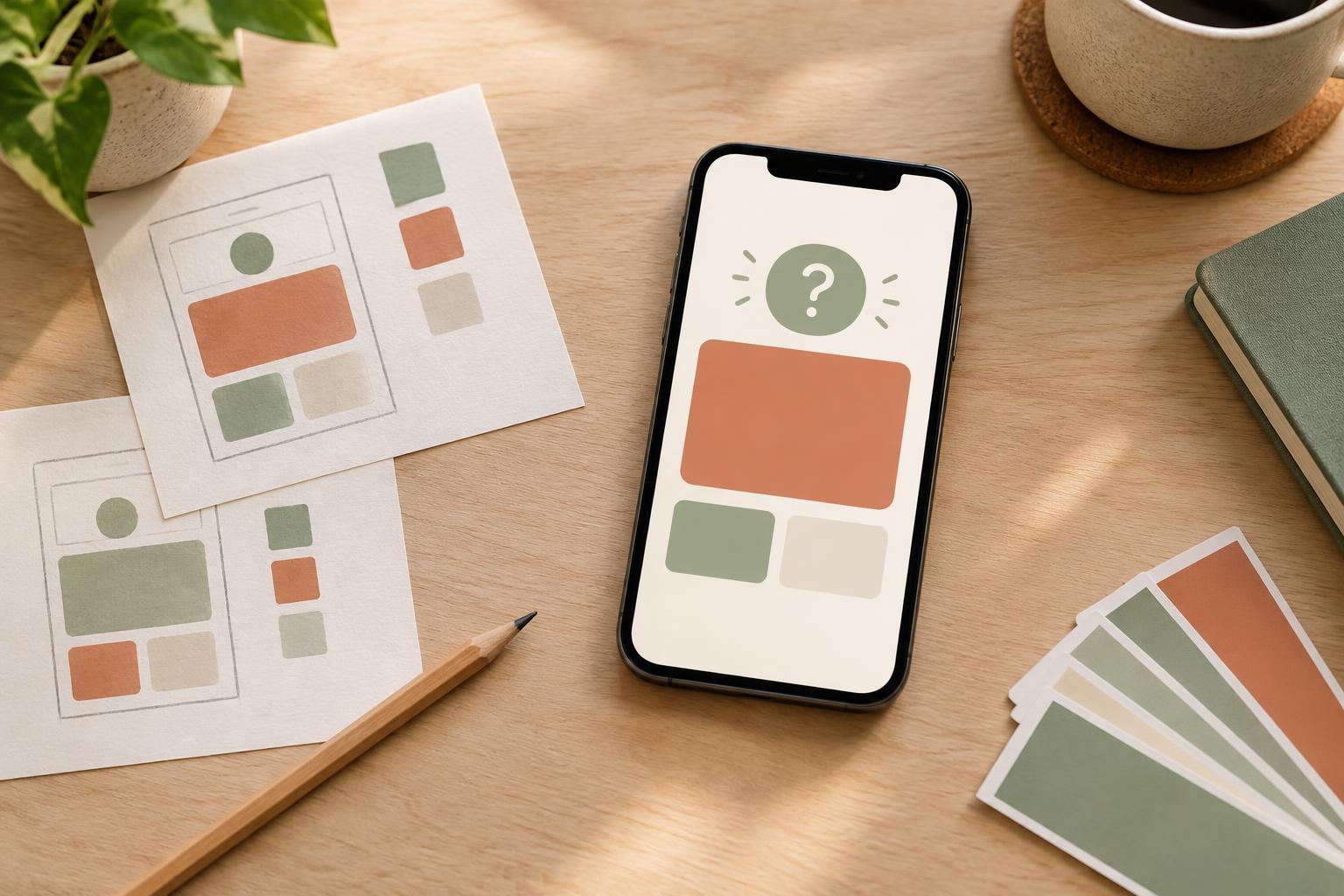
Give the graphic a simple reading order: question, short answer, then supporting detail. The question can sit at the top in a consistent position, while the answer receives the most visual weight through size, placement, or contrast. This does not mean every word of the answer should be oversized. If the response is a sentence, emphasize its key phrase and set the remaining words at a comfortable reading size. Leave enough space between these parts that the viewer can tell what to read first.
Use decorative elements only when they clarify the structure. A small question-mark symbol may identify the format, but a large icon, patterned background, and several colored boxes can compete with the answer. For a recurring FAQ series, keep the same positions for the question and answer across posts. Change the wording, not the entire visual system. That consistency can make the series easier to recognize while allowing each graphic to stay focused on its own question.
Include context without crowding the graphic
A short answer sometimes needs a qualification. In a printing FAQ, “Choose actual size in your print settings” may be the detail that prevents confusion. Put that note beneath the main answer in a smaller but still readable text block. Avoid compressing several exceptions into tiny type to make them fit. If a condition changes the answer substantially, state it clearly in the graphic or choose a narrower question. A caption can provide extra explanation, but the graphic should not contradict it when viewed alone.
An example can help when the answer involves a choice. Suppose the question is “Should I use a light or dark background?” The graphic could give a concise principle such as “Choose the one that keeps the text easy to read,” followed by two small samples showing clear and poor contrast. Label the samples directly instead of relying on color alone to communicate which is which. If the example is too small to judge on a phone, remove it and use the space for a clearer written answer.
Review it at the size people will see
Once the layout is assembled, view it at roughly phone-screen size rather than judging it only while zoomed in. Read the question, answer, and note in order. If you must pause to identify the answer, strengthen the hierarchy. If a line of text feels cramped, shorten the wording before reducing its size. Check that the text remains distinct from the background and that important words do not sit close to edges where a crop could make them harder to see.
Finally, compare the finished graphic with the original question. Does it answer what was asked, or did the design process turn it into a general tip? Read the text without its visuals as a quick clarity check, and proofread any conditions or labels. For a series, keep a simple record of the question, final answer, and layout decisions. That makes the next graphic faster to build without forcing every answer into exactly the same amount of space.