Start with the area your printer can actually use
A page in a design app extends to the edge of the paper, but a home printer may not be able to place ink across that entire page. The untouched strips are often called unprintable margins. Their size can vary by printer, paper size, print setting, and sometimes by which edge of the sheet enters the printer first. That is why a printable that looks balanced on screen can come out with a clipped heading or an unexpectedly narrow border.
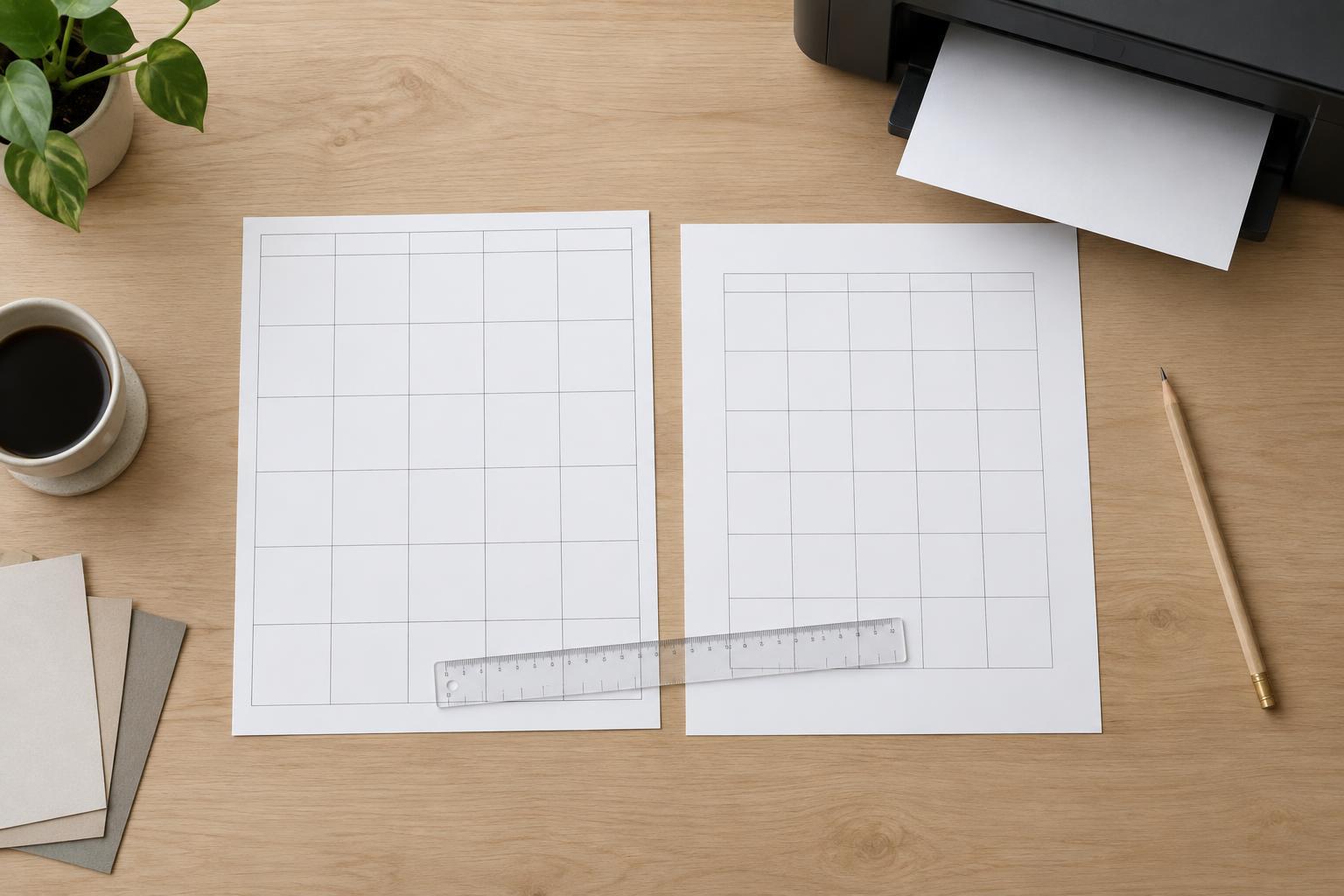
Before designing a planner page, check the printer’s settings or documentation for its printable area. If you cannot find a clear specification, make a test page with thin lines or small marks placed at several distances from each edge. Print it at actual size, then note where marks disappear. This gives you a working boundary for that printer and paper combination, rather than a margin borrowed from someone else’s setup.
Treat that boundary as a limit, not a target. Paper can feed slightly differently from sheet to sheet, and cutting or hole-punching introduces its own variation. Leave some extra space between the printer’s apparent limit and anything readers need to see or write on.
Build a safe area for important content
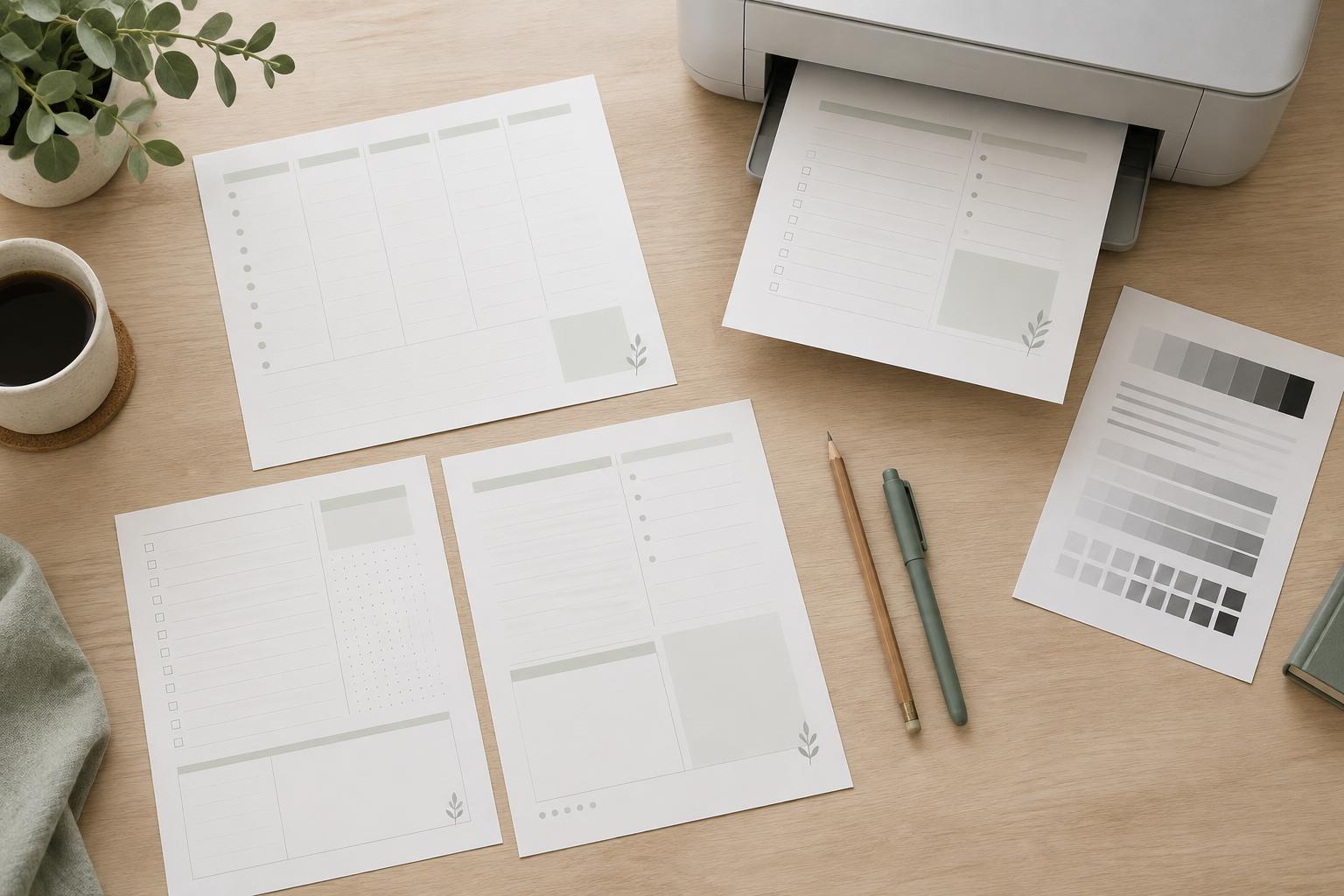
Create guides inside the page edges to mark a safe area. Keep dates, labels, checkboxes, page numbers, and other essential details within those guides. A weekly planner, for example, may have a decorative header near the top edge, but the day names should sit comfortably farther in. If the decoration gets trimmed or left partly unprinted, the page should still work.
Consider how the page will be used after printing. A binder needs room on the punched side so writing spaces do not crowd the holes. A page meant for a clipboard may need extra breathing room at the top. If you design facing pages, you can give the inner edges more space than the outer edges; for single sheets, a consistent margin may be simpler to print and use.
Margins also help the layout feel intentional. Instead of shrinking everything to fit, first remove elements that add little value. Shorten a long heading, reduce the number of decorative marks, or simplify a crowded notes box. The goal is not to fill every printable inch. It is to leave a clear, usable page.
Choose borders and backgrounds with printing in mind
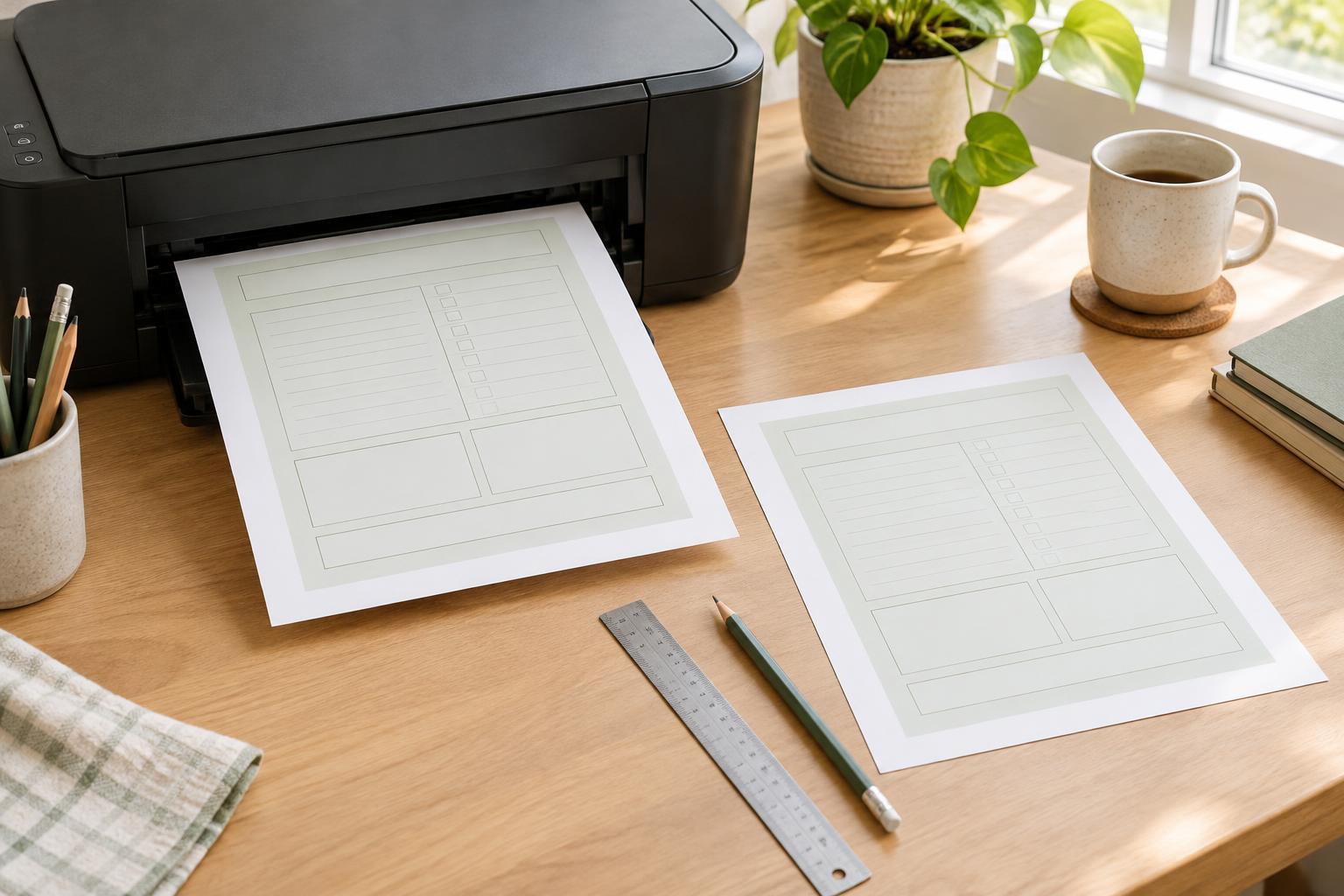
A border close to the paper edge draws attention to even a small printing shift. If you want a framed page, place the border well inside the safe area so all four sides have room to print. A partial border can be more forgiving: try a line beneath the title or dividers between planner sections instead of a box around the whole sheet.
Full-page color and edge-to-edge artwork need special care. A borderless setting, where available, may enlarge the artwork slightly to cover the sheet; that can crop details near the edges. It may also use more ink than a mostly white planner page. For a printable intended for ordinary home printing, a white background with restrained color accents is often easier to reproduce.
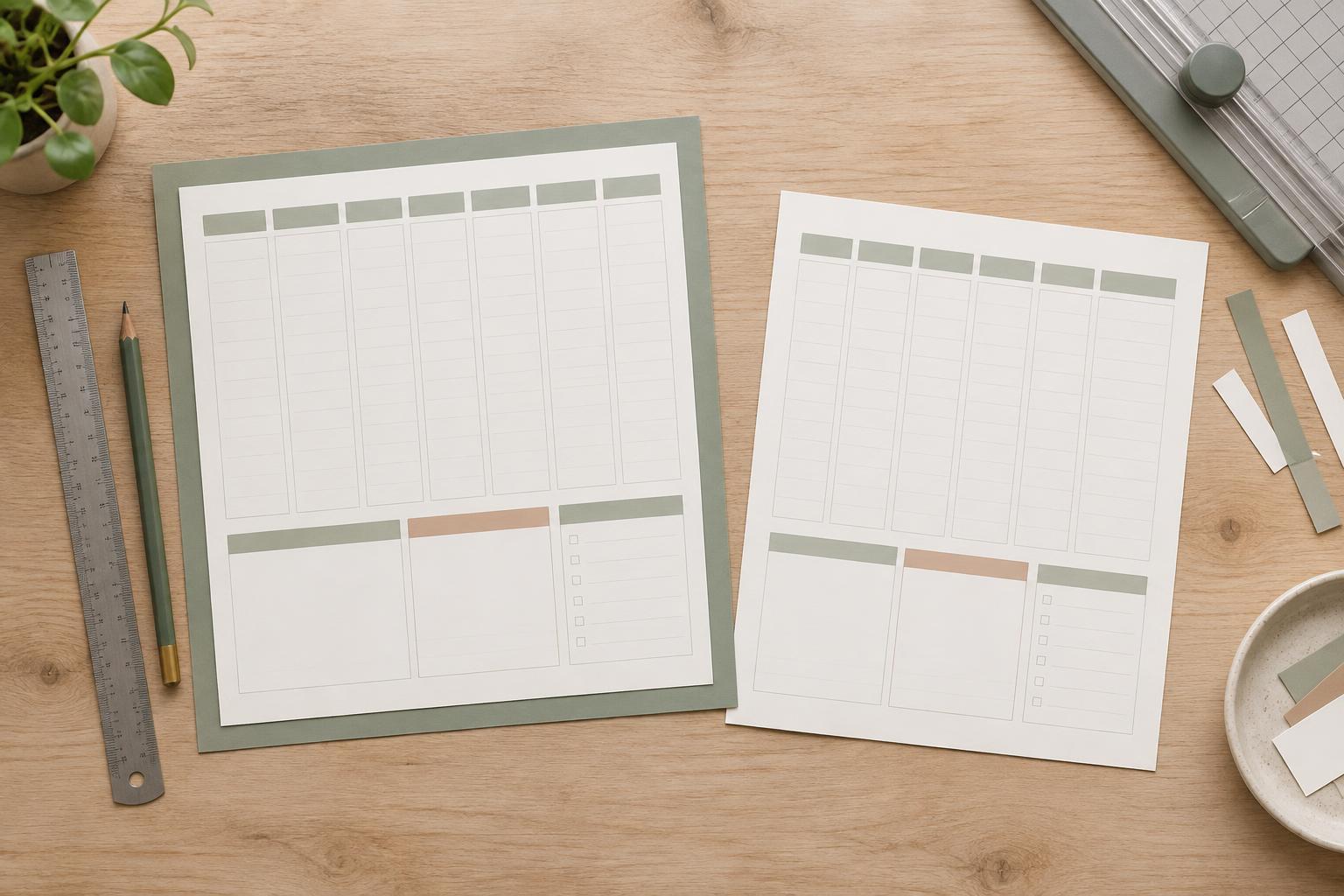
If edge-to-edge color is essential, consider designing on a larger sheet and trimming down to the intended size. Put any artwork meant to reach the final edge beyond the trim line, while keeping text and writing areas inside a separate safe area. This approach requires suitable paper and accurate trimming, so it should not be the default for a quick-print planner.
Check scaling and two-sided pages
Even a layout with generous margins can change when the print dialog scales it. “Fit to page” may shrink the design to accommodate the printer’s printable area, making writing boxes and text smaller than planned. “Actual size” preserves dimensions but may clip content outside the printable area. For forms, trackers, or pages with measured spaces, check the scale setting deliberately rather than accepting it unnoticed.
Two-sided printing adds another alignment question. The back of a sheet may not land in exactly the same position as the front, so designs that depend on perfectly matched edges can be frustrating. Give both sides comfortable margins, and test a single duplex sheet before printing a stack. If the pages will be punched or bound, confirm that the wider binding margin ends up on the correct side of each page.
Make one test sheet part of the workflow
Print a representative page on the paper you expect to use. Choose one with the smallest text, the closest-to-edge element, and a typical writing area. Look for clipped lines, uneven borders, cramped labels, and boxes that feel too small when you hold a pen over them. Check the result under ordinary light, not only on a screen where faint lines may appear clearer.
Mark changes directly on the test sheet, then update the file and print again if needed. Once it works, save the page size, guides, and print settings with your project notes. Those settings make a useful starting point for future printables, but recheck them when you change printers, paper sizes, or finishing methods. A small amount of testing upfront is usually easier than correcting an entire printed set.