Design for the screen people will actually see
A graphic may look perfectly balanced in an editor and still be hard to read after it is posted. Social platforms can place account details, captions, buttons, playback controls or other interface elements over the content. A post may also be cropped differently in a feed, profile grid or preview. The exact placement of these elements can vary by format, device and viewing context, so it is safer to plan for change than to rely on one fixed set of measurements.
Start by separating essential content from decoration. Essential content might include the main message, a date, a product name or a call to action. Decorative shapes, background photography and subtle textures can tolerate being partly covered. If someone sees only the central portion of your graphic, they should still understand its main point. This is especially useful when one design must work in several viewing contexts.
Build a flexible safe area
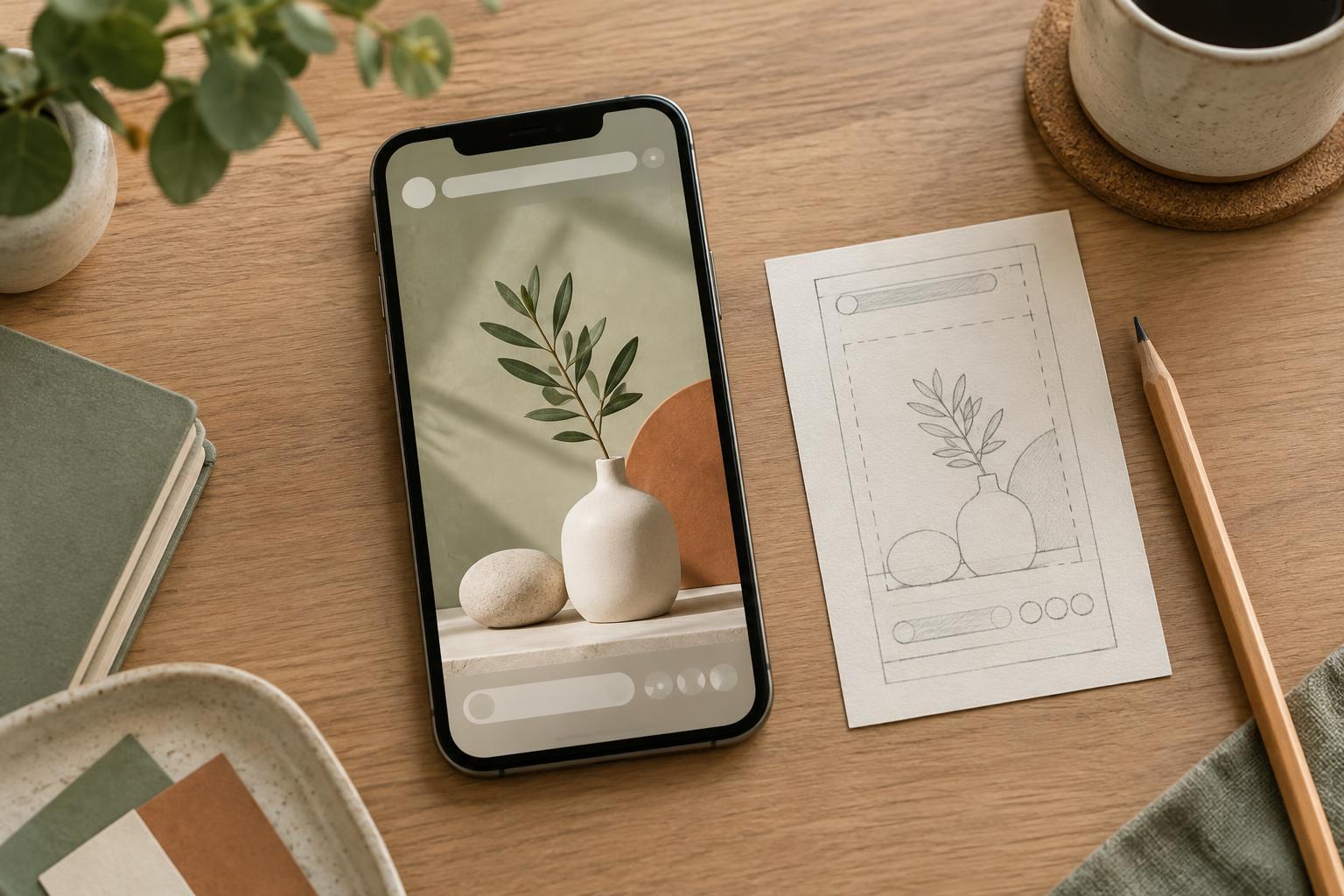
A safe area is the part of a canvas where important content is least likely to be hidden or cut off. To make one, draw temporary guides inside the outer edges of your design. Leave extra breathing room near places where interface elements commonly appear, especially along the top and bottom of full-screen content. Treat these guides as a working boundary rather than a guarantee: an overlay can change, and a caption or control may occupy more space than expected.
Keep headings, logos and key details comfortably inside that boundary. Do not let a single word, icon or price straddle its edge. A little extra space also improves readability when the graphic is viewed on a small screen. Background color or imagery can extend to the canvas edge, but the information a viewer needs should have room around it.
Arrange text for quick reading
Give the most important idea a clear visual position instead of scattering small pieces of text around the canvas. A short headline and one supporting line are often easier to protect than several labels placed near different edges. Use a readable type size, sufficient contrast and a simple hierarchy so the message remains clear even when surrounding details compete for attention. If text sits on a photograph, a solid panel or gentle color treatment behind it can help keep it legible.
Be deliberate with calls to action. An instruction such as “See the details in the caption” should not sit where a platform button could cover it. At the same time, a graphic does not need to carry every piece of information. If a sentence is too small to read comfortably within the safe area, shorten it or move supporting detail to the post caption. This gives the visible message more room without losing context.
Check crops and movement, not just the full canvas
Preview the design at approximately the size a person might see on a phone. Then look at any other placements you plan to use, such as a feed preview or profile grid. If those placements use different crops, make separate versions or reposition the content for each one. Simply resizing a finished graphic can push text into an overlay or trim a subject that was previously well placed.
For video or animated graphics, inspect the opening frame, the middle and the end. Text or a moving subject might enter a risky area even if the first frame is clear. Keep essential on-screen text visible long enough to read, and watch for captions or controls that could compete with it. A paused frame is a useful check, but playing the design at normal speed can reveal problems that a still preview misses.
Use a repeatable final check
Before publishing, preview the post through the platform’s posting flow when possible. Look for covered words, crowded corners, awkward crops and low-contrast text. If you cannot preview every placement, prioritize the ones your post is intended for and leave generous space around the essential content. Review the result again after posting if the platform allows it; the published view may reveal an issue that was not obvious in the editor.
Save a reusable working template with guides for each format you make often, but keep the guides editable. A template should speed up decisions, not encourage you to ignore what is on screen. Each new graphic still needs a final visual check, particularly when its text length, imagery or destination changes. The goal is not to predict every interface variation. It is to make the main message resilient enough to remain clear when the surroundings shift.