Start with the finished planner, not the screen
Before placing a calendar grid or writing line, decide how the printed pages will be used. Will they go into a ring binder, be stapled into a booklet, or remain as loose sheets? Where will the user hold the page, and which edge will carry holes or a fold? Those choices determine which areas need breathing room.
Set the document to the paper size you intend to print, and keep page orientation consistent unless there is a clear reason to change it. Sketch the main zones: heading, dates, planning space, notes, and any footer. Leave room for someone to write near the edges of those zones. A layout that fits visually may still be awkward if a hand, binder ring, or fold covers the first few characters of every line.
Treat inner and outer margins differently
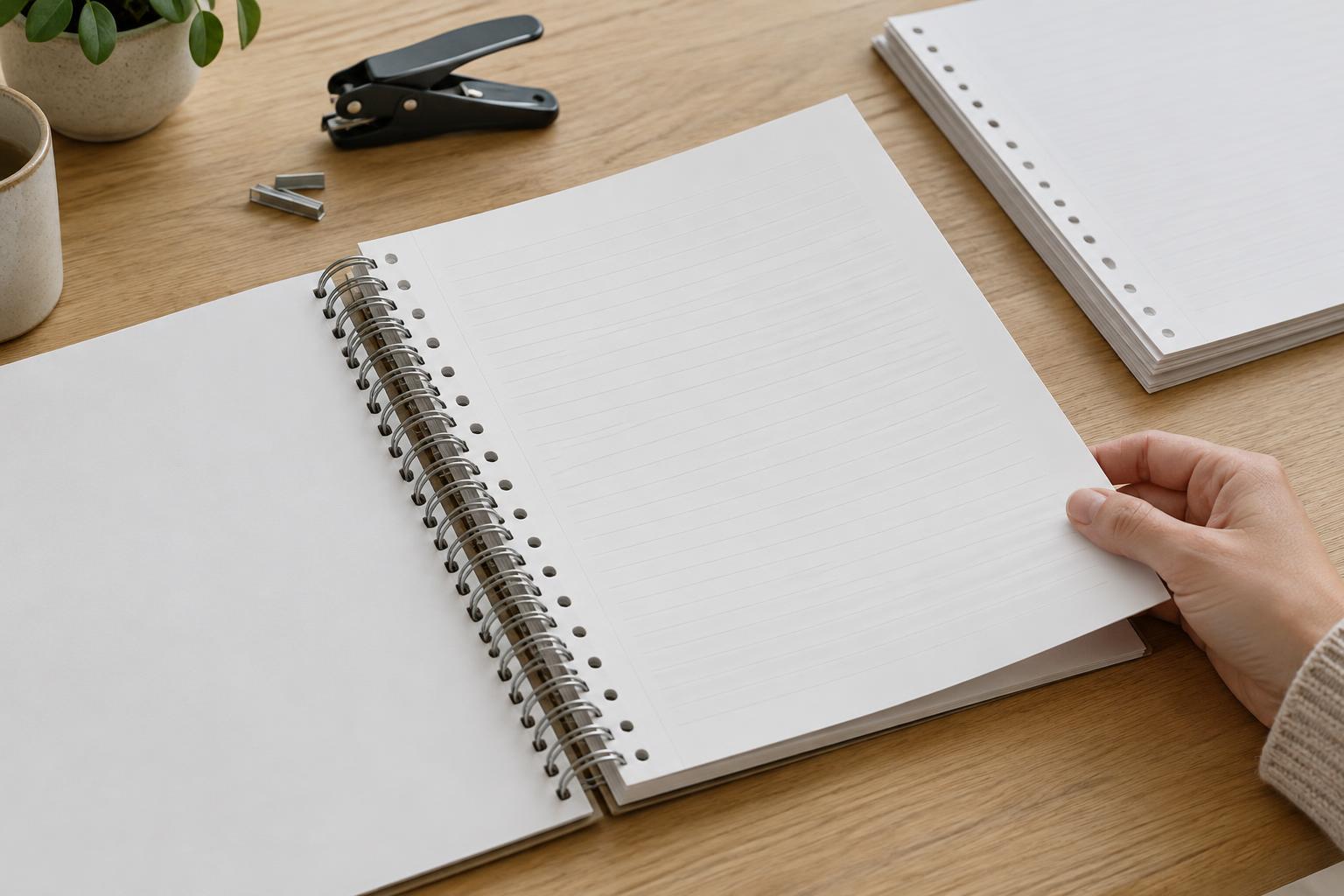
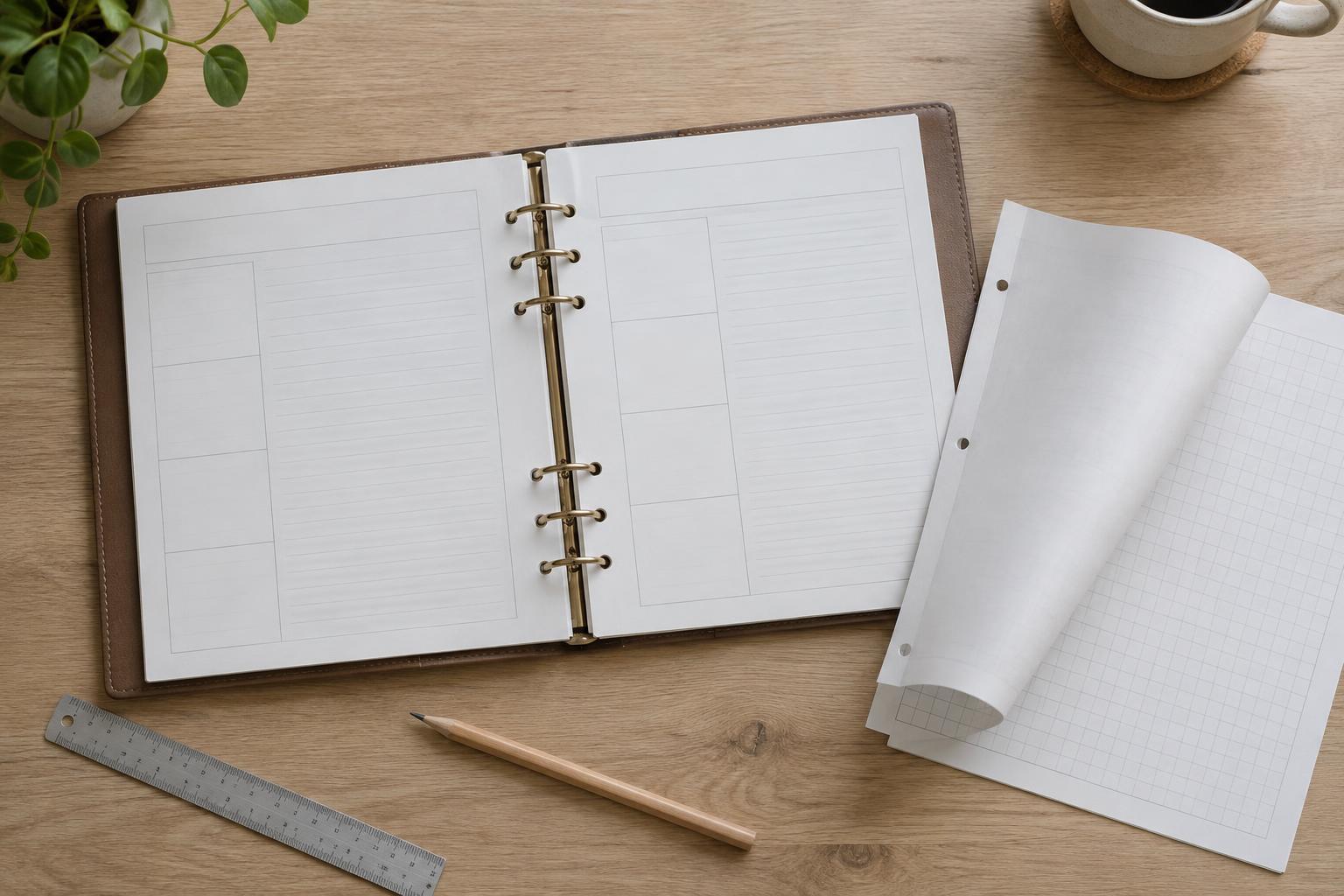
For a left-bound planner, the inner edge sits nearest the binding. It usually needs more space than the outer edge, particularly if pages will be hole-punched. On a conventional left-to-right sequence, odd-numbered pages appear on the right and have their inner margin on the left. Even-numbered pages appear on the left and have their inner margin on the right. Mirrored margins let the page design follow that pattern.
There is no single margin measurement that suits every binder or printer. As a starting point, you might try an inner margin of three-quarters of an inch and an outer margin of half an inch, then adjust after a physical test. Keep small labels, checkboxes, and writing lines away from the punch area, not just away from the holes themselves. If your design uses a border, give it enough clearance that a slight shift during printing will not make one side look noticeably narrower.
Also allow for the printer’s unprintable area. Many everyday printers cannot print to the very edge of the sheet. Unless you know your printing setup supports borderless output, design backgrounds and rules to stop comfortably inside the paper edge.
Build a dependable front-and-back system
Use the same underlying grid on both sides of a sheet so headings, writing areas, and recurring details feel related. This does not mean both pages must be identical. A weekly plan could face a notes page, for example, while sharing type sizes, spacing, and a common alignment for the top heading. Consistency makes the planner easier to scan and makes errors easier to spot.
Think through page order before duplicating a template. In a normal duplex document, page 1 prints on the front of the first sheet and page 2 on its back; page 3 starts the next sheet. If you are creating a folded booklet, that is a different arrangement: its pages may need booklet imposition so they appear in reading order after folding. Do not manually shuffle pages for a standard duplex print unless your printing method specifically requires it.
Keep decoration from competing with the working areas. Light rules and clear labels can guide writing, but dense patterns behind boxes or text may make a printed page harder to use. Check the layout in grayscale if color is not essential.
Choose the duplex setting with a test sheet
A correct page file can still print with its back upside down. For portrait pages that turn like a book, the printer’s long-edge flip setting is commonly the right choice. For landscape pages, short-edge flip may produce the intended book-like turn. Printer menus vary, so treat these as starting points rather than guarantees.
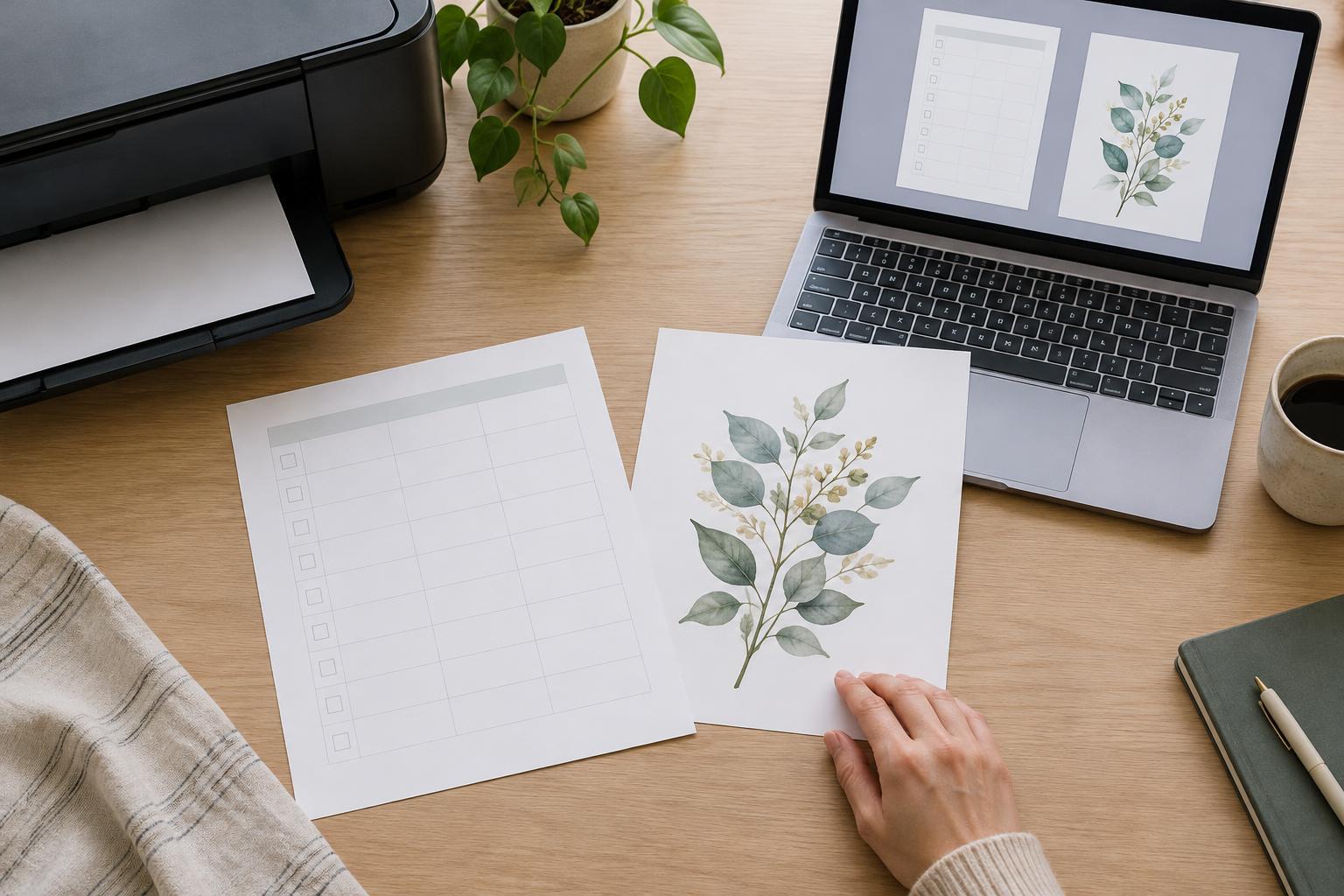
Print just two numbered pages on one sheet before producing the whole planner. Add a temporary arrow pointing to the top and a small mark near the intended binding edge on each page. Turn the sheet as someone would turn a planner page: both sides should read upright, and the generous binding margin should land beside the same physical edge of the sheet. If the back is inverted, change the flip setting. If the binding margin is on the wrong side, check your odd- and even-page layout.
Use the same paper size and scale setting planned for the final print. Options such as “fit to page” can quietly shrink a design and change the space available for writing.
Review the printed page as a working tool
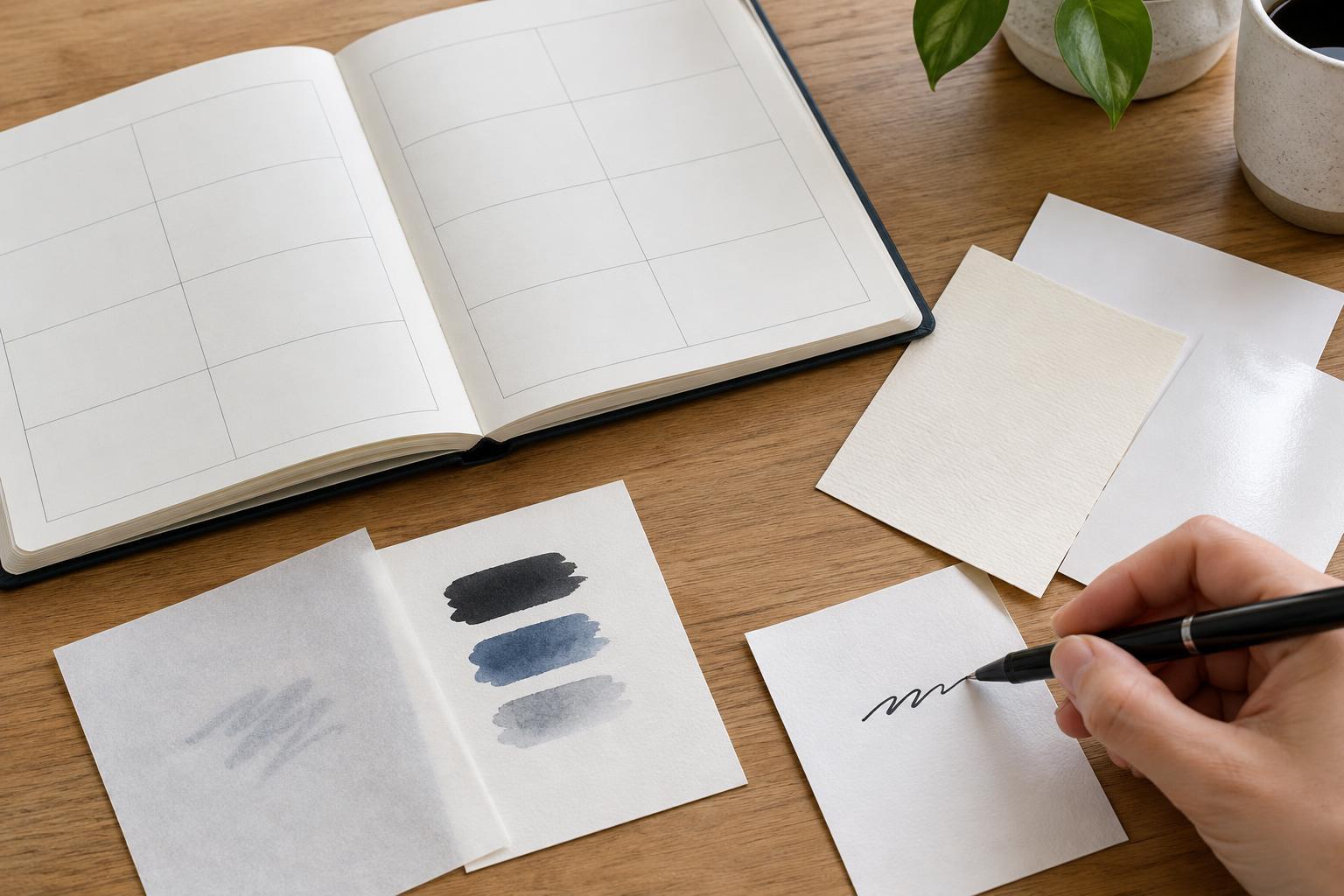
Once the test sheet is oriented correctly, evaluate it with a pen. Write on the narrowest lines, fill a few boxes, and hold the sheet where it will be bound. Are the labels legible? Can you reach the inner writing area comfortably? Does anything on the back show through enough to distract from the front? If show-through is a problem, simplifying heavy fills or using a different paper may help.
Check the complete file in facing-page view as well as page by page. Look for a margin that stops alternating, a heading that moves unexpectedly, or a blank page inserted on the wrong side. Then print a small run, assemble it in its intended order, and make final spacing changes from that physical sample. A reliable double-sided planner is not merely symmetrical on screen; it remains clear, writable, and correctly oriented after printing and binding.