Start with the finished page, not the screen
Binding takes up usable space. A planner page that looks comfortably spaced in a design file may feel cramped when a row of holes cuts through its border or a spiral covers the first letters of a label. Before placing content, decide how the page will be printed, which edge will be bound, and whether people will write on it. Those choices determine where the layout needs extra breathing room.
Think of the page as having three areas: the trim or paper edge, a binding area that may be punched or covered, and a content area where everything important remains easy to see and use. Keep text, checkboxes, page numbers, and writing lines out of the binding area. Background colors or decorative shapes can extend closer to the edge if losing part of them will not affect the page.
Make the inner margin work for the binding method
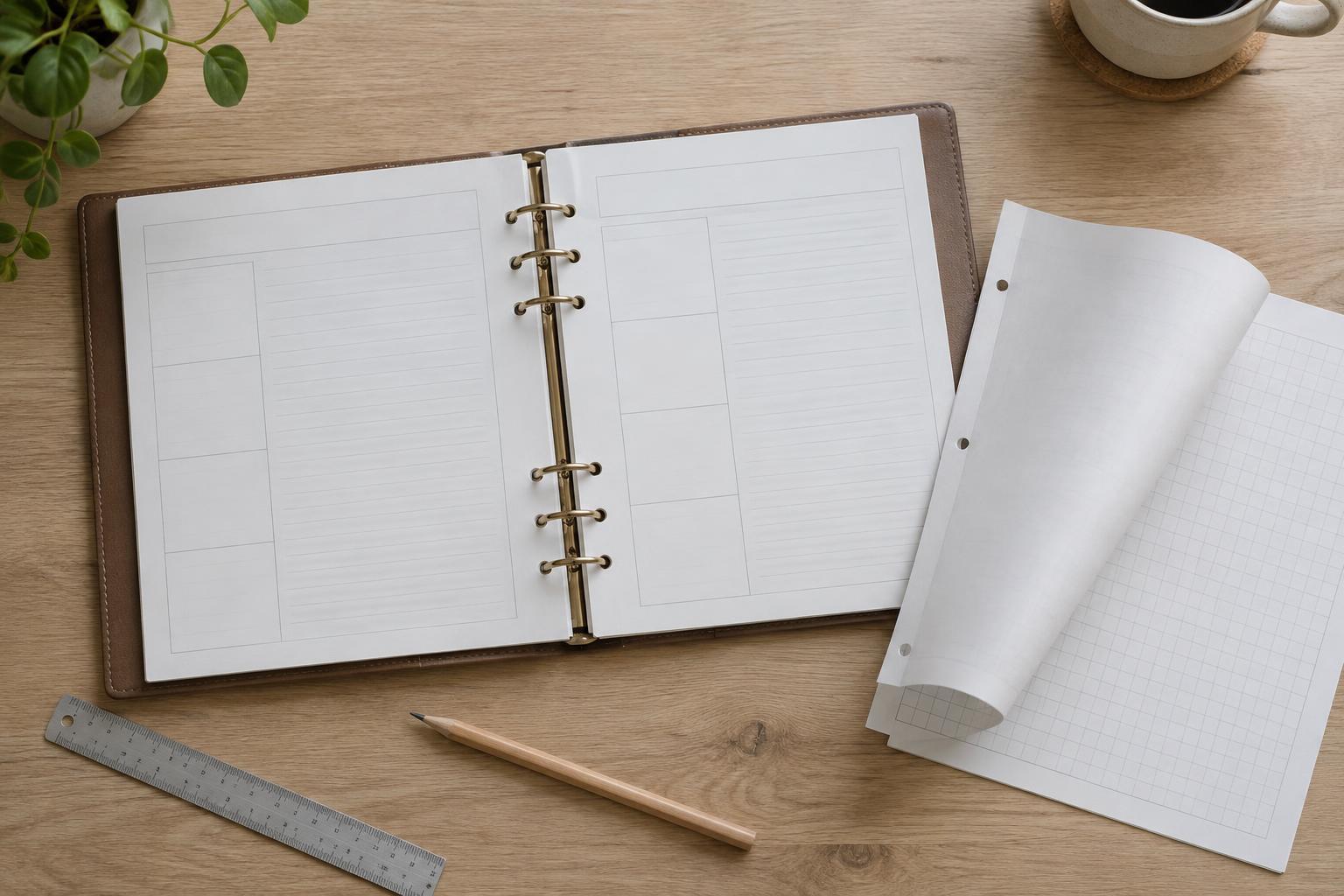
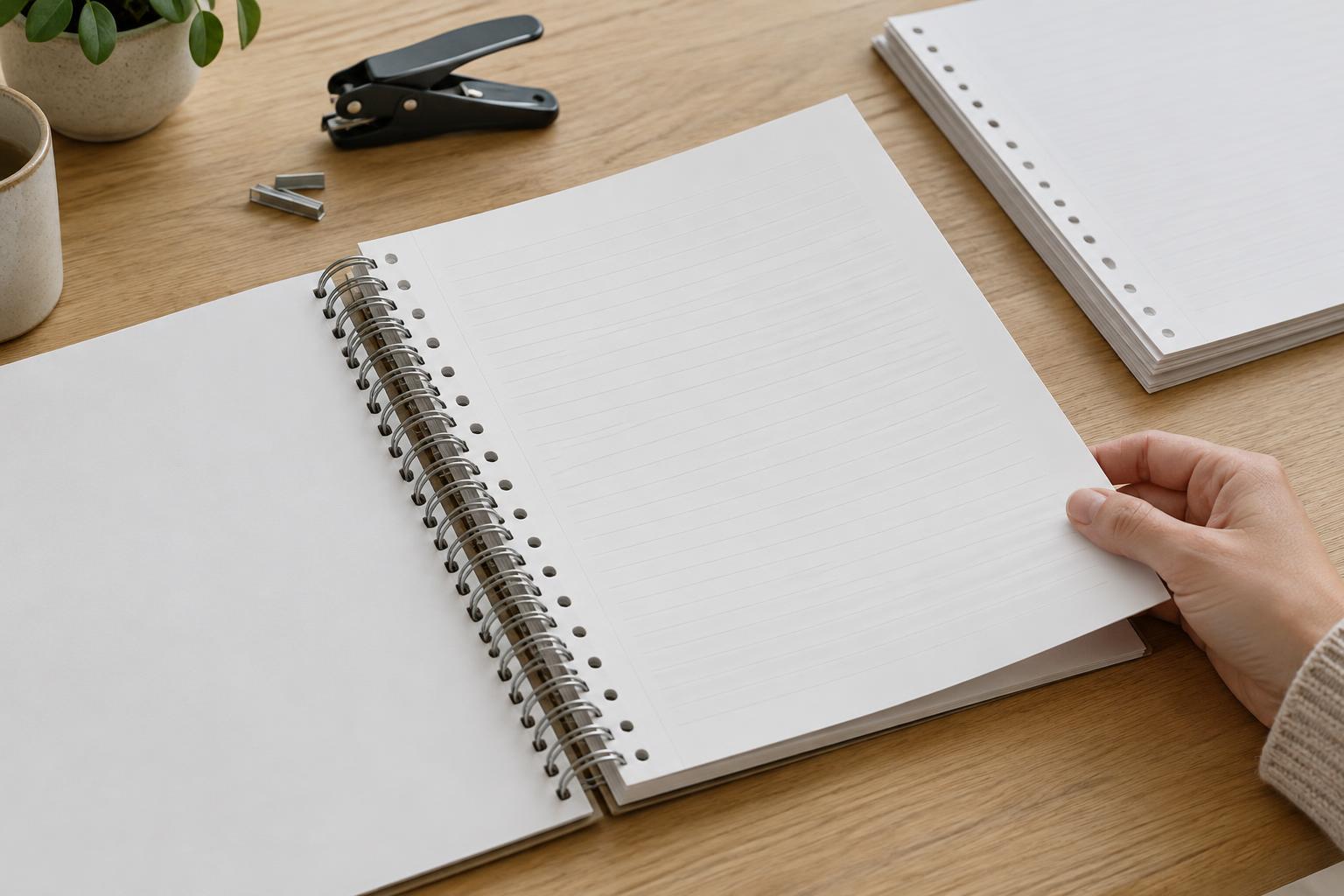
For hole-punched pages, leave space not only for the holes but also for the ring or binder mechanism and the hand that turns the page. A narrow blank strip beside the holes might prevent text from being cut, yet still make the first writing column uncomfortable to reach. For spiral binding, account for the punched edge and the coil itself. Give headings, boxes, and writing areas enough clearance that they do not seem tucked underneath it.
Staples need a different check. If pages will be stapled at one corner, keep essential content away from that corner on every sheet in the stack. If they will be stapled along an edge, treat that edge much like a binding edge. Stapled booklets also require attention to the fold: content near the center of a spread can be harder to read when pages do not open completely flat.
Set margins for single- and double-sided pages
For a single-sided printable, the binding edge is usually the same on every page. You can give that side a wider margin and keep the outer margin smaller, provided the page still looks balanced. A weekly planner bound on the left, for example, might place its day labels and writing lines farther from the left edge while leaving more open space on the right.
Double-sided pages need more planning because the binding edge changes sides. The front of a sheet may need extra room on the left; its back may need extra room on the right. Use mirrored inner and outer margins if your design tool supports them. Otherwise, make separate front- and back-page layouts and check them as facing pages. Remember that a printer may also need an unprinted margin around the paper, separate from the space reserved for binding.
Measure a sample instead of relying on a universal margin
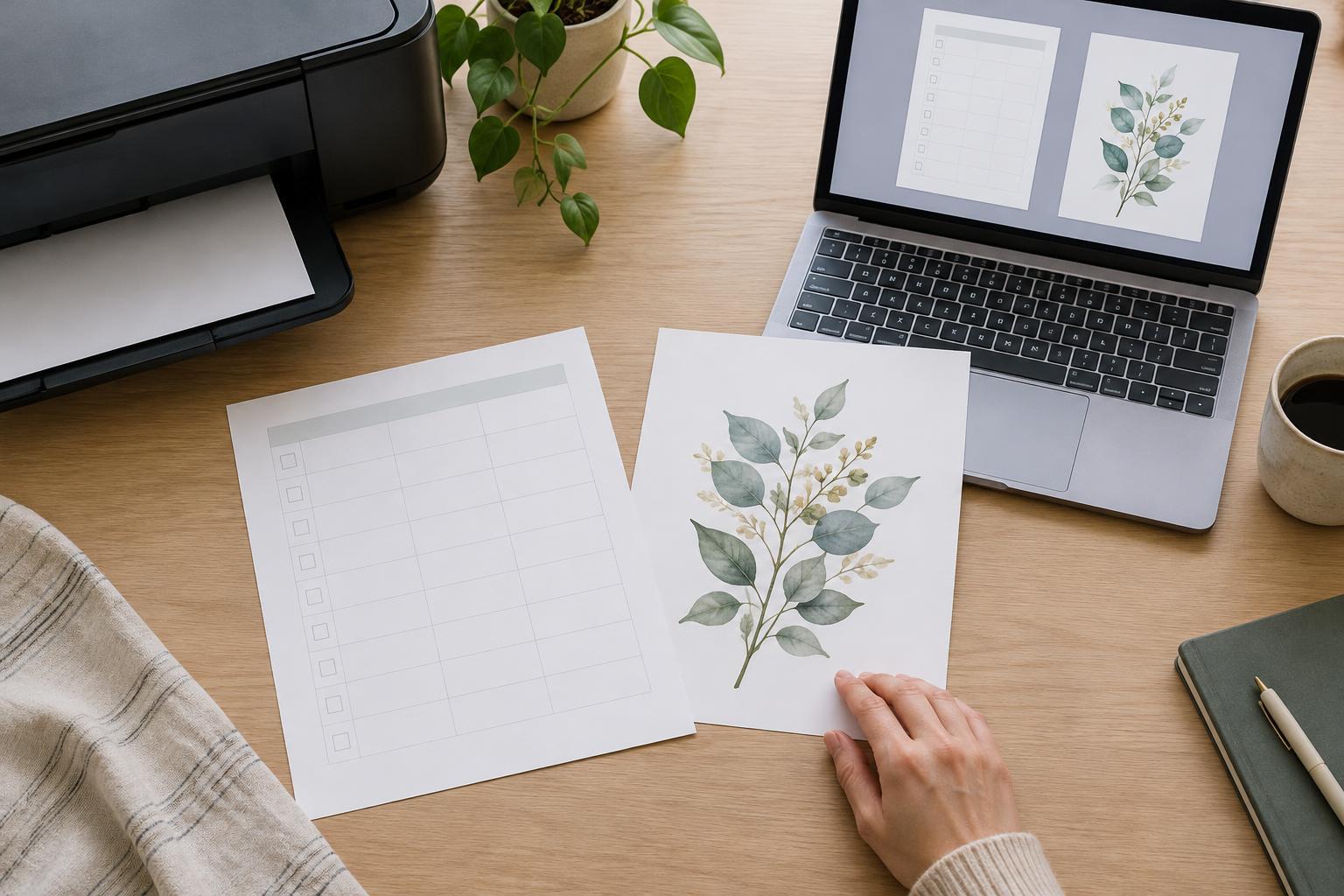
There is no single safe margin for every binder, punch, coil, paper size, or printer. If you know the equipment that will be used, make one sample page with a visible guide marking the proposed content boundary. Print it at actual size, then punch, staple, or bind it. Check whether the holes stay clear of content and whether the page can turn and lie open well enough for its intended use.
If the printable is for an audience using different equipment, be more generous with the binding margin and avoid placing essential details near either side. A simple test page can include a heading, a writing line, a checkbox, and a page number in their intended positions. That reveals practical problems more clearly than checking an empty margin alone.
Protect usability without making the page feel lopsided
A wide binding margin does not mean every element must be centered in the remaining space. Align repeated headings, boxes, and labels to a consistent content grid. If the page feels visually heavy on one side, adjust spacing within that grid rather than moving important information back toward the holes. You can also use a restrained border or background area to make an asymmetric layout feel intentional.
Before finalizing a printable, inspect the pages in the order they will be used. Confirm the binding edge on each side, check corners where staples may land, and make sure no writing space disappears into a coil or binder. One correctly printed and assembled sample is a more useful final check than an on-screen preview alone.