Give each cue a job
A social carousel has two navigation questions to answer: “Is there more?” and “Where am I?” You rarely need a different element for each question. A small “1 of 6” label, for example, tells readers that the post continues and shows its length. On later slides, the same label helps them track their progress.
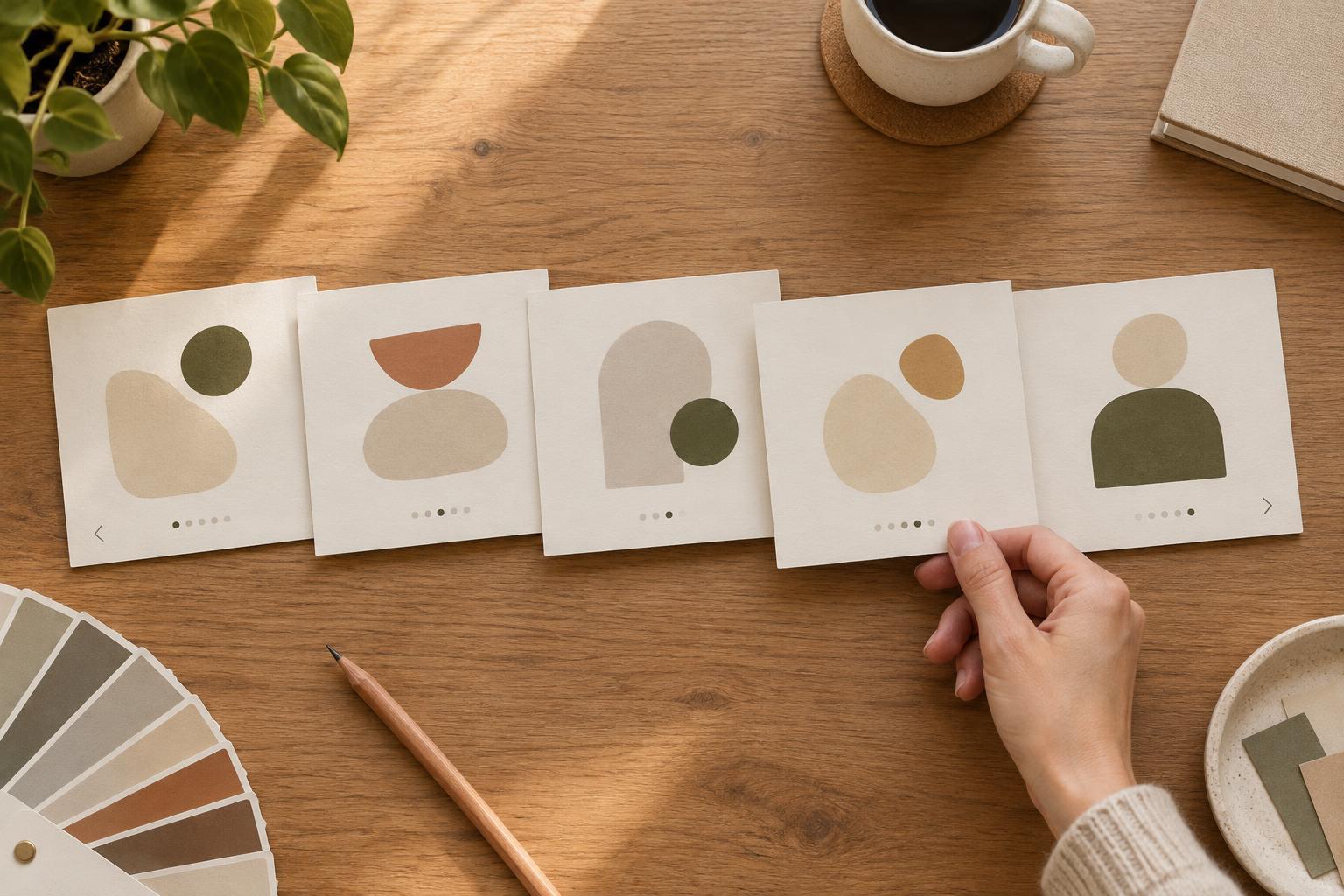
Start by choosing one primary system. Slide numbers work well for a short sequence with a clear beginning and end. A thin progress bar may suit a more visual design, but it needs to be large and distinct enough to remain legible at viewing size. Arrows can suggest direction, yet they should not look like buttons if tapping them will not move the carousel. Using numbers, dots, a bar and an arrow together usually adds noise rather than clarity.
Place cues where readers can find them
Reserve a small navigation area in your layout before arranging the headline, image and supporting text. A consistent corner or footer position lets readers find the cue without searching each slide. It also keeps you from squeezing it into whatever space remains after the main design is finished.
Give that area enough breathing room to survive platform cropping and small-screen viewing. Check the carousel at approximately the size someone might see it on a phone, not only on a large design canvas. If the number disappears beside a busy photograph, put it on a simple background shape or move it to a quiet part of the layout. The cue should be easy to spot when needed, but it should not be the first thing the eye notices.
Use hierarchy instead of decoration
Navigation cues belong below the main message in the visual hierarchy. Try a modest type size, a short label and a restrained color drawn from the rest of the palette. Keep enough contrast to make the cue readable; fading it until it nearly disappears defeats its purpose. A plain “3 of 6” is often clearer than a row of tiny dots that requires readers to count their position.
You can reinforce sequence through the content itself. A repeated heading style, a consistent image frame or a numbered step title gives the slides a shared rhythm. When the layout already signals continuity, the explicit navigation cue can stay simple. Avoid adding decorative chevrons to every corner or repeating “swipe” across the whole sequence. Those elements occupy space that could help readers understand the point of the slide.
Treat the first and last slides differently
The first slide has to earn attention and reveal that there is more to see. A concise headline paired with “1 of 6” may be enough. If the continuation is not obvious, add a brief prompt such as “Swipe for the steps” near the navigation area. Keep it separate from the headline so the topic remains the strongest message.
Middle slides benefit most from consistency: use the same cue, position and spacing throughout. The final slide has a different job. Mark it clearly as the end, then make any next action easy to understand. Do not show a forward arrow that implies another slide is waiting. A final “6 of 6” can stay in place, while the main content offers a recap, a question or another appropriate closing thought.
Test the full sequence, not isolated slides
Before publishing, view the slides in order and ask someone unfamiliar with the design to move through them. Can they tell that the first slide continues? Can they identify their place midway through? Does the ending feel like an ending? These questions reveal navigation problems that may be hard to notice when you are editing one slide at a time.
Then look for avoidable clutter. Remove any cue that repeats information another element already provides, and check whether your labels still work when a caption or interface controls appear near the image. The goal is not to hide navigation. It is to make the path through the carousel clear enough that readers can spend their attention on the content.