Start with what the page needs to communicate
A printable planner page has two jobs: guide the eye and leave room for the person using it. Before choosing colors or decorations, identify the page title, section labels, writing areas and any instructions. Decide what someone should notice first, second and third. That order is your visual hierarchy, and it can exist without large blocks of ink.
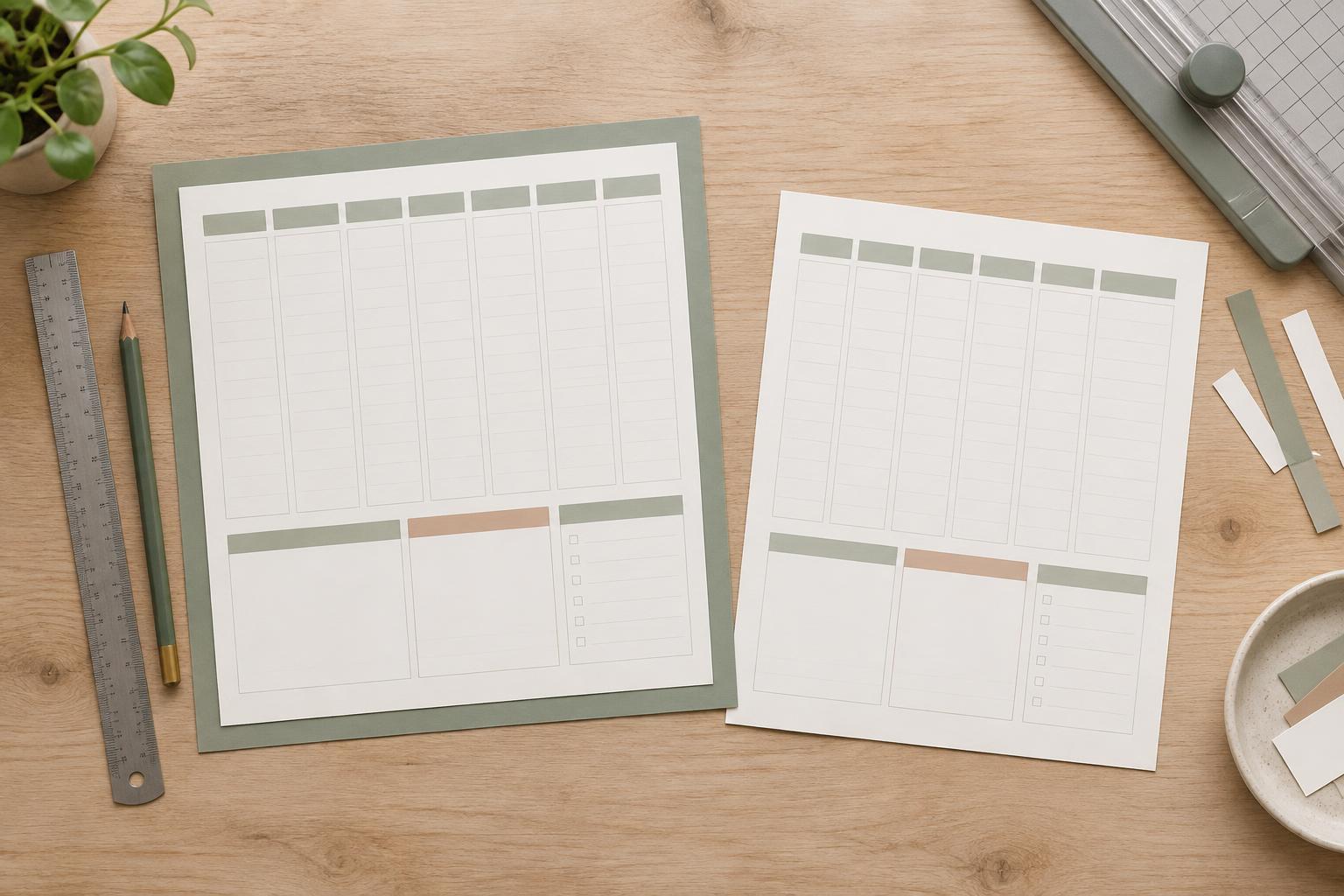
For a weekly planner, the week label might be the strongest element, followed by day names, then optional prompts such as “Top priorities.” Writing lines and decorative details should be quieter. If everything is bold or boxed, the page becomes harder to scan even when the design uses only black ink.
Use space and type before adding color
White space is a useful design tool that costs nothing to print. Give the title a little breathing room, group related fields, and leave consistent gaps between sections. A slightly larger gap can separate two groups more clearly than a shaded rectangle. On a planner page, generous writing space also makes the finished printout more useful.
Limit the type system to a few clear roles: a prominent title, medium-weight section headings and readable labels. Changes in size and weight usually work better than switching among several decorative fonts. Keep small labels especially simple, since fine letterforms may be less clear on an ordinary home printout. If a heading needs more emphasis, try bold type or a short rule beneath it before adding a colored banner.
Replace heavy fills with lighter structure
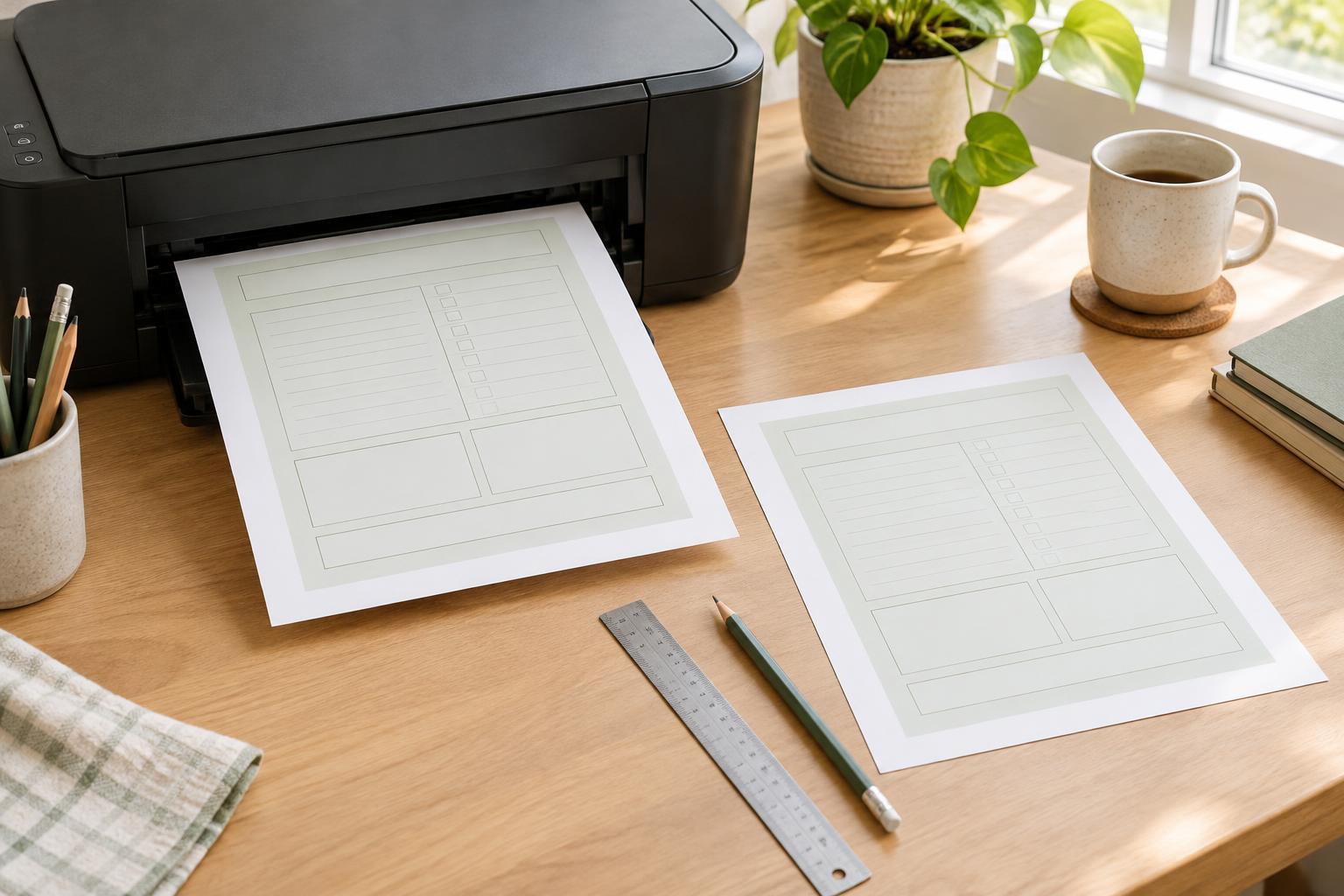
Full-page backgrounds, large shaded boxes and thick borders can use a lot of ink. Often, a thin divider or a small corner label provides the same sense of organization. Use rules to define writing areas only where they help: a habit tracker may need a visible grid, while a notes section might need nothing more than a heading and open space.
Be careful not to make every line so faint that it disappears. A rule should remain visible on a typical printout, but it need not compete with the text. For boxes and tables, consider using darker outer boundaries and lighter internal divisions. This gives the structure a clear shape while keeping repeated marks subdued. Leave checkboxes large enough to mark comfortably, and avoid filling them with color.
Make color optional, not essential
A restrained accent can make a printable feel distinctive. Use it on a title, a small icon or a limited set of headings rather than across broad areas of the page. But do not rely on hue alone to distinguish sections: a person printing in grayscale still needs to tell them apart. Position, labels, type weight and spacing can carry that information.
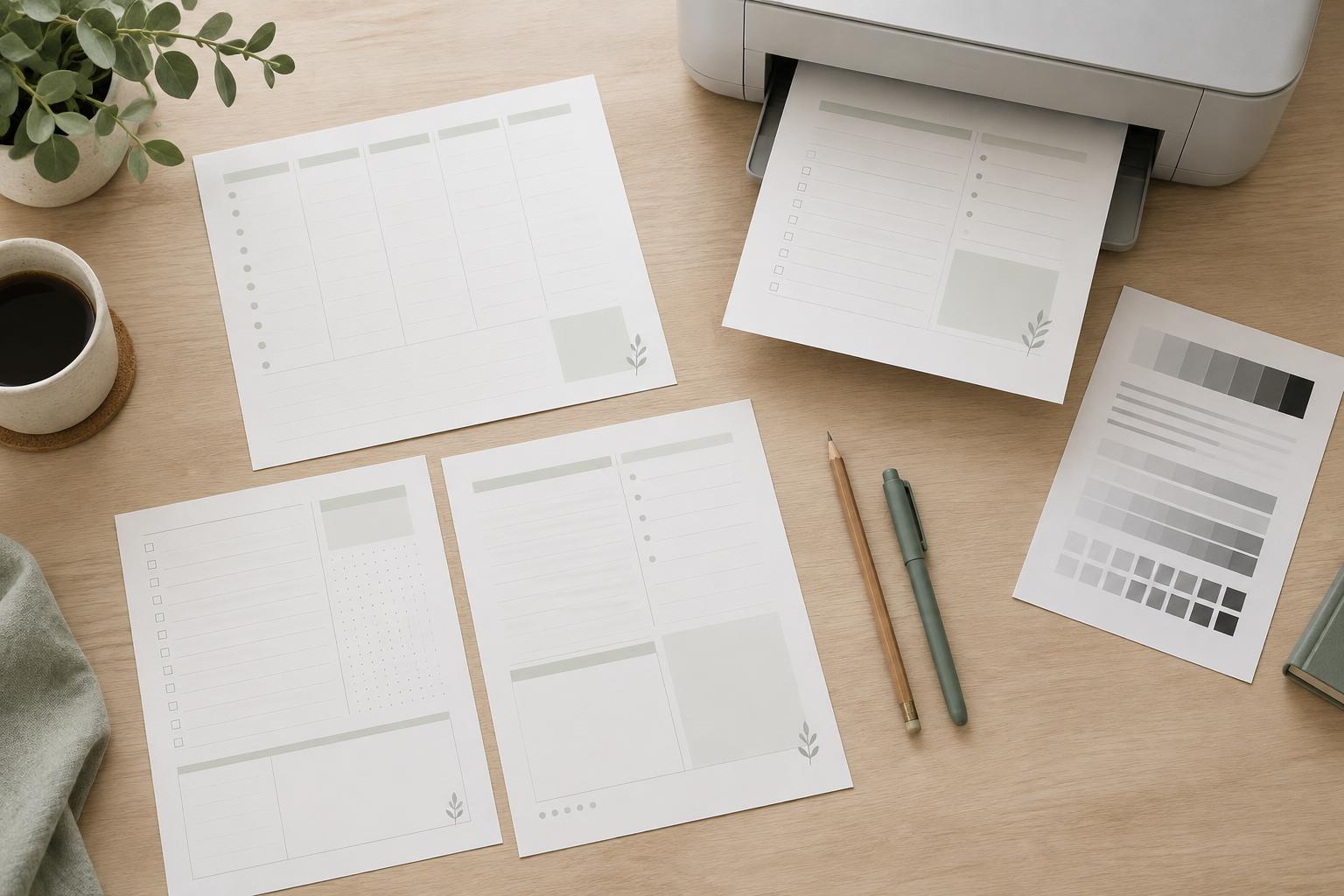
Check the page in grayscale before calling it finished. Colors that look different on a screen may print at nearly the same gray value. If two elements merge, change their weight, size or placement instead of simply choosing another hue. For worksheets and planners meant to be written on, keep the writing surface white or very light so pencil and pen marks remain easy to see.
Test the page as a printout
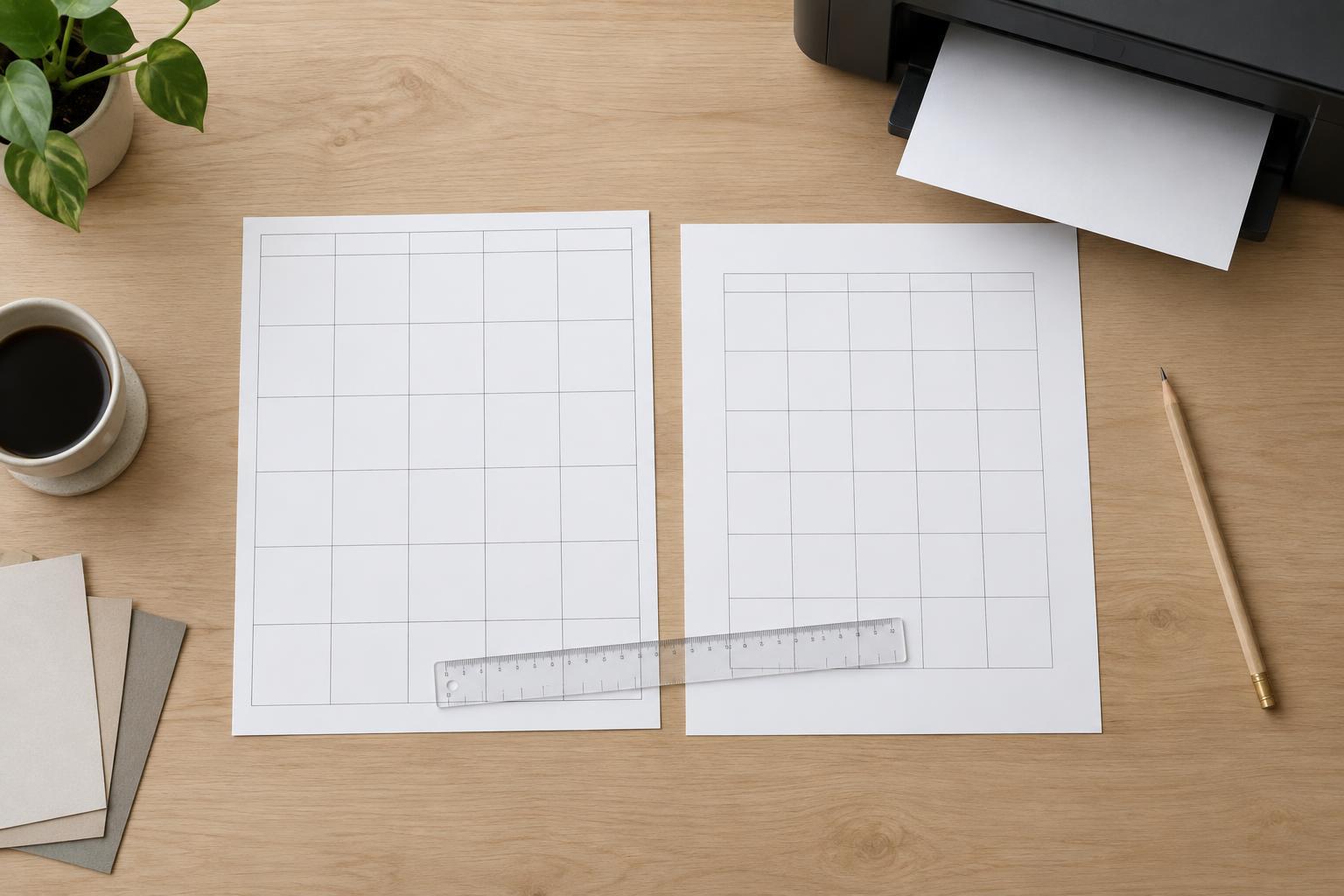
A screen preview can hide problems with scale. Print a draft at the size people are likely to use and check the margins, label size, line visibility and writing room. Look for elements near the edge that a printer might cut off. If the design is meant for more than one paper size, test each intended size rather than assuming the layout will scale neatly.
Make one change at a time during revision. If the page feels flat, strengthen a heading or increase the space above a section before adding decoration. If it feels crowded, remove a border or shorten a label. The aim is not the lightest possible printout; it is a page whose structure is clear, whose writing areas work, and whose ink use feels intentional.