Decide what should lead
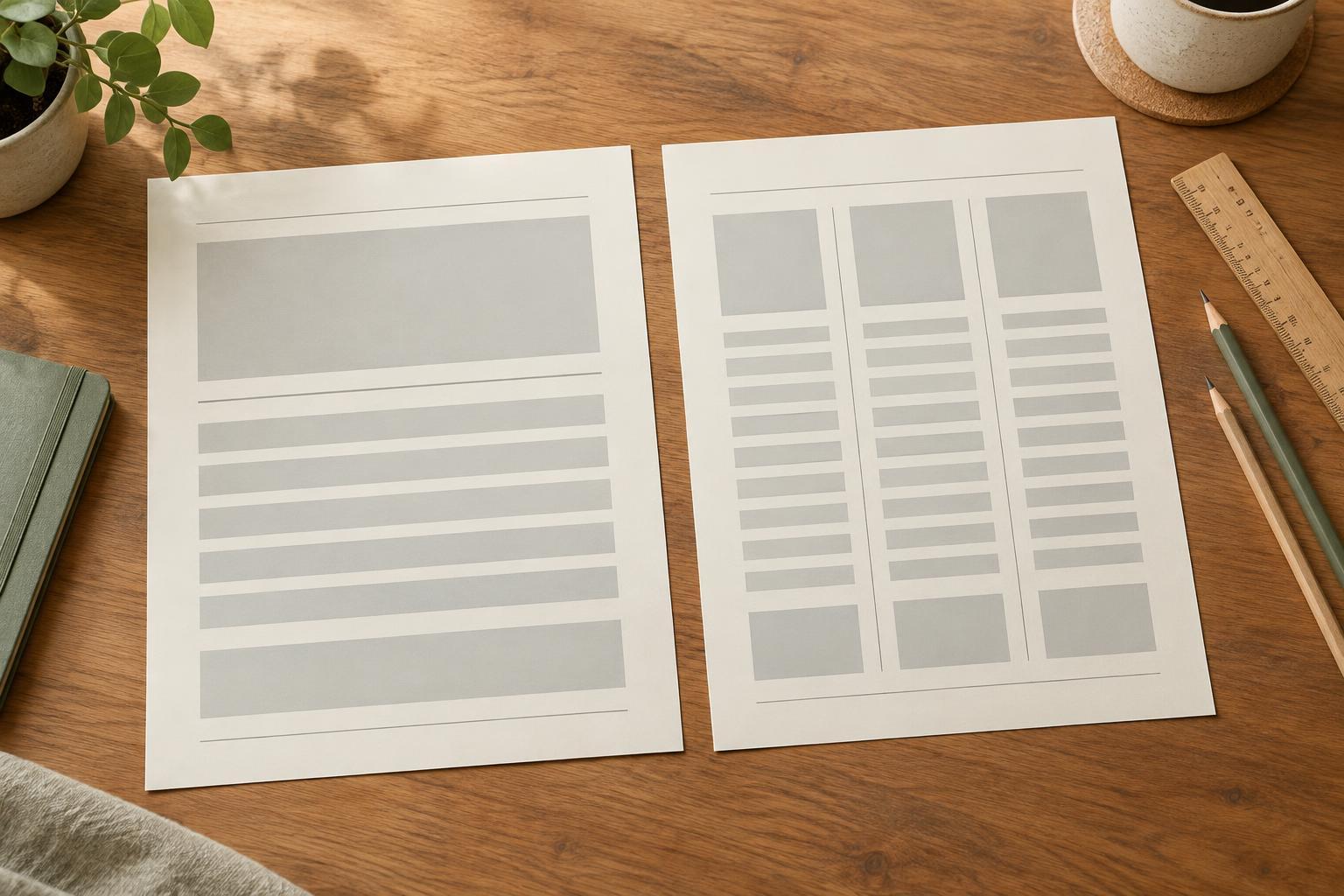
Before adjusting margins, decide whether the image or the text should attract attention first. A photograph that explains the subject may deserve more space than a short caption. A set of instructions may need a wider text area, with the image acting as a supporting example. When both compete for equal attention, the layout can feel crowded even if there is technically enough room.
Start with a simple two-column arrangement. Give each side enough width for its content rather than dividing the space in half by default. A heading and two short sentences can sit comfortably in a narrower column; several paragraphs usually cannot. If the text needs to be squeezed into unusually short lines, widen its column, shorten the copy, or move some information elsewhere. The goal is not to fill every part of the canvas. Open space helps readers understand where one element ends and the next begins.
Create a deliberate gap
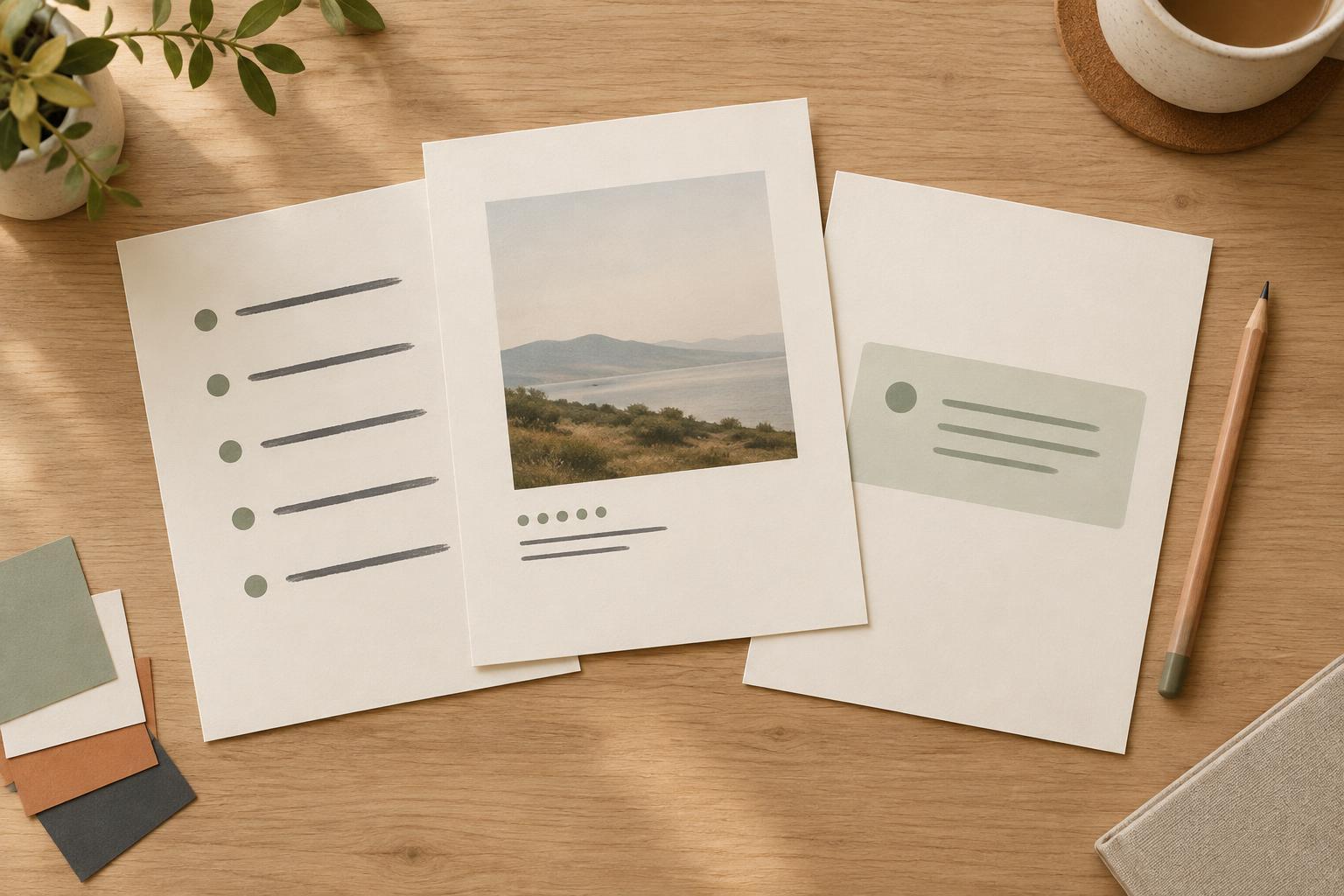
The space between an image and a text block is part of the layout, not leftover room. Too little space makes the words look attached to the image. Too much makes the two elements seem unrelated. Choose a gap that is clearly visible, then compare it with the outer margins. If the gap is much tighter than the margins around the whole composition, the center may feel pinched.
Use a consistent gap when you repeat this arrangement across presentation slides, planner pages, or a series of graphics. You can adjust it when an image has a strong visual edge or when a text block begins with a large heading, but make those changes intentionally. Avoid creating the gap with repeated spaces or manual line breaks in the text. Place the image and text in separate frames or containers so you can resize each one without disrupting the other.
Align the content, not just the boxes
A tidy pair of rectangles will not always look aligned. The visible subject in a photo may sit low in its frame, while the first line of text starts near the top. Check where the reader’s eye actually lands. Aligning the top of the text with an important feature in the image can create a stronger connection than aligning the outer edges alone. For a calm, editorial feel, you might instead align the top of the image with the heading and let the body copy continue below.
Keep the text hierarchy clear within its column. A heading, supporting sentence, and body paragraph need enough separation to be recognized as different levels, but not so much that they appear disconnected. If a heading wraps awkwardly, revise its wording or width before shrinking the type. Readability should take priority over making the text block match the image’s height exactly.
Choose an image crop that leaves room to breathe
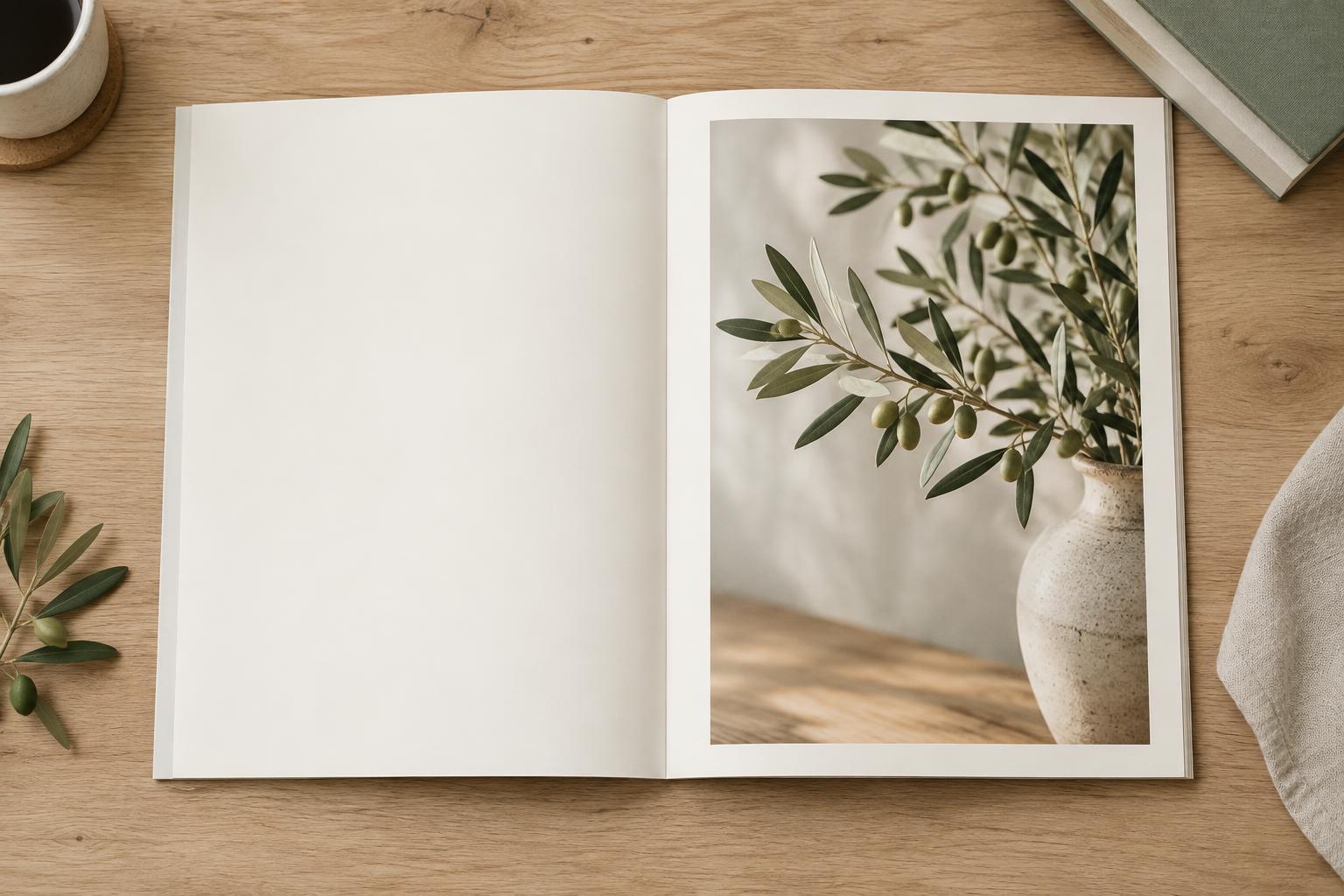
The image frame may have enough space while its subject still feels pressed against the text. Watch for faces, objects, or strong lines pointing directly into the column boundary. Try shifting the crop so the subject has breathing room, or swap the image and text sides if that gives the subject a more natural direction to face. These small changes can make the composition feel more balanced without changing the overall grid.
Be careful with images that contain important words or fine details. A narrow image column may make them hard to see, especially when the design is viewed small. In that case, give the image more width, choose a simpler crop, or place it above the text instead. Cropping should remove distractions, not cut away the part readers need to understand.
Check the layout at its real viewing size
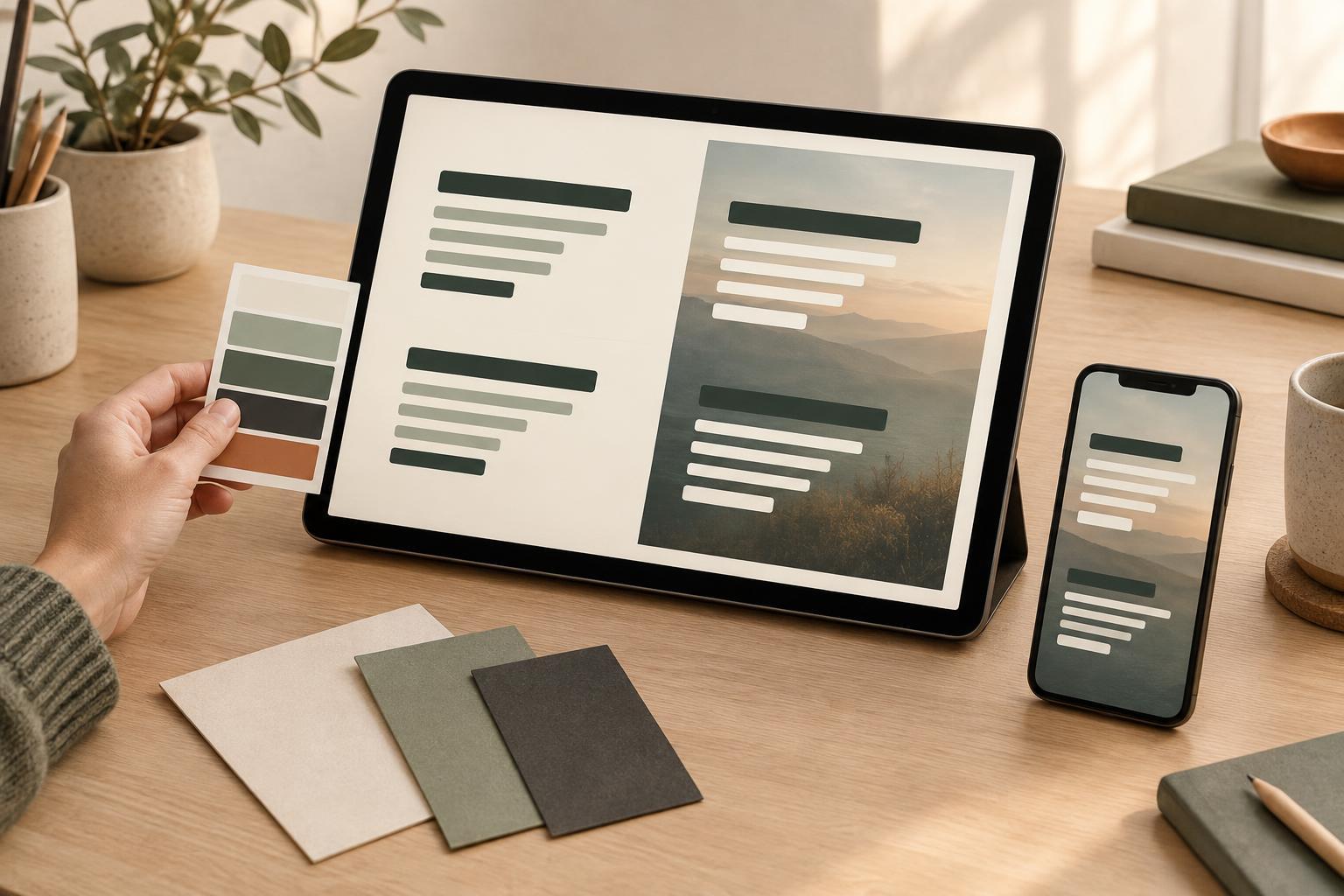
A side-by-side layout that looks spacious while you edit it may feel cramped on a phone or a printed page. Preview it at the size people are likely to use. Look for narrow text lines, a heading that dominates the image, or a gap that nearly disappears. For digital graphics, stacking the image and text may work better than forcing both into a small width. For print, check that neither element sits uncomfortably close to the trim edge.
Make one change at a time when refining the design: adjust the column widths, then the gap, then the crop. This makes it easier to see which change improves the layout. As a final check, briefly look away and return to the page. You should be able to identify the starting point, read the text without strain, and understand why the image belongs beside it.