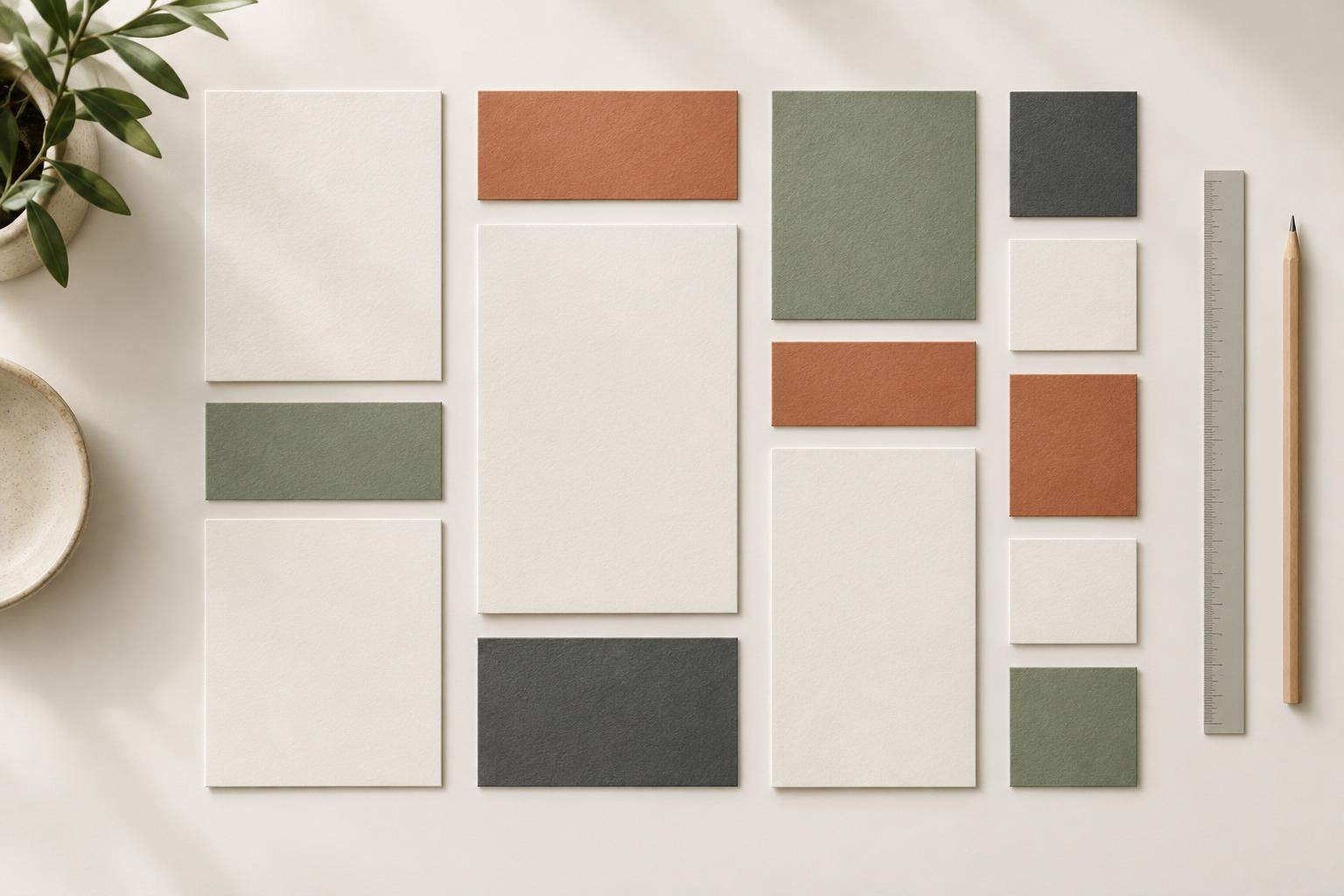
What a spacing scale does
A layout can feel unsettled even when every object is neatly aligned. Often, the gaps are the problem: a heading sits 14 pixels above one paragraph and 19 pixels above another, while similar cards have slightly different padding. None of those choices is necessarily wrong on its own, but together they make the page harder to scan. A spacing scale replaces dozens of isolated decisions with a short list of measurements you use repeatedly.
For example, a digital layout might use 4, 8, 12, 16, 24, and 32 pixels. The numbers are not magic; they simply offer small, medium, and large steps. A printable planner might use an equivalent set in the units of its design file. What matters is the relationship between the steps. Small gaps can keep related items together, while larger gaps can mark the start of a new group. Repetition gives the layout a rhythm, and variation within the scale keeps it from feeling mechanical.
Choose a scale that fits the format
Start with a base step that is easy to work with in your design tool. Four units is convenient for many digital projects because it divides and multiplies cleanly. You could use 4 for a tight icon-to-label gap, 8 for space between related items, 16 for padding inside a card, and 24 or 32 for separation between sections. You do not need to use every value in every design. In fact, choosing two or three frequently used gaps can make a template easier to maintain.
Match the scale to the space available and the intended viewing size. A presentation slide viewed from a distance generally needs more generous separation than a compact social graphic. A printable planner needs enough room for someone to write, not just enough room for the text to fit on screen. Sketch one representative page or slide first, then test the scale on its densest section. If the content feels cramped, adjust the overall scale or simplify the content rather than inventing a different gap for each crowded area.
Use gaps to show what belongs together
Assign spacing according to relationships. A heading and the paragraph it introduces should usually sit closer to each other than that paragraph sits to the next section. In a checklist, each checkbox should be close to its label; the space between checklist items can be a little larger. In a set of cards, keep the internal padding consistent, then give the cards enough room to read as separate units. This pattern helps readers understand the structure before they have read every word.
Try writing a few rules for a template: 8 units between a label and its field, 16 between fields in one group, and 32 between groups. Apply those rules across pages rather than adjusting each instance by eye. When a section has a heading, image, and caption, decide which items form a unit before choosing their gaps. The image and its caption may need a tight gap, while the whole unit needs a larger gap from the following section. Spacing works best when it reflects meaning, not just symmetry.
Balance spacing with typography and alignment
Not every visible gap comes from a margin or padding setting. Line spacing, font size, and the shape of letters affect how far apart elements appear. A large heading may look farther from the next line than its measured gap suggests. Before changing a value in your scale, check whether line height or an extra blank line is creating the problem. Text boxes with different internal padding can also make identical measurements look inconsistent.
Use alignment as a companion to spacing. When headings, body text, and images share an edge, readers can follow the layout more easily, even when the gaps vary by purpose. In a slide, for instance, align the title with the main content and use one consistent gap between repeated content blocks. Then inspect the slide at its normal viewing size. If two elements still appear disconnected, bring them closer using another value from the scale rather than making a tiny, one-off adjustment.
Make exceptions deliberately, then check the whole design
A spacing scale is a guide, not a rule that overrides legibility. An unusually long heading may need more breathing room, and a narrow planner column may require a tighter arrangement. Make an exception when it solves a clear problem, and check whether the same situation occurs elsewhere in the template. If it does, add a reusable rule. If it does not, keep the exception local instead of changing the entire system.
To review a layout, hide decorative details for a moment and look at its groups. Can you quickly tell which labels belong to which fields? Do repeated sections begin at predictable intervals? Compare similar pages or slides side by side and look for gaps that drift. A small set of spacing values will not make every layout identical. It will give you a dependable starting point, so your attention can go toward content, hierarchy, and the few places that genuinely need a different treatment.