Think of white space as a design tool
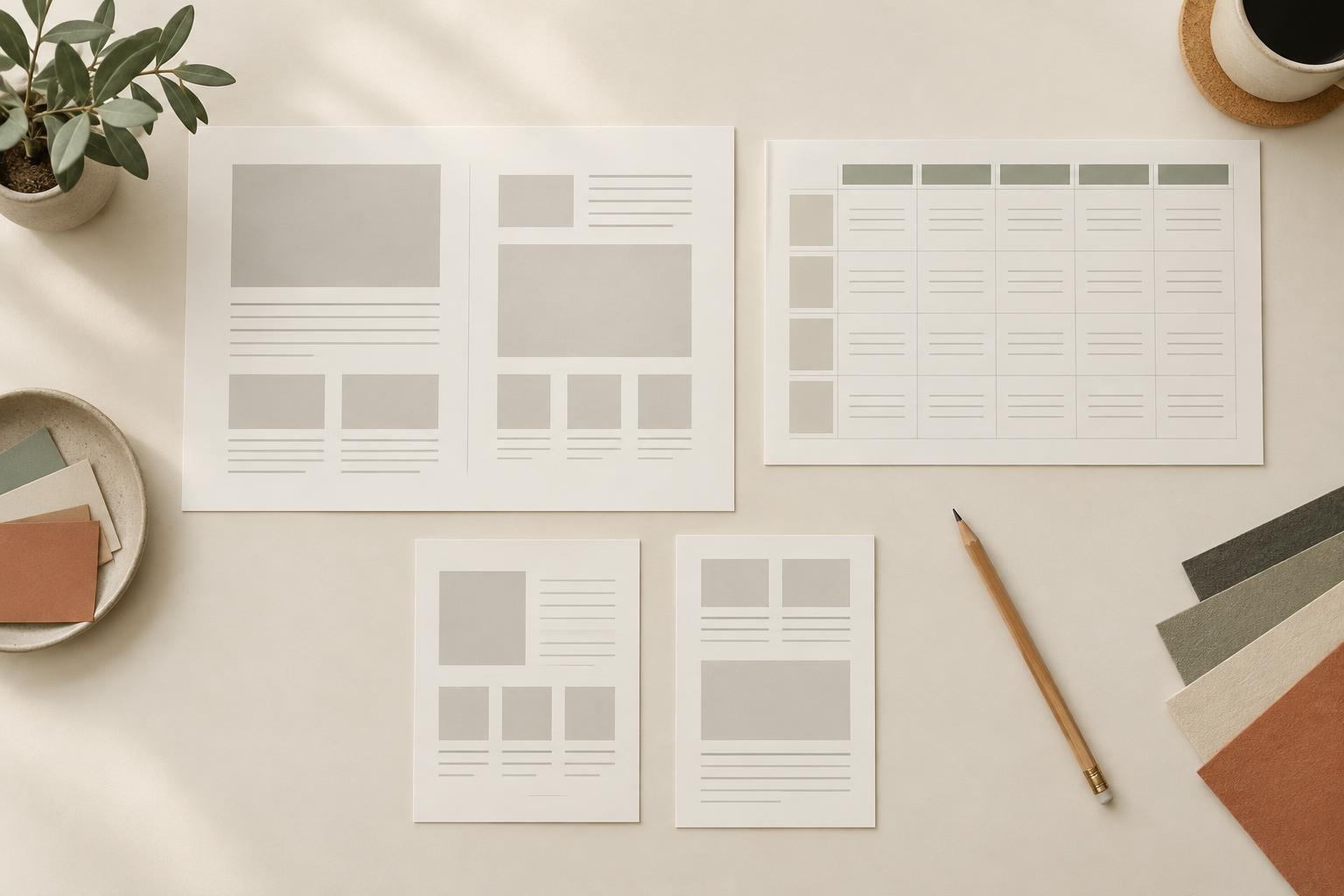
White space is the area around and between elements in a design. It does not have to be white: a colored background, an unprinted margin or a quiet area of a photograph can all serve the same purpose. Its job is to separate information, make important content easier to notice and give the eye a path through the page.
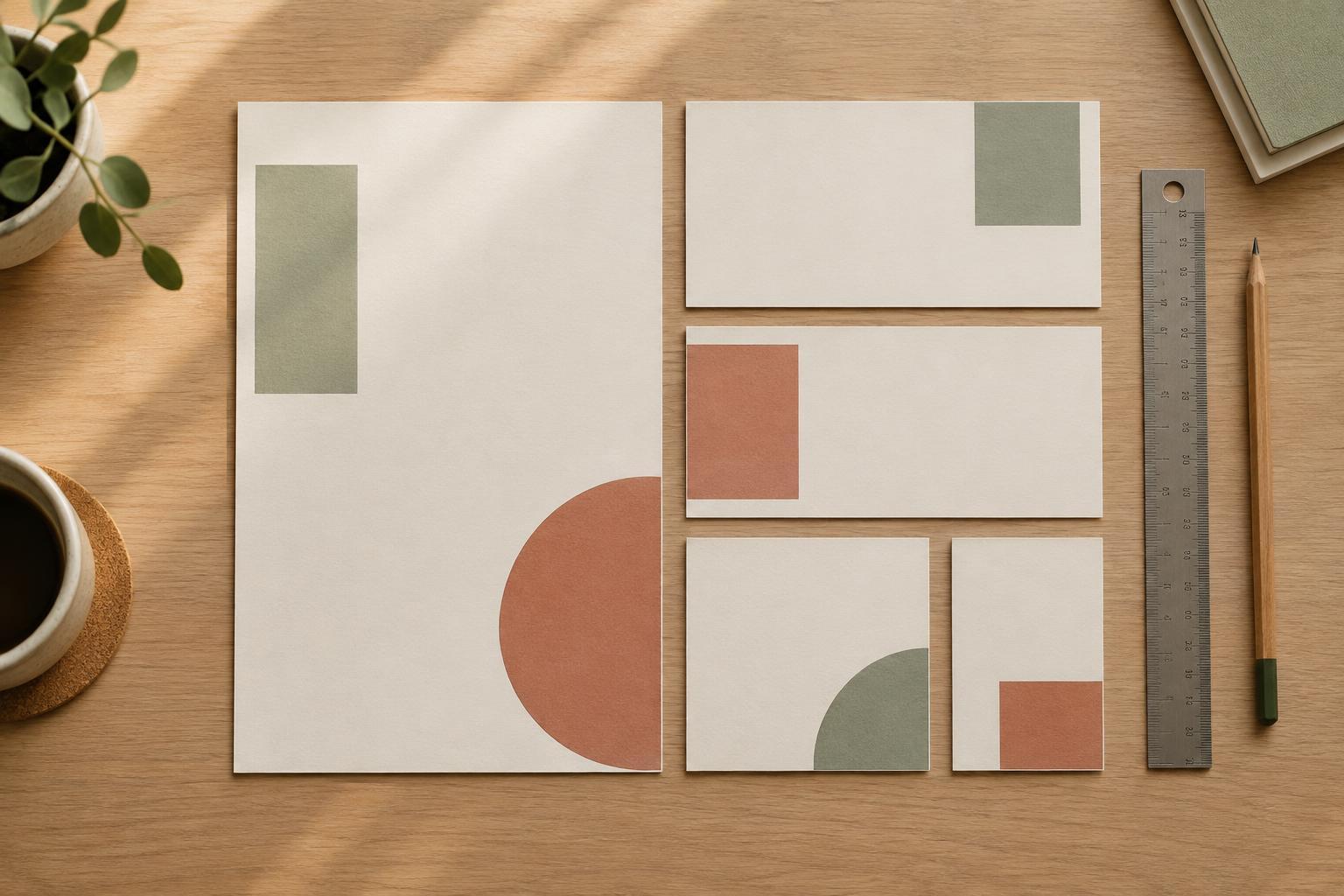
A design tends to feel empty when the remaining space has no clear relationship to the content. A small headline floating in a large canvas, for example, may look accidental. The same amount of open space can feel deliberate if the headline aligns with a supporting image and the space directs attention toward a clear focal point. Before adding a decorative shape to fill a gap, ask what that gap is doing. Is it separating sections, framing an important message or leaving room for someone to write? If it has a purpose, it may not need filling.
Start with a clear content hierarchy
White space works best when readers can quickly tell what matters most. Choose the primary element first, such as a slide title, planner date or social graphic headline. Give it enough room to stand apart. Then place supporting text and details in a smaller, more closely grouped area. This contrast helps a sparse layout feel structured rather than scattered.
Consider a presentation slide with one takeaway and three short points. Instead of spacing every line evenly across the slide, keep the takeaway near the top and group the three points below it. Leave a larger gap between those two parts than between the points themselves. The larger gap signals a change in role; the smaller gaps show that the points belong together. If everything is equally far apart, the audience has to work harder to find those relationships.
When a layout still feels bare, check the strength of the hierarchy before adding content. A clearer headline size, a more distinct supporting style or a stronger alignment may be enough to make the open area feel intentional.
Use a small, consistent set of spacing choices
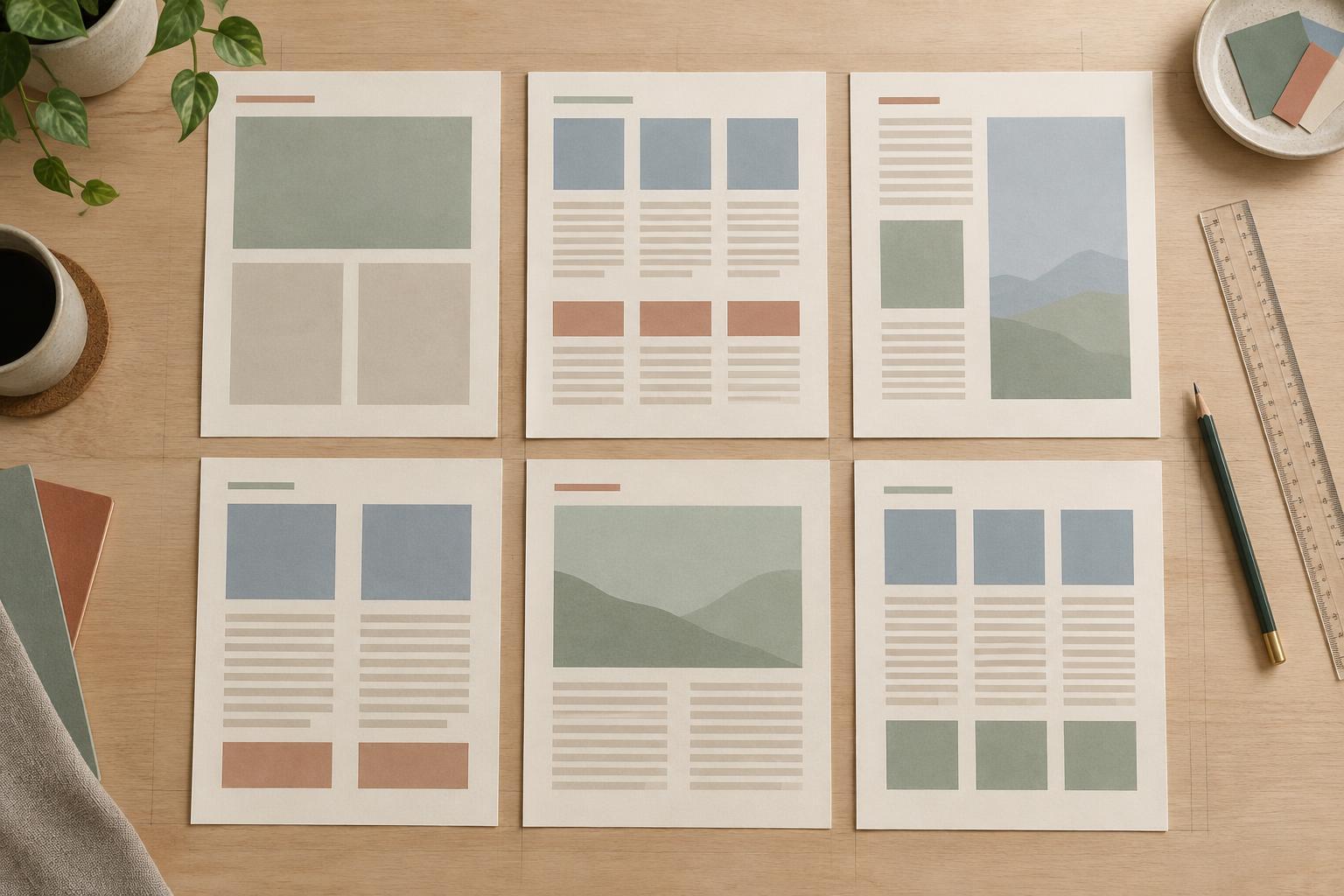
Uneven gaps can make a design feel unfinished even when it has plenty of content. Establish a few spacing choices and reuse them: a small gap for items that belong together, a medium gap between groups and a larger gap between sections. The exact measurements matter less than the relationships. A section break should be noticeably wider than the gap between its heading and paragraph.
Apply the same thinking to outer margins. On a printable planner, consistent margins give each page a stable frame and help prevent writing areas from feeling cramped. On a social graphic, they keep text away from the edges and make it easier to scan. You can still vary the space inside that frame: a checklist may need tighter row spacing, while a notes box benefits from more room.
Alignment reinforces your spacing system. When headings, body text and boxes share an edge, open areas appear connected rather than random. If one element sits off-grid, move it deliberately or bring it back into line.
Balance the visual weight, not just the number of objects
A layout does not need identical amounts of content on both sides. It does need visual balance. A large photo, a dark block of color or a bold headline can carry more visual weight than several lines of small text. Placing extra decoration in every open corner may make the design busier without making it more balanced.
Try looking at the page from a distance or reducing it to a small preview. Notice where your eye lands first and whether it can move naturally to the next element. If one side feels unusually heavy, you might adjust an image crop, shift a text group or reduce the weight of a colored shape. If a sparse area feels disconnected, extend an alignment line into it or position the main content so the open space clearly frames it.
Typography also affects balance. Wider line spacing and larger type create more visual presence without requiring more words. Conversely, a long paragraph in tiny type can leave a large canvas feeling oddly crowded in one spot and vacant everywhere else.
Test the space against the design’s purpose
The right amount of space depends on what someone needs to do with the design. A planner needs usable room for handwriting; a presentation slide needs to be understood at a glance; a digital graphic may need a headline that remains readable at a small size. Judge the layout in its intended format rather than only at a comfortable editing zoom.
For a quick review, first remove any element that repeats information or exists only to occupy space. Then check whether related items sit together, whether section breaks are clear and whether the margins feel consistent. Preview a slide at presentation size, print a planner page at actual size or view a graphic as a small thumbnail. If people can identify the main message and use the space as intended, the design is doing its job.
White space is not a target to maximize or a problem to eliminate. Treat it as part of the content arrangement. When every gap helps group, separate, frame or make room for an action, a simple design can feel complete.