Start with one job for the overlay
A text overlay is the wording placed on top of a photo, illustration, or colored background. In a mobile feed, it may be seen briefly and at a small size. Give it one job: introduce an idea, state a useful takeaway, ask a question, or identify what the graphic is about. If it tries to explain the entire post, the type often becomes too small to read comfortably.
Before designing, finish this sentence: “A reader should understand that this post is about…” Then write an overlay that communicates that idea without requiring the caption. For a post about planning a weekly menu, “Make weeknight meals simpler” gives the reader a direction. The caption can explain the planning steps. An overlay and a caption can work together without repeating every word.
Write for a quick read, not a full explanation
Draft the message in ordinary language, then remove words that do not change its meaning. Compare “Helpful ways to make your daily planning routine feel more organized” with “A simpler daily planning routine.” The shorter version leaves more room for legible type. Short does not have to mean vague, though: “Plan tomorrow in five minutes” tells a reader more than “Get organized.”
Use familiar words and a direct sentence structure. A specific verb often does more work than a string of adjectives: “Sort your tasks by priority” is clearer than “A better, calmer, more productive task list.” If you need a headline and a supporting line, make their roles distinct. For example, “Plan a calmer morning” could sit above “Choose your first task the night before.” The second line adds information rather than restating the first.
Be careful with clever phrasing that needs context to make sense. A pun or fragment may suit a particular brand, but ask whether someone unfamiliar with the post can understand it. If the answer is no, use a clearer overlay and save the playful detail for the caption.
Make line breaks support the meaning
Line breaks shape how a headline is read. Keep words that belong together on the same line when space allows. “Three ways to / simplify your slides” reads more naturally than “Three ways / to simplify your / slides.” Avoid leaving a tiny final word stranded on its own line; it can make the layout feel accidental and draw attention away from the message.
After writing the text, test a few line breaks inside the actual design. Aim for a compact shape with enough breathing room around it. If every arrangement looks crowded, edit the wording before reducing the font size. You can also move a useful detail into the caption instead of forcing it into the graphic.
Give the most important words the strongest visual emphasis. That might mean a larger headline with a smaller supporting line, rather than several phrases competing at the same size. Emphasis should help the reader follow the message in order, not make them guess where to begin.
Protect the text from the background
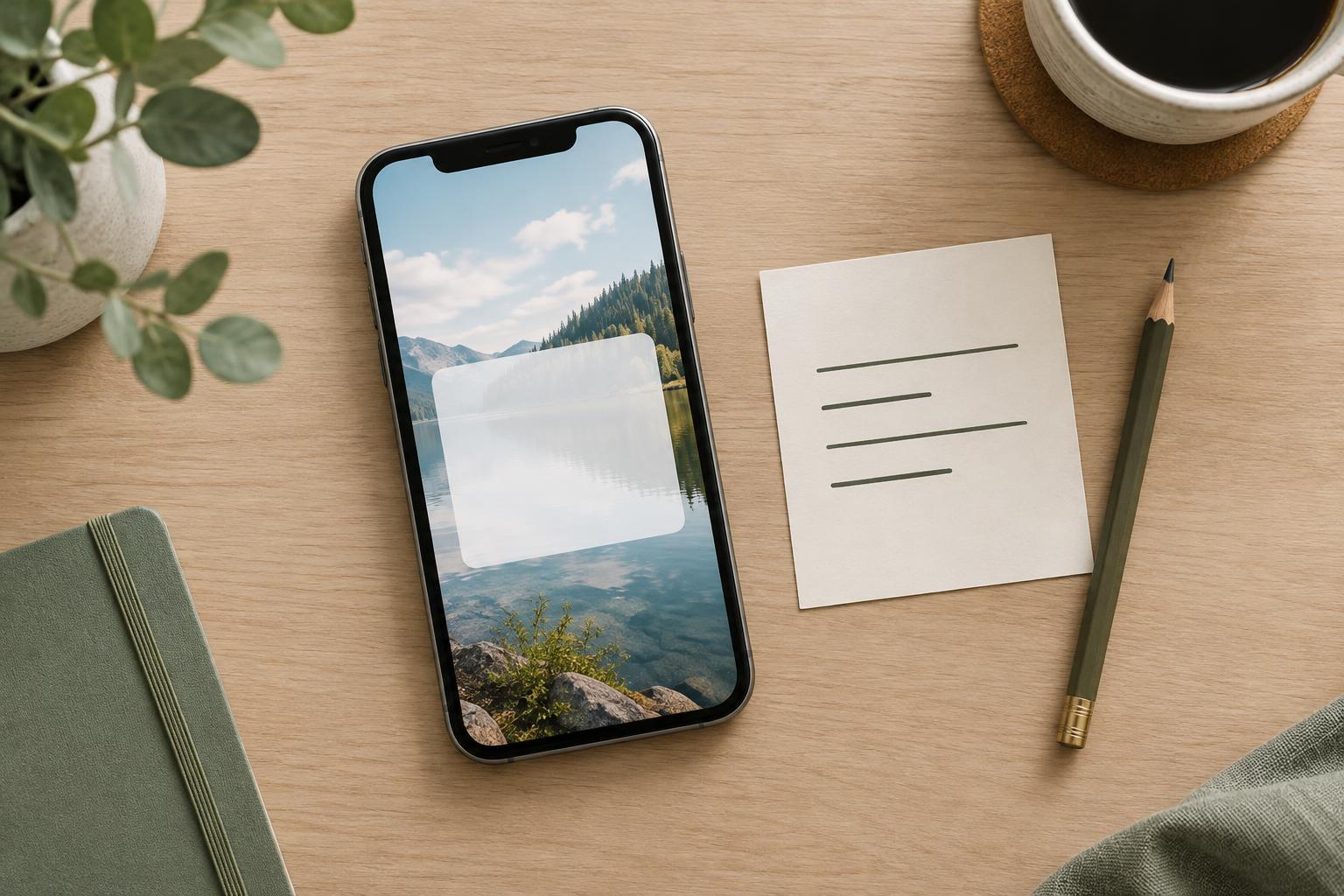
Even concise copy can be hard to read when it sits over a busy image. Place text in a quieter part of a photo, use a solid color panel, or soften the area behind the type. Check that the letters stand apart from the background across the entire line; a headline may look clear over a dark corner but disappear where the photo becomes lighter.
Choose type that remains recognizable at a small size. Decorative fonts may work for a short accent, but a straightforward font is usually a safer choice for the main message. Leave space between the text and the edges of the graphic so the words do not feel squeezed. If your design includes a logo or label, keep it secondary to the overlay’s main point.
Check the finished graphic at phone size
A design that looks spacious while you edit it can feel crowded when reduced to feed size. View the finished graphic on a phone or shrink the preview to a similar size. Look away, then look back: can you read the main message without zooming? Do you know which line to read first? If not, revise the copy, line breaks, type size, or background.
Read the overlay aloud as a final wording check. Awkward pauses can reveal an unnatural line break or a phrase that needs simplifying. Then check spelling and make sure the caption supplies any context the short overlay leaves out. The goal is not to fit the fewest possible words on the image. It is to give readers a clear entry point that is easy to see and worth reading.