Start with the difference
Kerning and tracking both affect the space between letters, but they solve different problems. Kerning adjusts the space between a particular pair of characters. Tracking adds or removes space across a selected word, line, or block of text. If one gap in a headline looks awkward, think kerning. If the whole headline feels too tight or too loose, think tracking.
Most fonts already include spacing decisions made by their designers. Many also include kerning information for pairs that need special attention, such as letters with sloping or overhanging shapes. That is why a good starting point is to leave the font’s default spacing in place, then look at the result in your actual layout. Adjustments should answer a visible problem rather than follow a fixed rule for every typeface.
Use kerning to fix a distracting pair
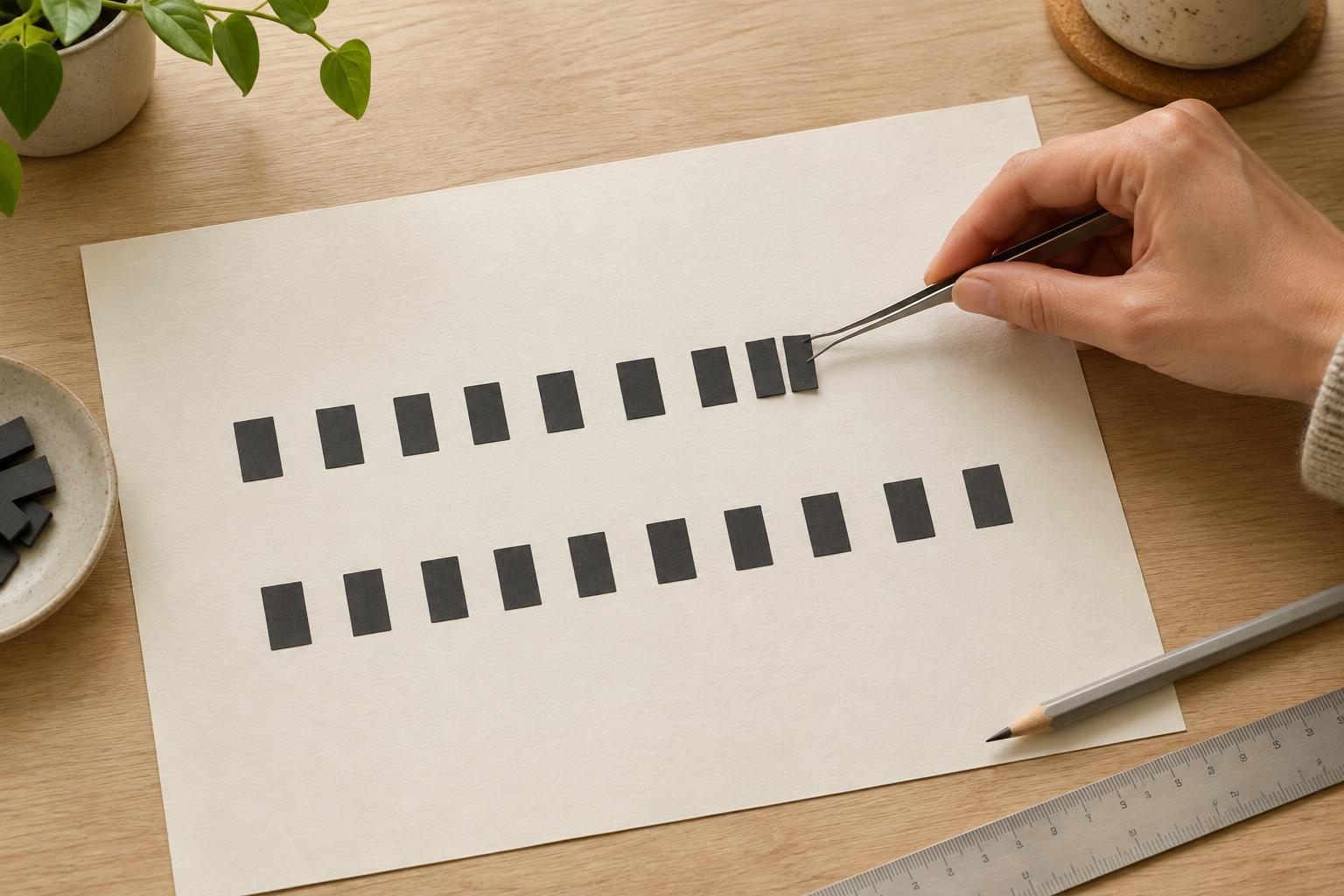
Kerning matters most when text is large enough for individual gaps to stand out. Imagine a presentation title containing “AV”: the diagonal strokes may make the letters seem farther apart than two straight-sided letters beside them. A font’s automatic kerning may handle this well, but if the gap still looks like a break in the word, a small pair-by-pair adjustment can help.
To check a headline, read it once, then look at its spacing as a pattern of shapes. Do any two letters appear unusually close or far apart? Compare the gap with its neighbors instead of trying to make every measured distance identical. Curves, diagonals, and straight edges create different amounts of visible white space, so even-looking spacing is not always mathematically equal spacing.
Make kerning changes sparingly. A logo-like title or a large cover heading may reward close attention, while manually adjusting every pair in a planner’s instructions is rarely useful. If many gaps look wrong, try another font or check whether tracking has been changed before repairing letters one pair at a time.
Use tracking to set the overall rhythm
Tracking is useful when the spacing of an entire selection needs to change. A short, all-caps label on a printable planner might feel crowded at its default setting. A modest increase in tracking can give the letters room and help the label read as a distinct element. A display heading may also benefit from a slight adjustment, depending on the typeface and size.
Be more cautious with paragraphs, captions, and long slide text. Wide tracking can make words harder to recognize as units, while tight tracking can cause letters to crowd together. If body text seems dense, first check the font, type size, line spacing, and column width. Tracking is not a reliable substitute for those broader layout decisions.
Tracking also changes how much space text occupies. In a template, increasing it may push a title onto another line or make a label overflow its box. After any adjustment, check the surrounding alignment and line breaks. A spacing change that improves one word but disrupts the composition may not be worth keeping.
Choose the right adjustment in common layouts
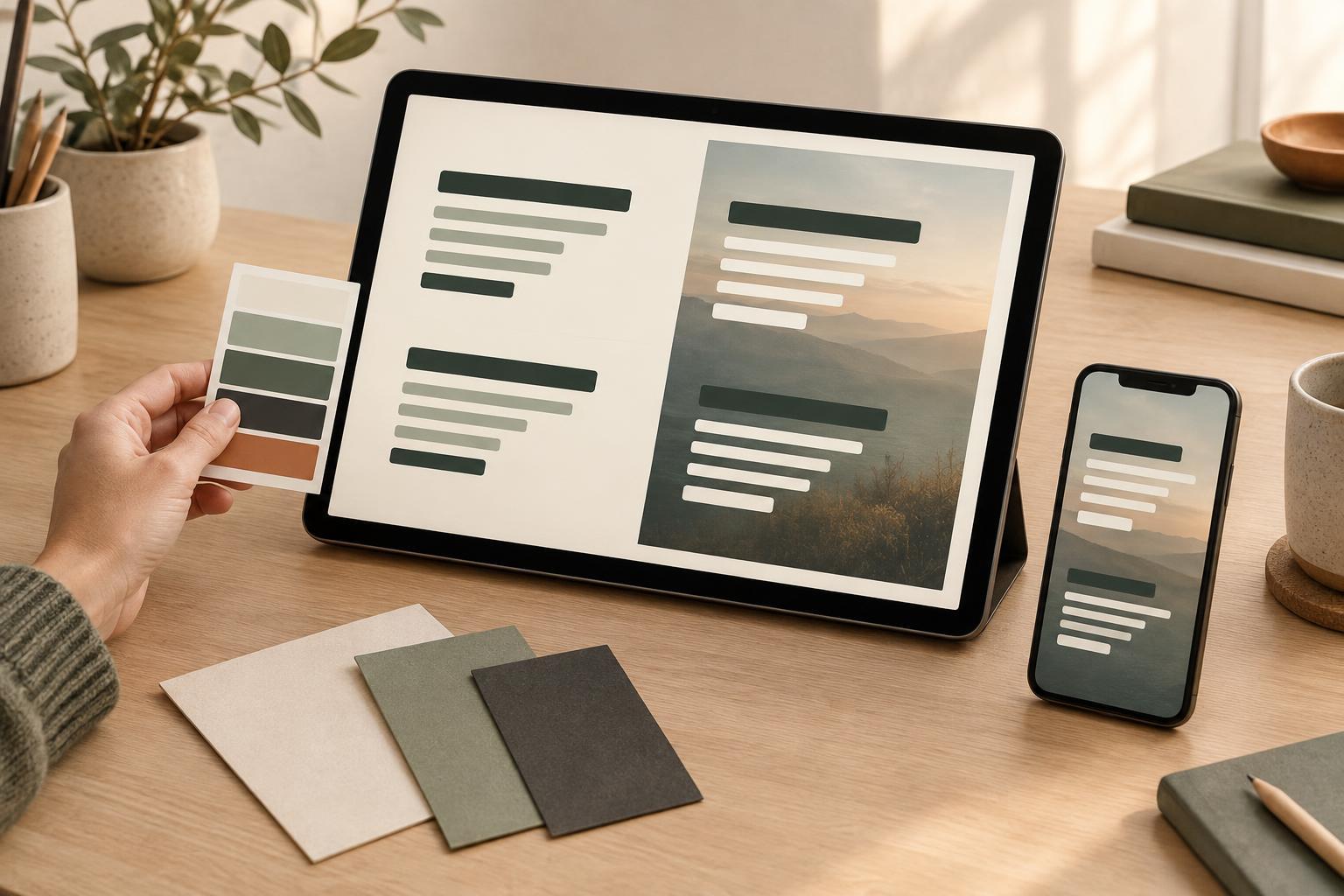
For a presentation title, begin with the font’s default settings and view the slide at a typical viewing size. If the entire title feels compressed, test a small tracking change. If only one pair draws your eye, adjust that pair’s kerning if your software allows it. Keep checking the title as a whole; an isolated gap can look fine while editing and odd once you step back.
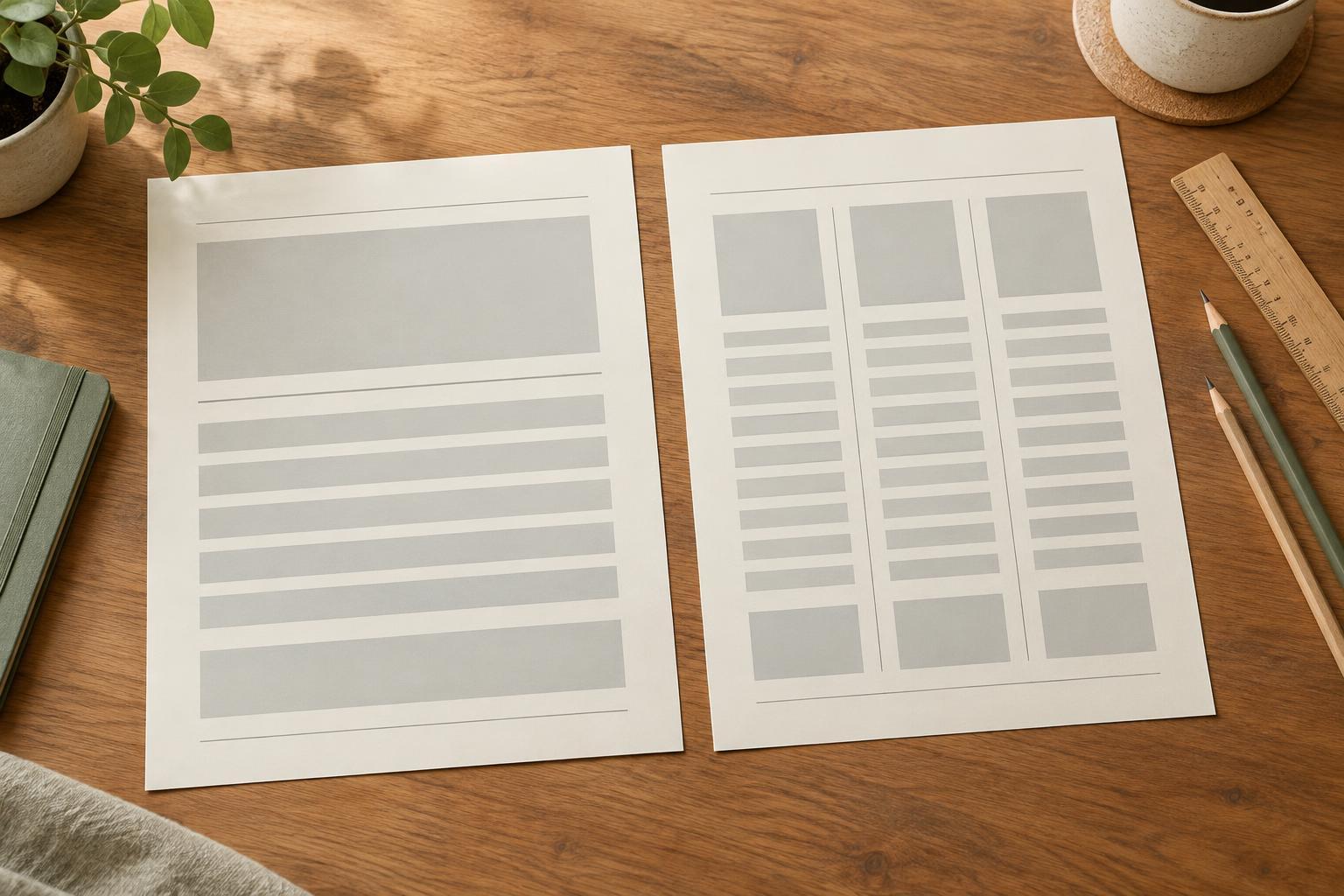
For printable planners, prioritize clear small text. Month names and short section labels may allow a little extra tracking, especially in uppercase, but task descriptions and writing prompts usually benefit from familiar, even spacing. Print a test page when possible: text that looks comfortably spaced while zoomed in may feel different at its final size.
For social graphics, avoid using extreme letter spacing to force text across a shape or image. It may create an interesting texture, but it can slow reading. If a phrase needs more room, try changing the text box width, size, or line break before altering its spacing.
A simple final check
Work in this order: choose a suitable font, set the type size and line spacing, then review letter spacing. Ask whether the issue affects one pair or a whole range. Change one setting at a time so you can tell what helped. If your design tool offers automatic or optical kerning, compare the options visually rather than assuming either will always be best.
Finally, inspect the design at the size and in the format people will use. A slide needs to remain readable from a distance; a planner needs to work on paper; a social graphic needs to survive a small screen. The goal is not to make viewers notice your kerning or tracking. It is to make the words feel steady, clear, and easy to read.