Start with the path a reader’s eyes must follow
When a paragraph feels tiring, the font may not be the problem. The text box might be too wide, or its lines might sit too close together. Line length is the distance from the start to the end of a line of text. Line spacing, sometimes called leading, is the vertical distance from one line to the next. Together, they shape how easily a reader can move across a line and find the beginning of the next one.
These settings matter in a presentation slide, a printable planner and a digital article, but the best values will not be identical. A slide is often read from a distance, while a planner may be read close up and filled in by hand. Rather than looking for one universal number, aim for paragraphs that feel easy to follow in their intended setting.
Set a comfortable line length first
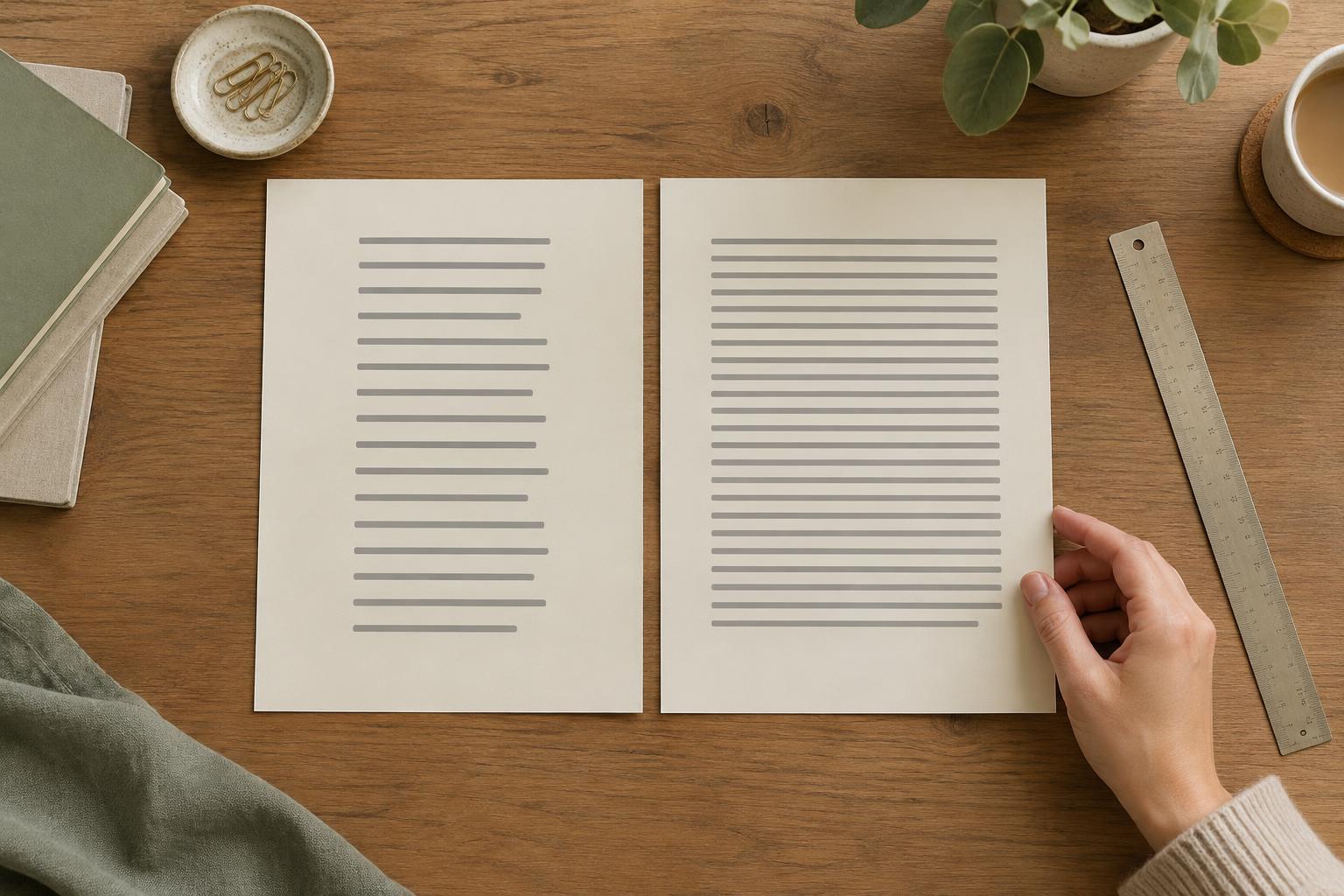
A very wide text box can make each return to the left edge feel like a long jump. Readers may lose their place between lines. At the other extreme, a narrow box breaks sentences repeatedly and can make even a short paragraph look tall and choppy. The useful middle ground depends on the type size, font, available space and amount of text.
To adjust line length, change the width of the text box before shrinking the type. In a slide, you might keep an explanatory paragraph in a column rather than stretching it across the full canvas. In a printable instruction sheet, a margin or second column can help contain a long line. For a digital layout, check what happens when the viewing area gets narrower: a width that works on a laptop may wrap awkwardly on a phone.
Read several consecutive lines, not just the first one. If you repeatedly have to search for the next line, try a narrower box. If phrases are broken into stacks of one or two words, give the text more width, shorten the copy or reconsider the type size. The goal is a steady reading rhythm, not perfectly equal line endings.
Use line spacing to keep lines distinct
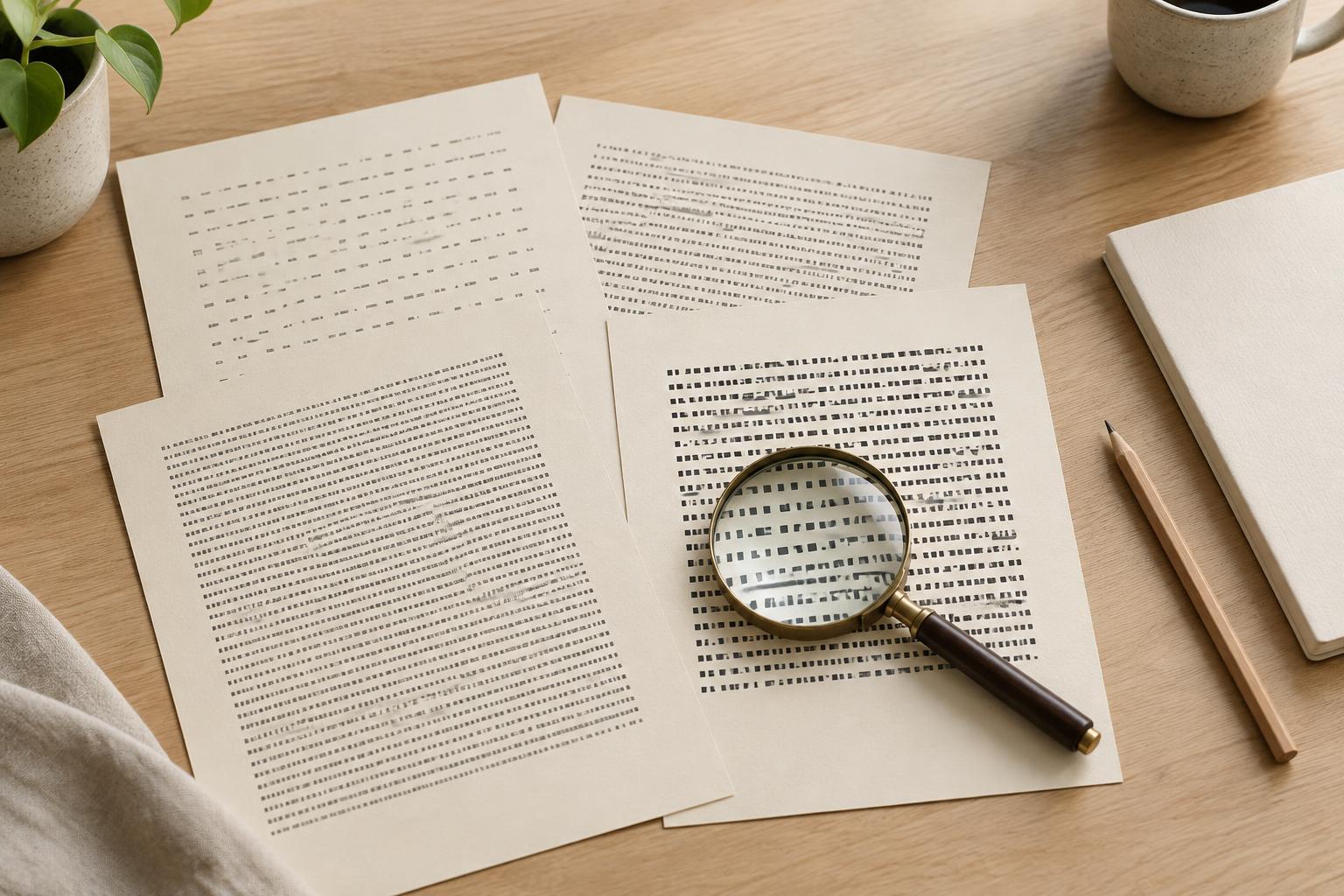
After setting the width, look at the space between lines. Spacing that is too tight can make the paragraph appear dense, especially when letters have tall strokes or the text is small. Too much space can separate lines that belong to the same sentence, forcing the reader to work harder to keep them connected.
Begin with the font’s default line spacing, then adjust in small steps while viewing a whole paragraph. If the lines seem to crowd one another, add a little space. If each line looks almost like its own paragraph, reduce it. Some fonts need more room than others, so copying a spacing value from a different template may not produce the same result.
Check paragraph spacing separately. Line spacing controls the distance within a paragraph; paragraph spacing creates a break between paragraphs. A modest, consistent gap between paragraphs can clarify structure without making every line farther apart. In a planner with short instructions, that distinction helps keep related directions together while separating one task from the next.
Adjust width and spacing as a pair
Changing one setting often changes how the other feels. Narrowing a text box adds line breaks and makes the paragraph taller. Increasing line spacing adds more height again. If the result no longer fits, resist the urge to compress everything at once. First ask whether the paragraph can be edited, moved to another area or divided into smaller, meaningful parts.
Consider a slide with a title and a long supporting paragraph. Letting the paragraph run almost edge to edge may save vertical space, but it can be hard to scan from across a room. A narrower text box and slightly more generous line spacing may improve its shape. If that pushes the text off the slide, reducing the copy is often clearer than squeezing the type. For a printable page, the same paragraph might have more room because the reader can hold it close.
Test the layout where it will be used
Review a complete page or slide at its likely viewing size. Zooming in until the letters fill your screen can hide problems that appear at normal size. If you are making a printable, inspect a printout when practical. For digital content, check both a wide and a narrow display. Look for lines that are difficult to track, crowded rows and awkward word breaks.
Keep a small set of paragraph styles in your template so similar content uses consistent widths and spacing. When you change a style, check several examples: a short paragraph may look fine while a longer one reveals the problem. A useful final test is to read the text without thinking about its design. If you can move from line to line without noticing the layout, the two settings are probably doing their job.