What are widows and orphans?
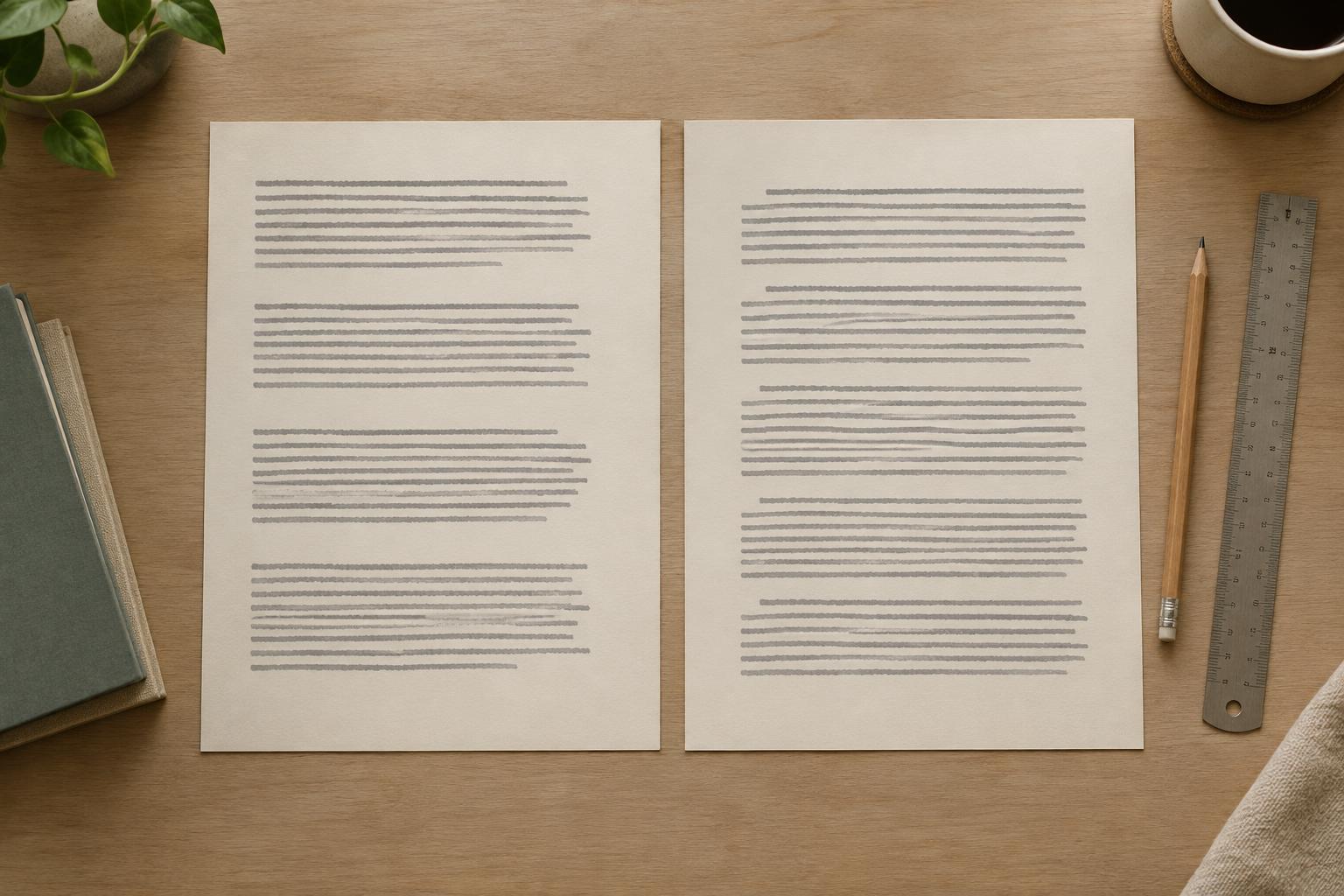
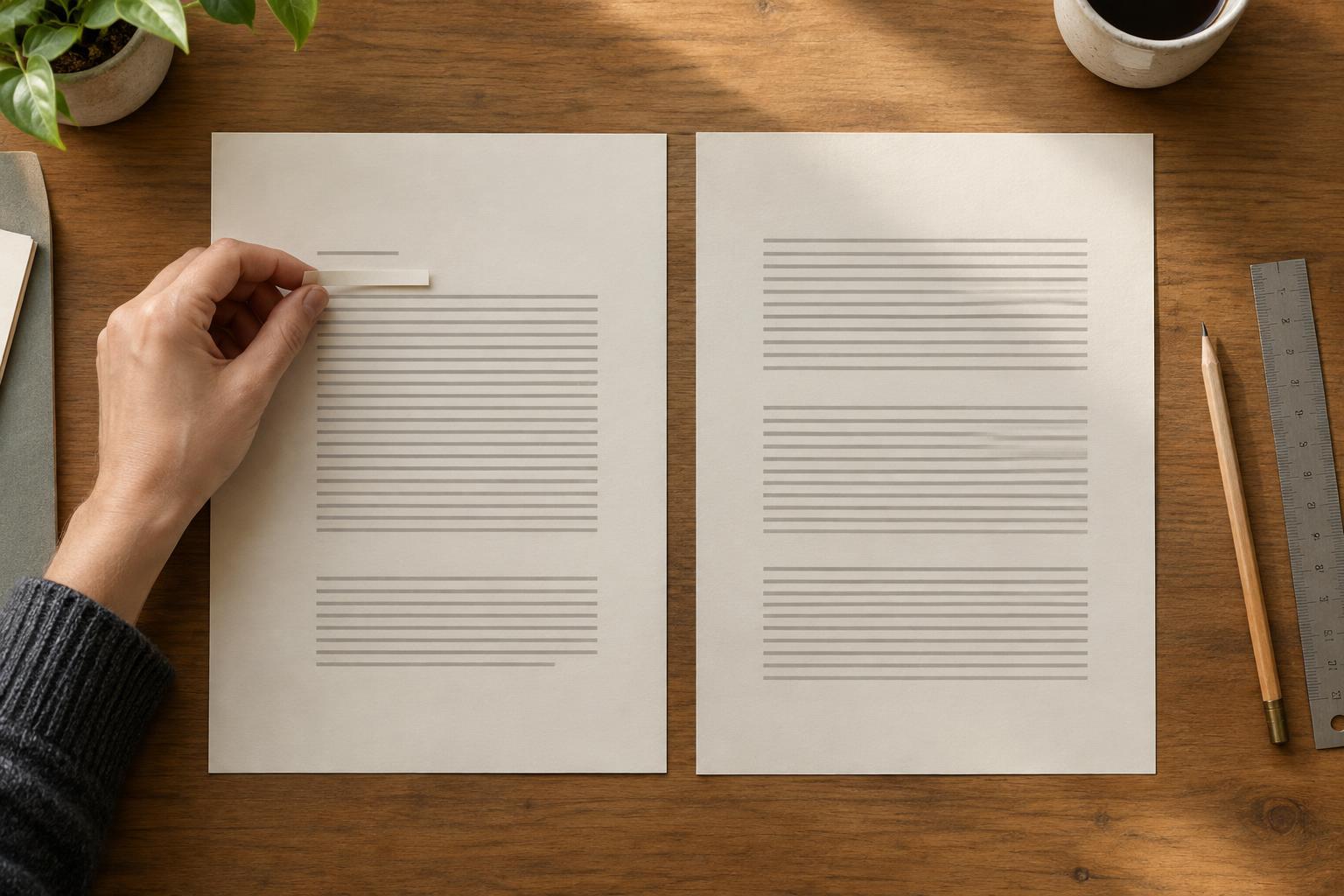
A widow or orphan is a short piece of text separated from the lines around it. The terms are used differently in some design tools and style guides, but they usually describe two problems: a lone final line of a paragraph at the top of a new page or column, and a lone opening line left at the bottom of the previous one. Both can interrupt the flow of reading.
Designers also use “widow” informally for a single word stranded on the last line of a paragraph. That may not match your software’s definition, but it is worth noticing. In a wide presentation text box, one tiny word on its own line can look accidental. In a narrow planner column, it can waste space that the layout needs.
Not every short line is a problem. A deliberate short closing sentence can provide a pleasing pause. The question is whether the break makes the reader hesitate or draws attention away from the message.
Check the layout before changing the words
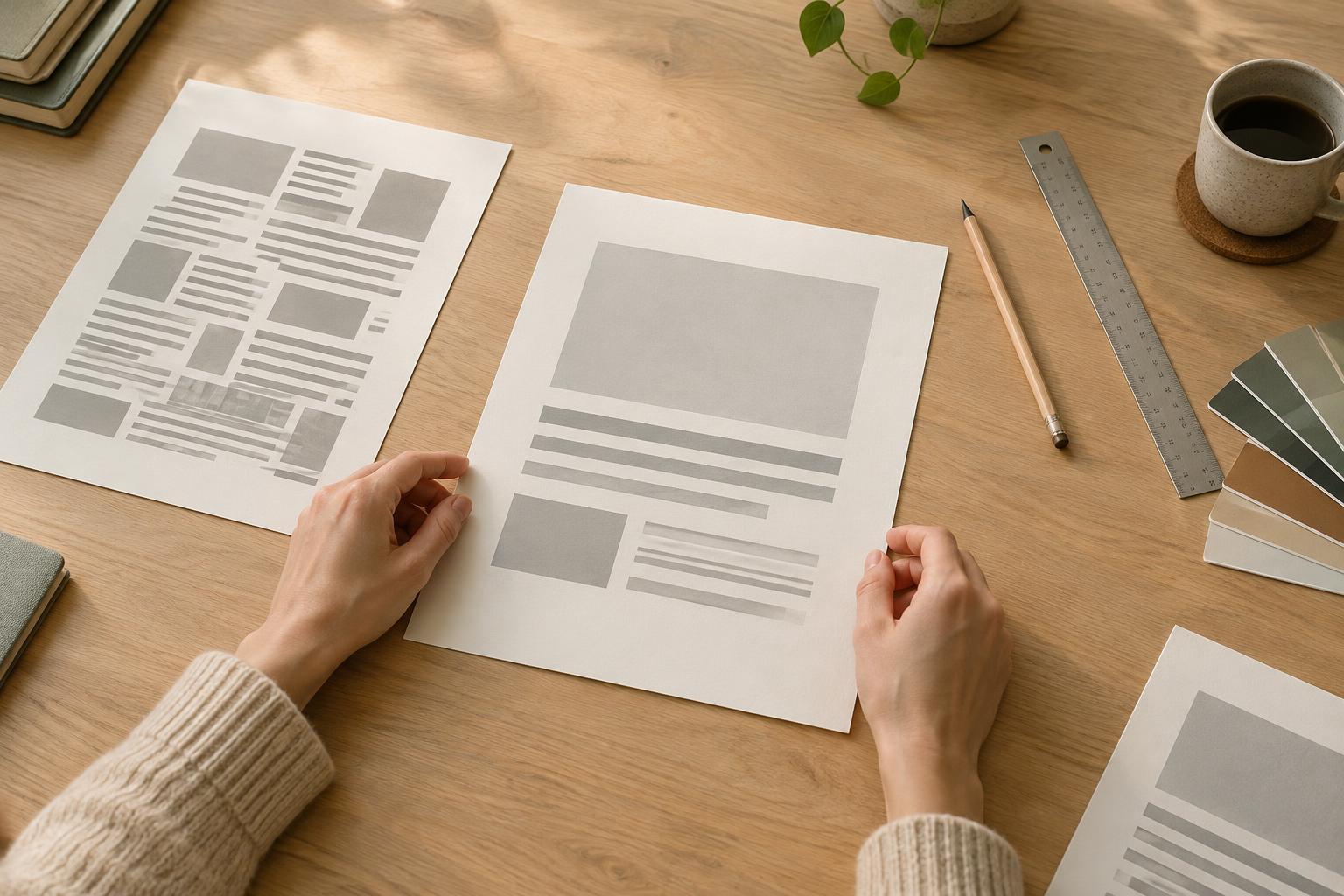
Read the page at its intended size. A break that looks glaring while zoomed in may be barely noticeable on a printed worksheet; one that seems harmless on a large monitor may stand out on a projected slide. Look at the paragraph together with its heading, nearby images, margins, and surrounding text boxes. The goal is to improve the whole composition, not just one line.
Next, check whether the text area is narrower than it needs to be. A box may have been squeezed to align with an icon, or a generous internal margin may be reducing the usable width. A small increase in width can pull a stranded word back into the previous line. Keep an eye on alignment, though: fixing one paragraph should not leave its box noticeably out of step with the rest of the design.
If the text is in a document with pages or columns, look for paragraph controls such as “widow and orphan control” or “keep lines together.” These can prevent a paragraph from splitting awkwardly. Their exact names and behavior vary by application, so inspect the result after enabling them; a protected paragraph might move and leave a larger gap elsewhere.
Use small typographic adjustments
When the text box is already the right size, try a modest adjustment to the text. Slightly changing the font size or letter spacing may be enough to improve the wrap. Compare the result with similar text on the page so that one paragraph does not appear unusually tight or small. Avoid compressing type simply to make everything fit; comfortable reading matters more than saving a line.
Line spacing and paragraph spacing affect vertical breaks rather than the words on a line. If a lone line has moved to the next page, a small spacing change across a consistent set of paragraphs might keep it with its neighbors. Make that change through a shared text style when possible, then review every place that uses the style. A local fix can create new awkward breaks later in the document.
Typography settings are most useful when the adjustment is subtle. If a paragraph needs aggressive shrinking to fit, treat that as a sign to reconsider the amount of copy, the size of the text area, or the overall page layout.
Edit the copy when spacing is not enough
Rewriting is often the cleanest fix. Remove a repeated phrase, replace a long expression with a shorter one, or split an overlong sentence. To pull a single word off the last line, you may only need to cut a few characters earlier in the paragraph. You can also add a little useful detail when a paragraph ends with a very short line, but do not add filler just to make the shape look even.
For a slide title or other display text, try writing a balanced two-line version rather than letting the software choose an awkward break. Keep the meaning clear and give each line a natural phrase. A manual line break can work well in a fixed presentation or printable, but use it carefully in layouts that may resize. As the available width changes, a forced break can produce an extra-short line.
After editing, read the copy again. A smoother silhouette is not an improvement if the sentence becomes stiff, vague, or harder to understand.
Make a final pass across formats
Awkward breaks can reappear when you change fonts, duplicate a template page, export a file, or view a design at a different size. Before finishing, scan headings and paragraph endings, then check page and column boundaries. Pay particular attention to reusable templates, where a text box that fits sample copy may struggle with longer real content.
For printables, review a print preview or test print if one is available. For presentations, inspect the slides at a viewing size rather than only in the editor. For flexible digital layouts, favor sound text-box sizing and clear copy over manually forced line endings. The best fix is one that keeps the design readable even when its content or viewing conditions change.